TABLE — Table
 Ribbon: Annotate ▸ Tables ▸ TableCommand:
TABLEAlias: TB
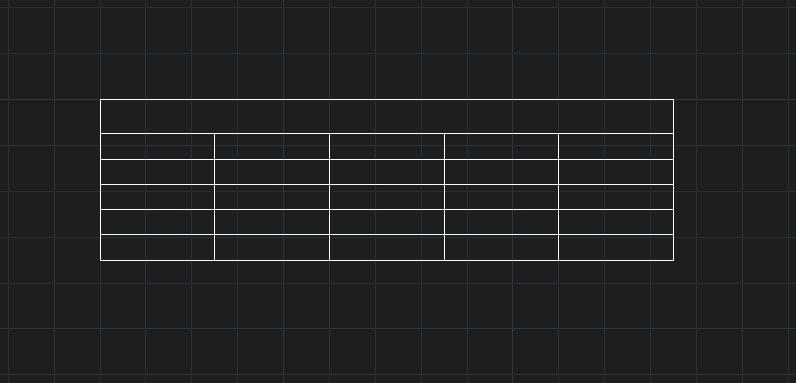
TABLE inserts a table made of a title row, a header row and data rows.
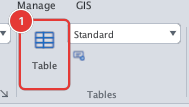
- Click Table or type
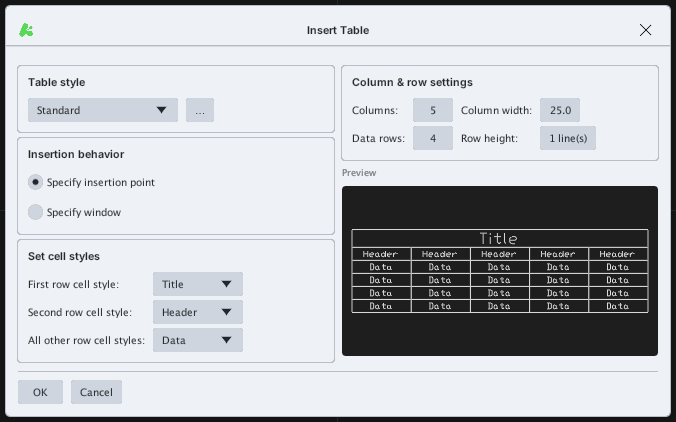
TB, Enter. - Choose the Table style, Columns, Column width, Data rows, Row height; choose Specify insertion point or Specify window.
- Click OK, then click the insertion point (
Specify insertion point:) or the two window corners (Specify first corner:/Specify second corner:). - The Table Editor opens at once so you can fill in the cells.
Editing cells (Table Editor)
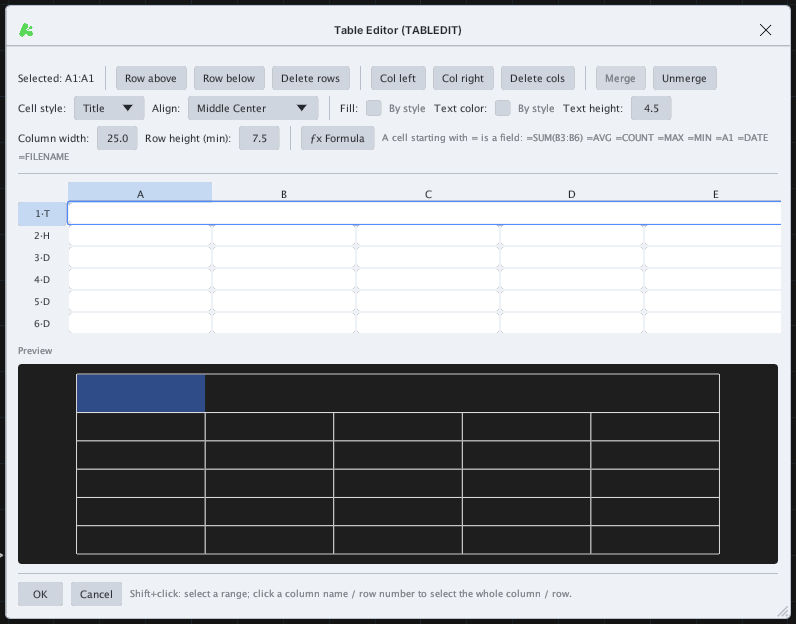
| Button | Effect |
|---|---|
| Row above / Row below / Delete rows | Insert a row above / below, delete rows |
| Col left / Col right / Delete cols | Insert / delete columns |
| Merge / Unmerge | Merge / unmerge the selected cells |
| Cell style, Align, Fill, Text color, Text height | Format the selected cells |
| Column width, Row height (min) | Column / row size |
| fx Formula | A cell starting with = is a formula: =SUM(B3:B6), =AVG, =COUNT, =MAX, =MIN, =A1, =DATE, =FILENAME |
Click a column letter (A, B…) or a row number to select the whole column / row; hold Shift and click to select a range. Double-click a table on the drawing to reopen the editor.