11. Layouts and plotting
This chapter covers getting a drawing onto paper: building a layout (the sheet), placing viewports (windows onto the model), choosing a scale, then plotting or publishing to PDF. The commands are on the Output tab.
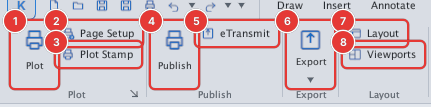
| Page | What it covers |
|---|---|
| Layouts | Switch Model ↔ Layout; create, rename, copy and delete layouts (LAYOUT) |
| Layout wizard | Build a layout step by step: paper size, orientation, title block, viewport (LAYOUTWIZARD) |
| Page Setup | Named plot settings (PAGESETUP) |
| MVIEW | Create viewports: rectangle, several at once, polygon, from an object; turn on / off / lock |
| Entering a viewport | Switch between paper space and model space; viewport scale; lock |
| VPCLIP | Clip a viewport to any outline |
| VPLAYER | Freeze layers in one viewport only |
| PLOT | The Plot dialog: paper, plot area, scale, colours, preview |
| Plot styles (CTB / STB) | Style tables: assign colour and lineweight by object colour |
| PUBLISH | Plot several layouts into one PDF |
| Export PDF / SVG / PNG | Ways to export a drawing as an image or vector file |
| PLOTSTAMP and ETRANSMIT | The plot stamp; packing a drawing to send |
A typical workflow: draw on the Model tab → click a layout tab → set the paper (Page Setup) → create viewports (MVIEW) and pick a scale → (optional) freeze layers per viewport → PLOT or PUBLISH.