MVIEW — create and manage viewports
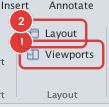
 Ribbon: Output ▸ Layout ▸ ViewportsCommand:
MVIEWAlias: MV
A viewport is a "window" on the sheet through which you see the model at a given scale. A layout can hold several viewports, each with its own view and scale
(for example a plan at 1:100 and a detail at 1:20). MVIEW only works on a layout tab.
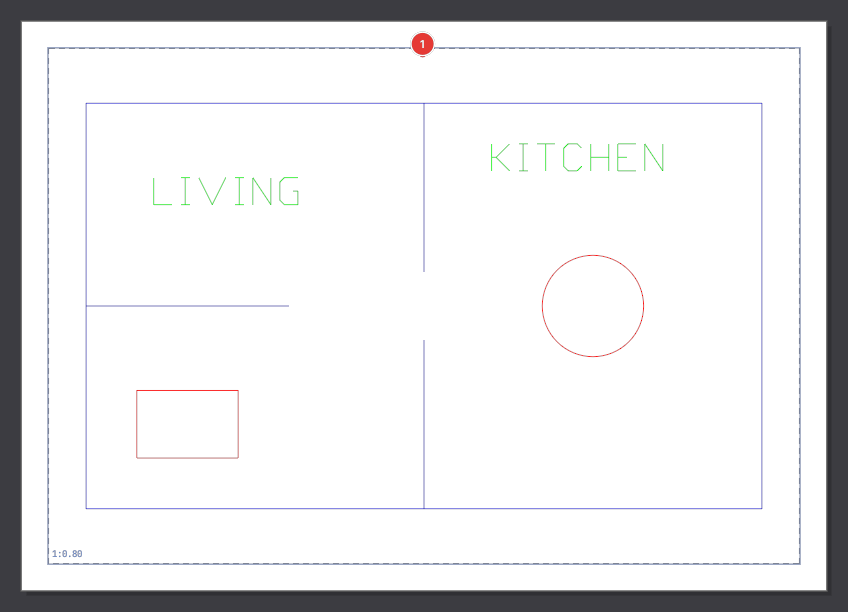
A new layout comes with one viewport that fills the sheet (dashed border 1):
A viewport cannot yet be selected by clicking on the sheet, so Delete / ERASE do not remove it. Delete a viewport with MVIEW ▸ D (Delete) and a click inside it — the command line reports Viewport deleted., and U brings it back. Or turn it off with MVIEW ▸ OFF (below): a viewport that is off shows only its dashed frame, does not display the model and is not plotted.
Drawing a rectangular viewport
- Click Viewports, or type
MVand press Enter. The prompt:Specify corner of viewport or [ON/OFF/Fit/Lock/UnLock/Object/Polygonal/Delete/2/3/4] <Fit>: - Click the first corner 1 on the sheet.
- Click the opposite corner 2. The viewport appears and fits the whole model automatically.
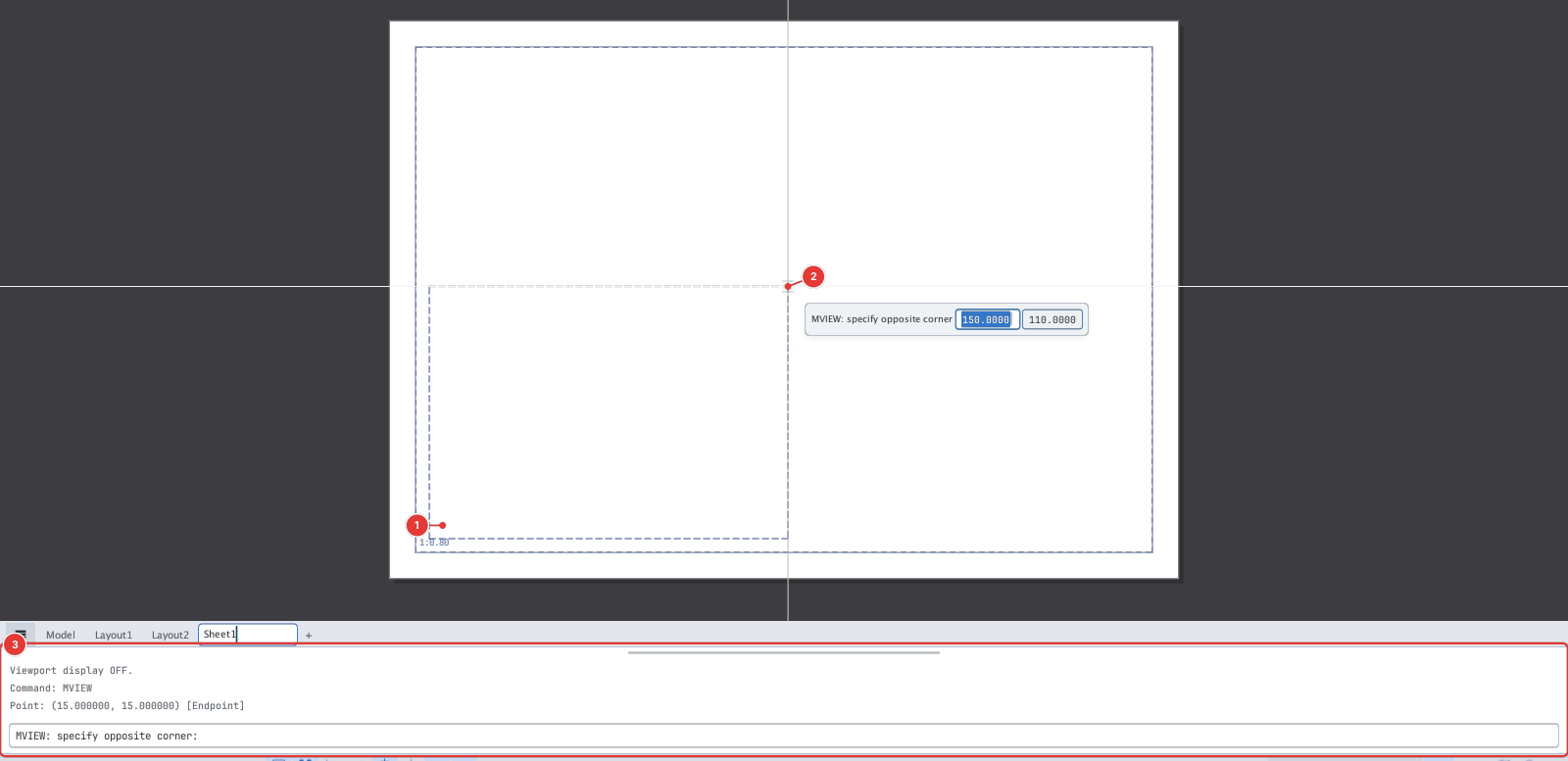
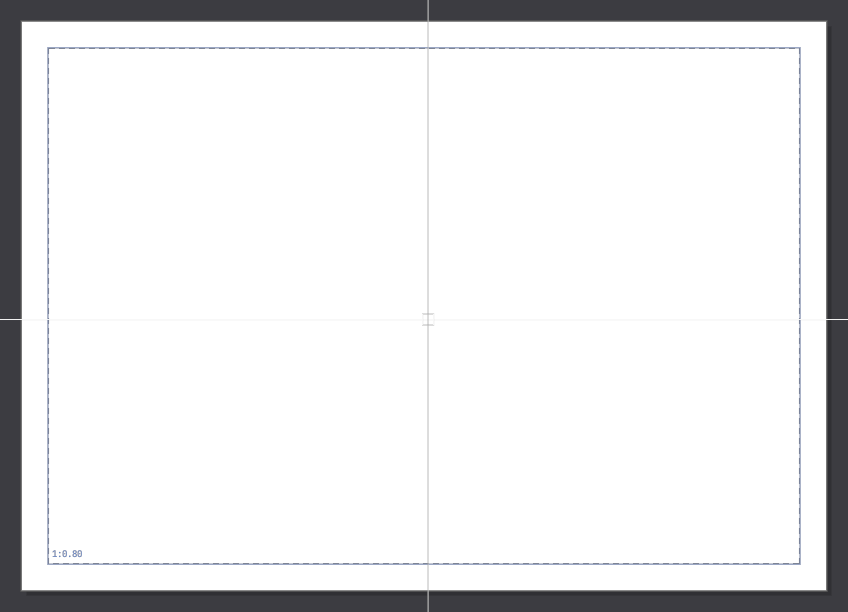
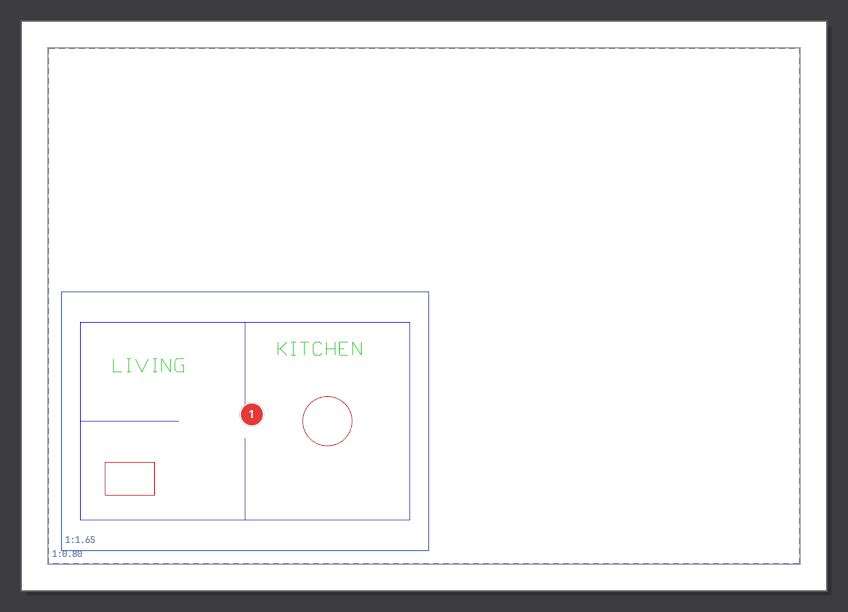
1:1.78.Pick both corners with the mouse or type sheet coordinates (millimetres), for example MVIEW → 10,10 → 100,80.
Options
At the first prompt type a letter then press Enter (or click the matching button on the command line):

MVIEW prompt with the option buttons ON · OFF · Fit · Lock · UnLock · Object · Polygonal · Delete · 2 · 3 · 4.| Type | What it does |
|---|---|
Enter or F | Fit — one viewport filling the area inside the margins |
2 | Two viewports side by side (left / right) |
2H | Two viewports stacked (top / bottom) |
3 | Three viewports: one on the left, two on the right |
4 | Four viewports (2 × 2 grid) |
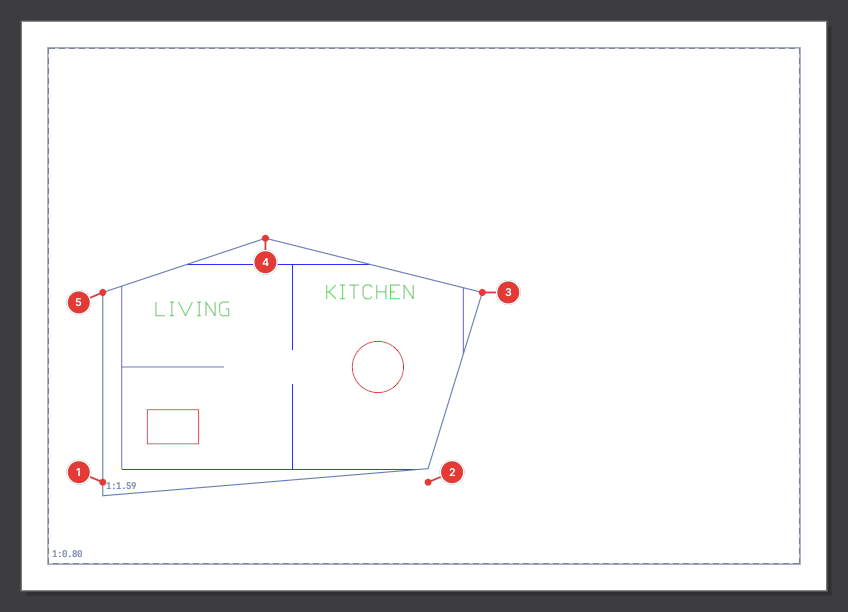
P | Polygonal — a polygon viewport (below) |
O | Object — a viewport shaped like a closed object on the sheet |
OFF / ON | Turn the model display in a viewport off / on |
L / UL | Lock / UnLock — lock / unlock a viewport’s scale |
D | Delete — delete the viewport you click |
2 and 4 split the area inside the margins evenly and each viewport fits the model:
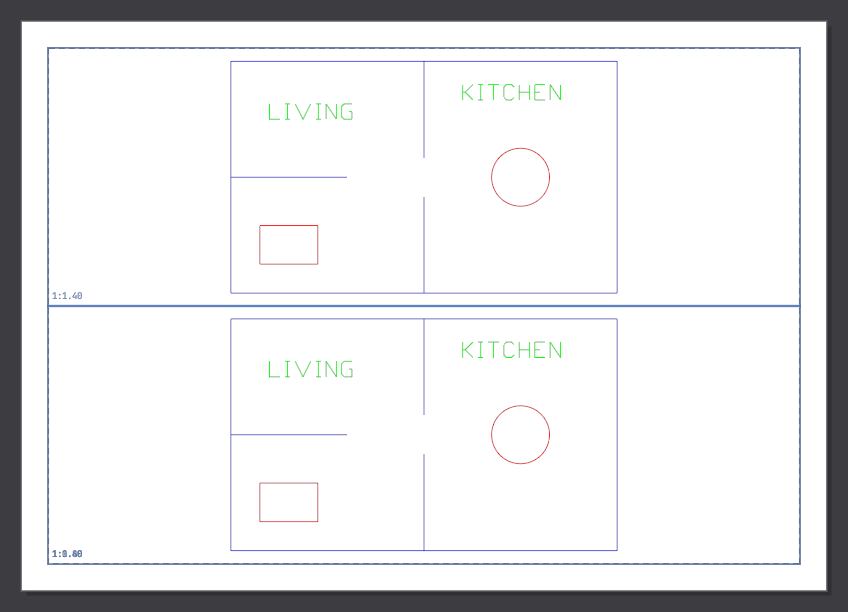
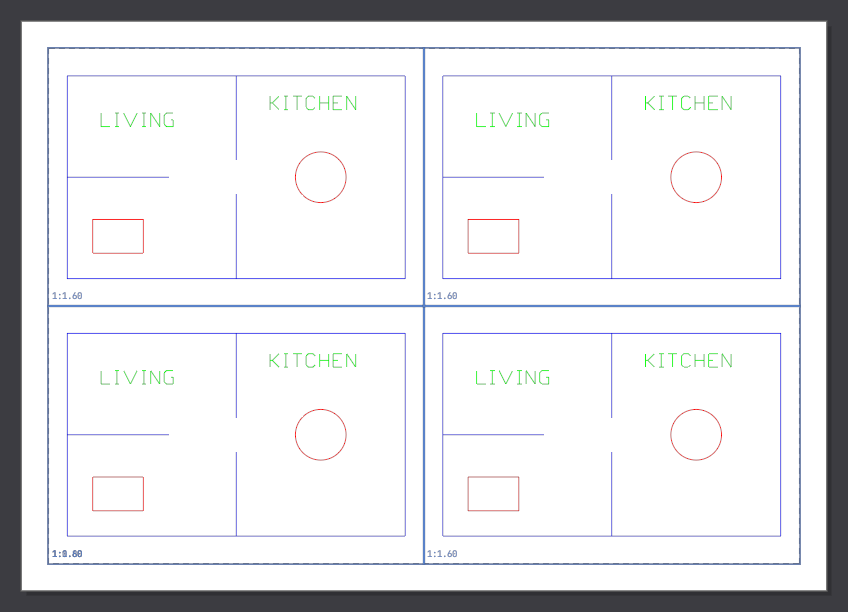
2H (left) and 4 (right).Polygonal viewport
- Type
MV, Enter, thenP, Enter. - Click the vertices 1–5 one after another.
- Press Enter (or type
C) to close the polygon.
Viewport from an object
MVIEW ▸ O turns a closed object on the sheet (circle, closed polyline, rectangle) into a viewport of exactly that shape:
type MV, Enter, O, Enter, then click inside the object. If you click outside every closed object on the sheet the command line says:

MVIEW: click inside a closed object on the sheet.Drawing commands typed on a layout tab (CIRCLE, LINE…) currently create objects in the model, not on the sheet; to move an object onto the sheet use CHSPACE — moved objects show on the sheet straight away.
Turn viewports off, on, lock
Type MV, Enter, then OFF (or ON, L, UL) and click inside the viewport you want to change:


OFF (left) and L (right); click a viewport to apply.- An off viewport does not draw the model and is not plotted. Use it to tidy the sheet temporarily or to "hide" the default viewport.
- A locked viewport cannot change scale (the scale box on the status bar is greyed out) and cannot have its model view panned — see Entering a viewport.
See also: VPCLIP to clip a viewport to any shape after creating it, VPLAYER to hide layers in one viewport only.