PUBLISH — plot several layouts into one PDF
 Ribbon: Output ▸ Publish ▸ PublishCommand:
PUBLISHAlias: PUB
PUBLISH gathers several layouts (from this drawing or from other, unopened drawings) into one multi-page PDF, one page per layout.
Steps
- Click Publish (or type
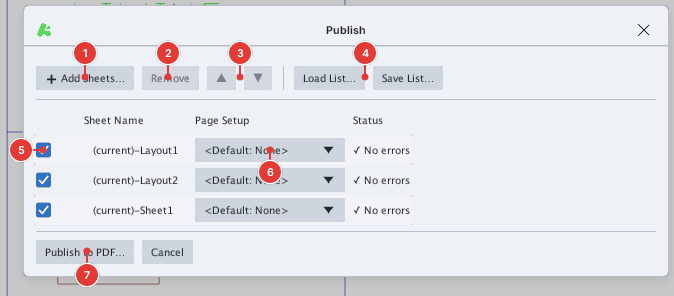
PUB). The list shows every layout of the current drawing as(current)–Layout1,(current)–Sheet1… - Clear the box 5 at the start of any layout you do not want.
- Click Add Sheets… 1 to add layouts from other
.dwg/.dxfdrawings (you can pick several files at once). Remove 2 drops the selected row; the ▲ ▼ buttons 3 reorder the pages. - In the Page Setup column 6 pick the page setup to apply to each layout (
<Default: None>= the layout's own settings). - The Status column says
✓ No errors, or⚠ File not foundif the source file is gone. - Click Publish to PDF… 7 and choose where to save the PDF.
Save List… / Load List… 4 save / load the sheet list as a .dsd (Drawing Set Description) file so you can reuse it for the next publish.
Publish to PDF… opens the operating system's save dialog. A layout's page setup (paper size, orientation…) decides the size of each page in the PDF — see Page Setup.