Export PDF / SVG / PNG
 Ribbon: Output ▸ Export ▸ (list)Command:
EXPORTSVG, PNGOUT, EXPORTLAYOUTAlias: SVGOUT
Besides PLOT (PDF), KufCad exports drawings in other formats. Click the ▾ arrow under the Export button on the Output tab to open the list:
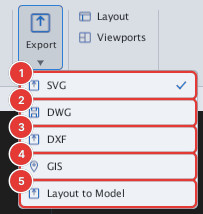
| Item | Command | Result |
|---|---|---|
| SVG 1 | EXPORTSVG | A .svg vector image of the model |
| DWG 2 | SAVEDWG | Save the drawing as a .dwg file |
| DXF 3 | DXFOUT | Save the drawing as a .dxf file |
| GIS 4 | EXPORTGIS | Export GeoJSON / KML — see the GIS chapter |
| Layout to Model 5 | EXPORTLAYOUT | Flatten the layout into a new drawing |
SVG and PNG
Type EXPORTSVG (or pick SVG): a save dialog opens; when driven by a script the command line asks Enter file name: — type the path and press Enter.

EXPORTSVG asks for the file name.PNGOUT exports a PNG image exactly the size of the current view (the pixel size of the drawing area). The same family has JPGOUT, BMPOUT and TIFOUT. The command line reports the image size, for example PNGOUT: 1600×956 px → ….

PNGOUT asks for the file name.Layout to Model — flatten a layout
EXPORTLAYOUT writes the current layout to a new drawing file (DXF or DWG, chosen in the save dialog, or typed when FILEDIA = 0): paper-space objects stay as they are and the model is projected through each viewport at its true position and scale. The command line reports EXPORTLAYOUT: wrote …; open that file with OPEN to look at it.
Use it to send the printed sheet as a flat drawing, or to share with software that cannot read layouts.
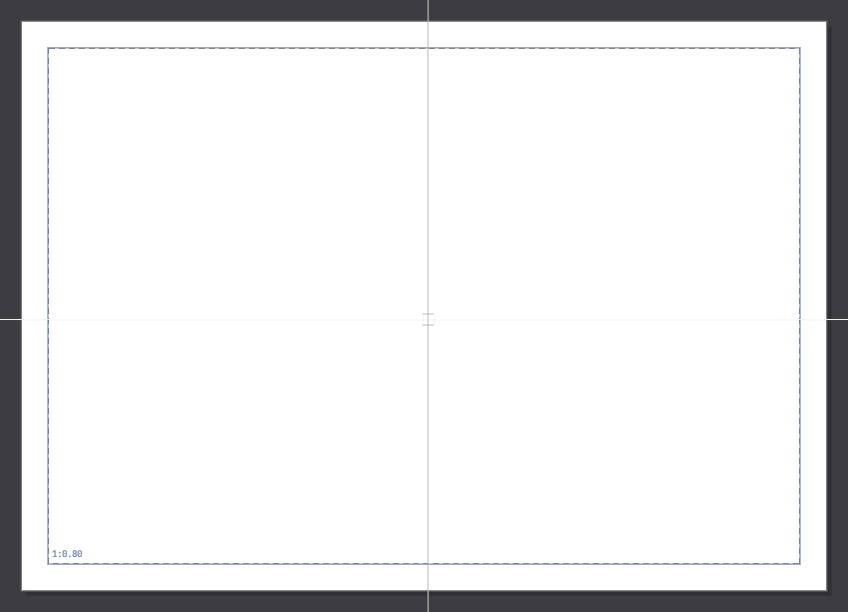
EXPORTLAYOUT.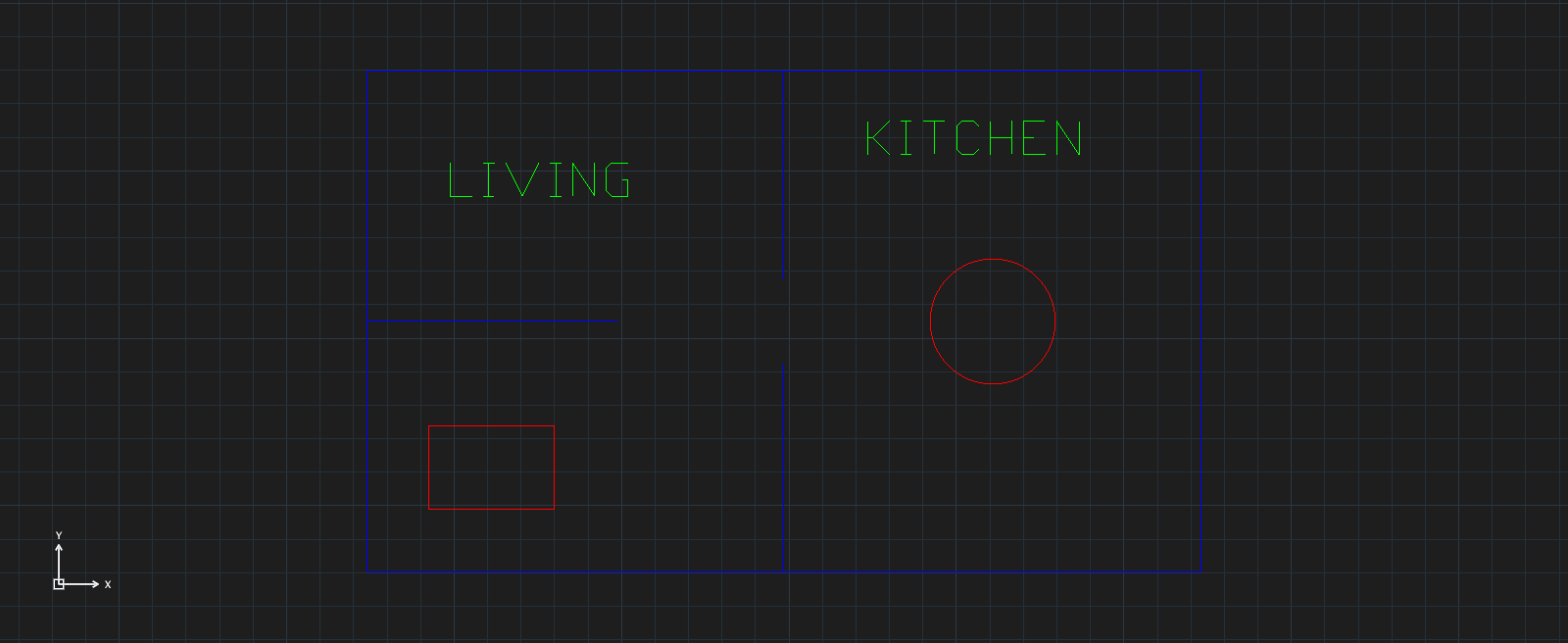
EXPORTLAYOUT, opened with OPEN: the viewport contents are now ordinary objects, with layer colours and text.PDF is made with PLOT (one layout) or PUBLISH (several layouts). Automation users can also call the MCP document export_pdf — see chapter 14.