VPLAYER — freeze layers in one viewport only
Command: VPLAYERAlias: VPOVERRIDES
Each viewport can hide some layers that other viewports still show. For example the FURN (furniture) layer can appear in the interior-plan viewport yet be frozen in the structural-plan viewport.
The freeze affects that viewport only (on screen and when plotting); the layer still shows normally on the Model tab.
Opening the dialog
- If the layout has one viewport, or you are inside a viewport (double-click it), type
VPLAYERand the dialog opens for that viewport. - If the layout has several viewports, type
VPLAYERand click the viewport to edit (Select viewport for layer overrides:).
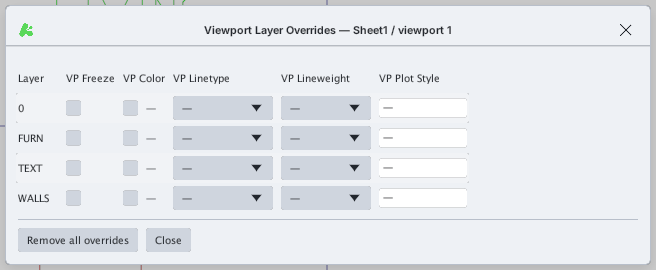
Each row is a layer; the columns:
| Column | What it does |
|---|---|
| VP Freeze | Tick = freeze the layer in this viewport |
| VP Color | Tick then pick a colour = this viewport draws the layer in another colour |
| VP Linetype | A linetype for this viewport only (— = by layer) |
| VP Lineweight | A lineweight for this viewport only (— = by layer) |
| VP Plot Style | A plot style name for this viewport only |
Remove all overrides clears every setting of this viewport; Close closes the dialog.
Example: hide the furniture in one viewport
- Open
VPLAYERand tick VP Freeze for theFURNlayer 1.
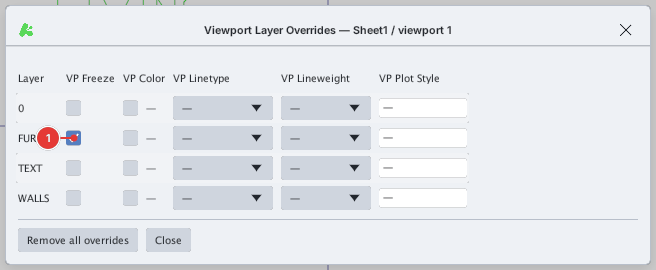
FURN layer 1.- Click Close. The circle and rectangle on
FURNvanish from the viewport:
Before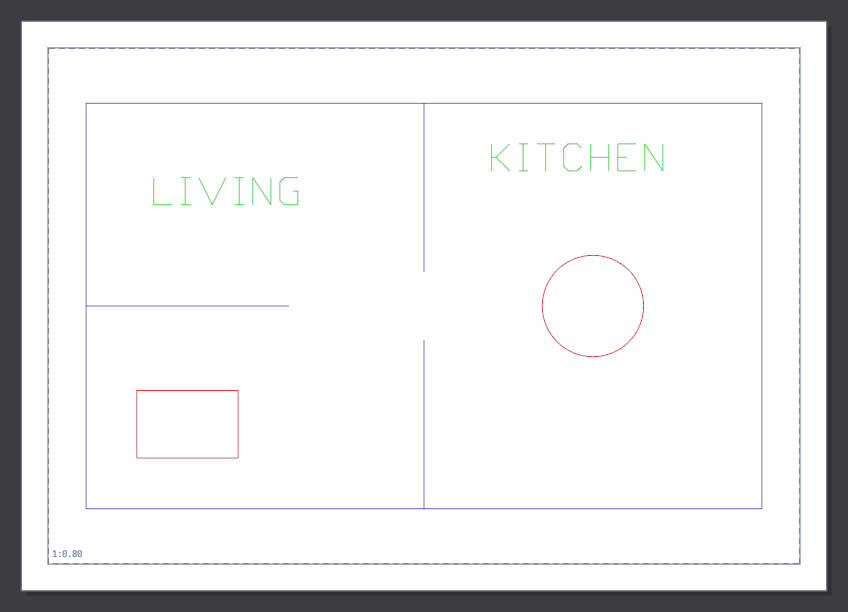
→
After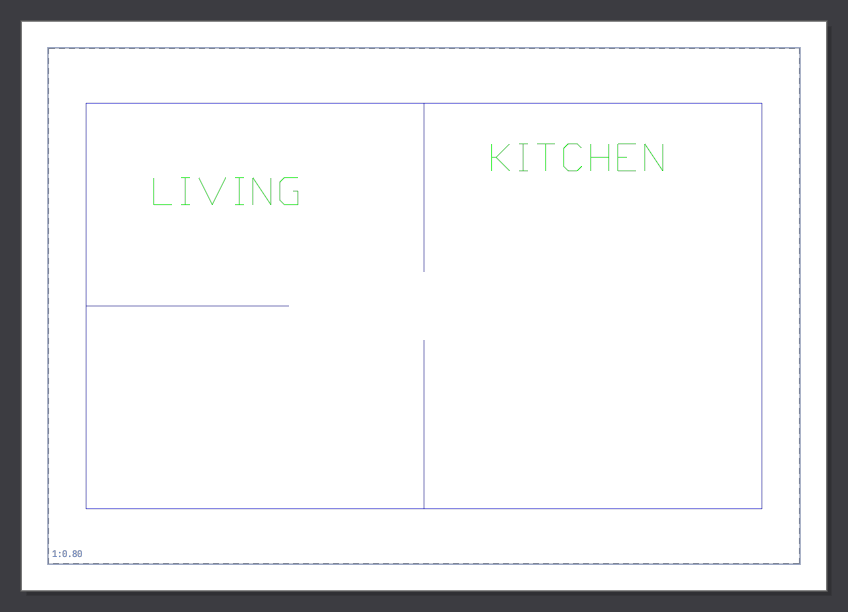
FURN layer in that viewport.Quick commands
| Command | What it does |
|---|---|
LAYVPI | Select objects in the viewport you are in, type LAYVPI: their layers are frozen in that viewport |
LAYVPITHAW (or VPLAYERTHAW) | Thaw every layer in the viewport you are in |
Both work only after you double-click into a viewport; otherwise the command line says LAYVPI: double-click into a viewport first.

LAYVPI inside a viewport with nothing selected.