Entering a viewport — paper space and model space
 Ribbon: Double-click a viewportCommand:
MSPACE (MS), PSPACE (PS), or double-click
A layout has two "spaces": paper space (you work on the sheet: title block, notes, selecting viewports…) and the model space inside a viewport (you "step into" a viewport to pan, zoom or select model objects without leaving the sheet). AutoCAD calls the switch MSPACE / PSPACE.
You can also type MSPACE (MS) to enter a viewport's model space and PSPACE (PS) to return to the sheet — the same as double-clicking.
Entering a viewport
Double-click inside the viewport. Its border turns orange 1: you are in that viewport's model space.
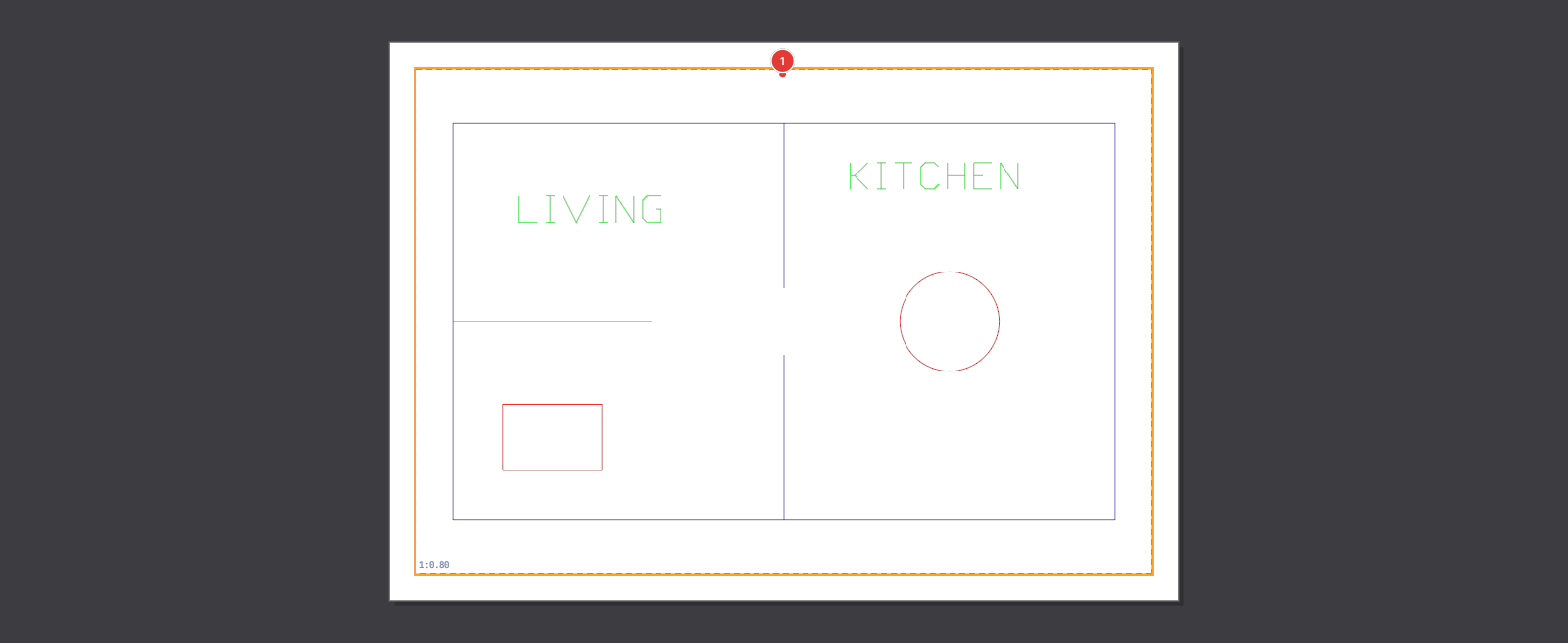
While you are inside a viewport the status bar shows two extra items:

VP 1.246:1).Setting the viewport scale
Click the scale box 2 and pick a scale from the list (1:1, 1:2, 1:5, 1:10, 1:20, 1:50…). The model in the viewport zooms to that scale about the viewport's centre.
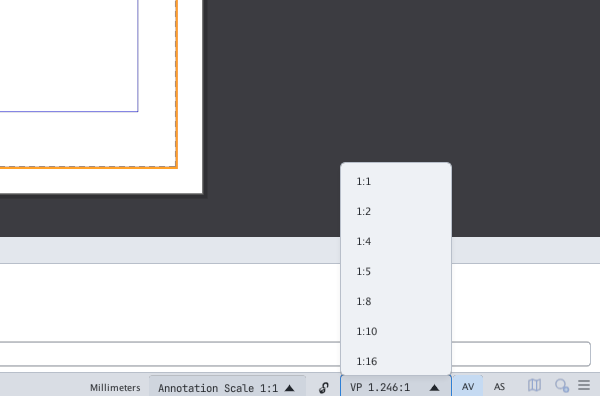
VP … box on the status bar.The scale box can only be changed while the viewport is not locked. The list comes from the drawing's annotation scale list (SCALELISTEDIT).
Locking a viewport
Click the padlock 1 next to the scale box to lock / unlock the viewport you are in (you can also lock from MVIEW ▸ L, see MVIEW).
A locked viewport cannot change scale, so the plot keeps exactly the scale you set.

Leaving a viewport
Double-click an empty spot on the sheet (outside every viewport). The orange border disappears and you are back in paper space.
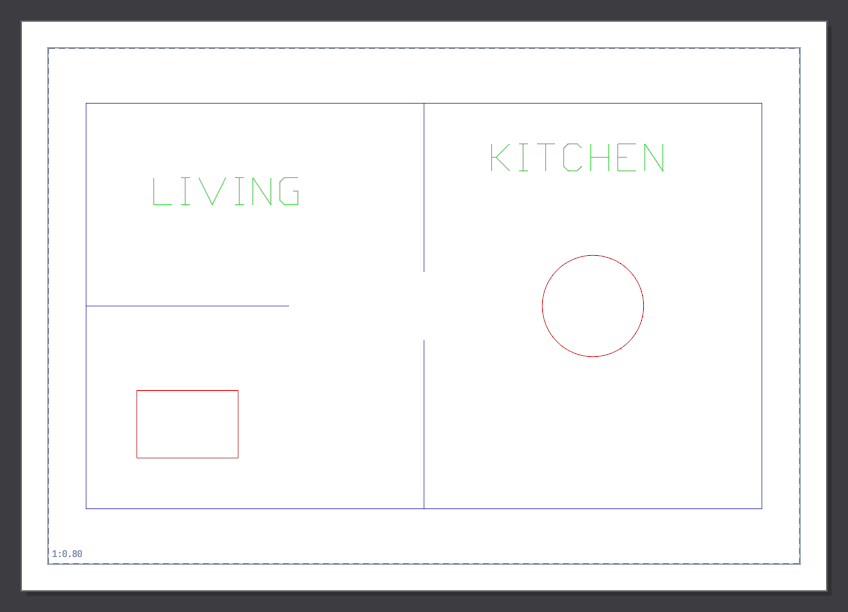
Once inside a viewport, middle-button drag or the mouse wheel changes only the model view in that viewport; the sheet stays still. Lock the viewport before moving on so you do not change its scale by accident.