Layouts — create, rename, copy, delete
 Ribbon: Output ▸ Layout ▸ LayoutCommand:
LAYOUTAlias: LO
A drawing has one Model tab (where you draw at full size) and one or more layout tabs (the sheets you plot). Each layout has its own paper size and holds viewports looking into the model (plus a title block or notes placed on the sheet, if any).

Switching between Model and Layout
Click Model to draw and a layout name to see the sheet. A new drawing already has Layout1 and Layout2.
The first time you open a layout, KufCad puts one viewport on it that fills the sheet and shows the whole model.
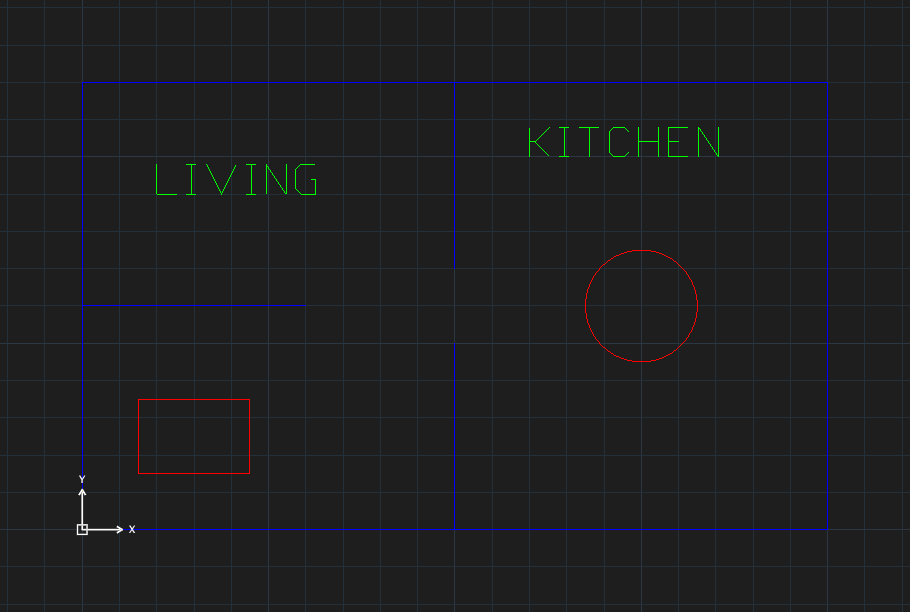
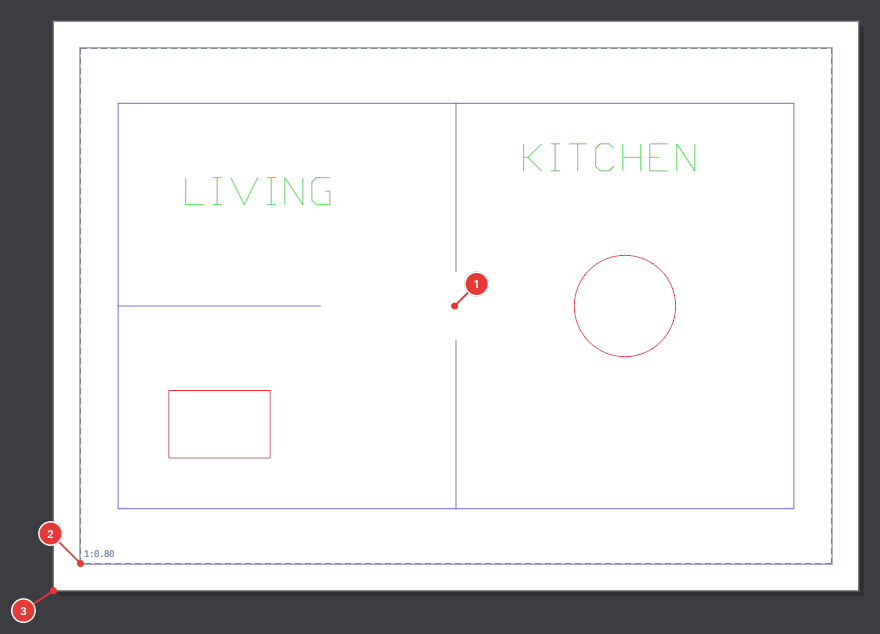
A layout tab shows a real white sheet (A4 landscape with a 10 mm margin by default). Objects placed on the sheet belong to the layout, not to the model.
Creating a layout
Three ways:
- Click the + button 3 to the right of the tabs. The new layout is named
Layout3,Layout4… and has one viewport. - Right-click a layout tab and choose New layout.
- Type
LAYOUT N Sheet1and press Enter (the name follows the letterN).
To choose paper, title block and viewports from the start use the Layout wizard. To take a layout from a template file use From template… (below).
The tab right-click menu
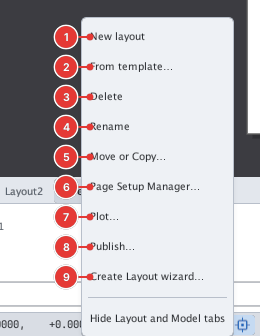
| Item | What it does |
|---|---|
| New layout 1 | Adds a blank layout (with one viewport) |
| From template… 2 | Pick a .dwt, .dwg or .dxf file; every layout in it is copied into the drawing (with the title-block blocks) |
| Delete 3 | Deletes the layout without asking — use U to undo. The last layout cannot be deleted |
| Rename 4 | Rename right on the tab |
| Move or Copy… 5 | Reorder or copy the layout |
| Page Setup Manager… 6 | Opens Page Setup |
| Plot… / Publish… 7 8 | Open the Plot / Publish dialog |
| Create Layout wizard… 9 | Opens the Layout wizard |
| Hide Layout and Model tabs | Hides the tab strip (type LAYOUTTABS to show it again) |
Renaming
Double-click the tab, or right-click ▸ Rename. The tab turns into a text box 1: type the new name then click elsewhere (or press Enter).
The name must differ from every other layout, otherwise the command line says Invalid or duplicate layout name.

Copying or reordering
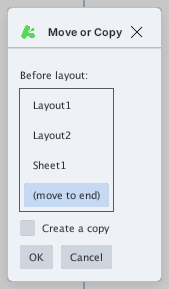
Right-click ▸ Move or Copy…. Choose the layout the moved one should go before (or (move to end)), tick Create a copy to copy instead of move, then click OK.
From the command line
Type LAYOUT and press Enter; the command line lists the options. Type each option on the same line as the layout name:

LAYOUT with no option: the command line lists the options.| Type | What it does |
|---|---|
LAYOUT N Sheet2 | Create a layout named Sheet2 and switch to it |
LAYOUT C Sheet1 Sheet2 | Copy Sheet1 as Sheet2 (placed last) |
LAYOUT R Sheet2 Detail | Rename Sheet2 to Detail |
LAYOUT D Detail | Delete the layout Detail |
LAYOUT S Sheet1 | Switch to layout Sheet1 |
LAYOUT ? | List the layout names |
LAYOUT T | Copy layouts from a template file (same as From template…) |
LAYOUT SA | Save the drawing (Save As) |
Leave out the layout name and the command uses the current layout.

Sheet1 as Sheet2, renaming it to Detail and listing: the Layouts: … line.Notes
- Layouts live in the DWG / DXF file, so they travel with the drawing.
- The first layout you open gets exactly one viewport; it cannot be removed with Delete (see MVIEW).
- To jump to another layout quickly click ☰ 4 at the start of the tab strip: it lists every tab.