DIMJOGGED — Jogged radius
 Ribbon: Annotate ▸ Dimensions ▸ Dimension ▸ JoggedCommand:
DIMJOGGED
DIMJOGGED is meant for arcs whose centre is far away: the radius dimension line gets a jog.
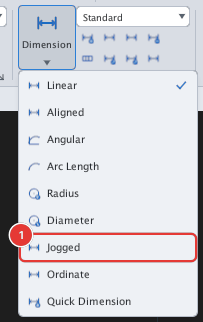
- Click Jogged or type
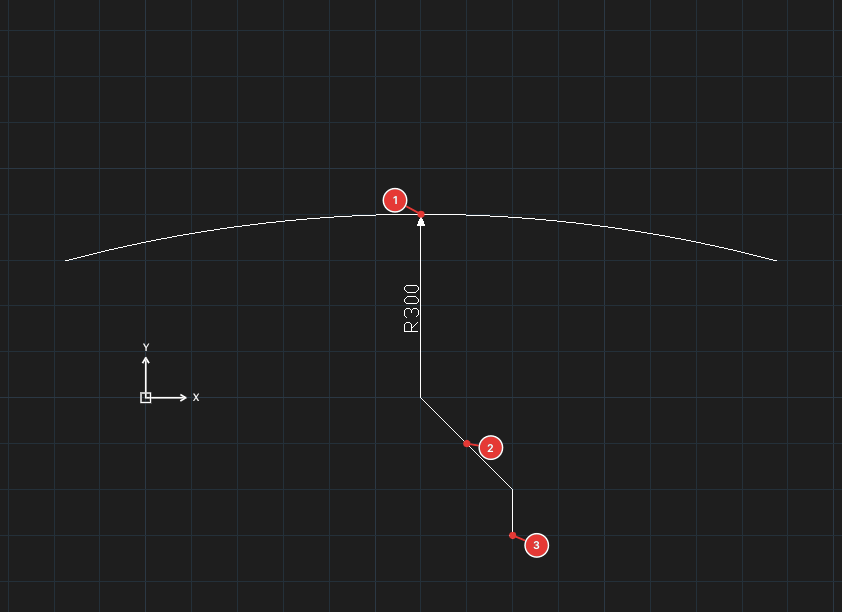
DIMJOGGED(DJO), Enter. Select arc or circle:— click the arc or circle.Specify center location override:— click a point to stand in for the real centre (which is usually off screen).Specify dimension line location:— click in the direction of the dimension line; the point on the arc lies on the ray from the real centre through this point, and theR…text is placed here.Specify jog location:— click where the jog goes, between the override centre and the arc.
The value is always the true radius. The jog angle follows the dimension style's Jog angle (DIMJOGANG, 45° by default). Saved to DWG / DXF it is written as a radius DIMENSION with the jogged graphics, so AutoCAD shows it correctly; KufCad reads the override centre and jog point back.