MLEADER — Multileader
 Ribbon: Annotate ▸ Leaders ▸ MultileaderCommand:
MLEADERAlias: MLD
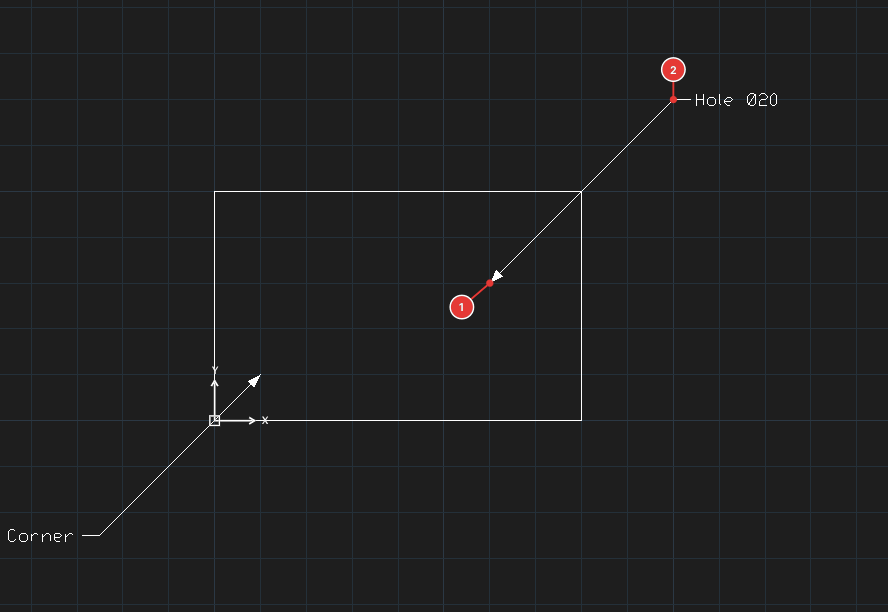
MLEADER draws an arrow pointing at a detail, a landing line and a note.
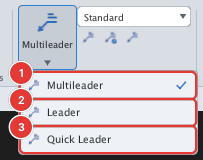
- Click Multileader or type
MLD, Enter. Specify leader arrowhead location or [leader Landing first/Content first/Options] <Options>:— click the arrow tip.Specify leader landing location:— click the end of the leader.- The in-place text editor opens: type the content and finish with Esc.
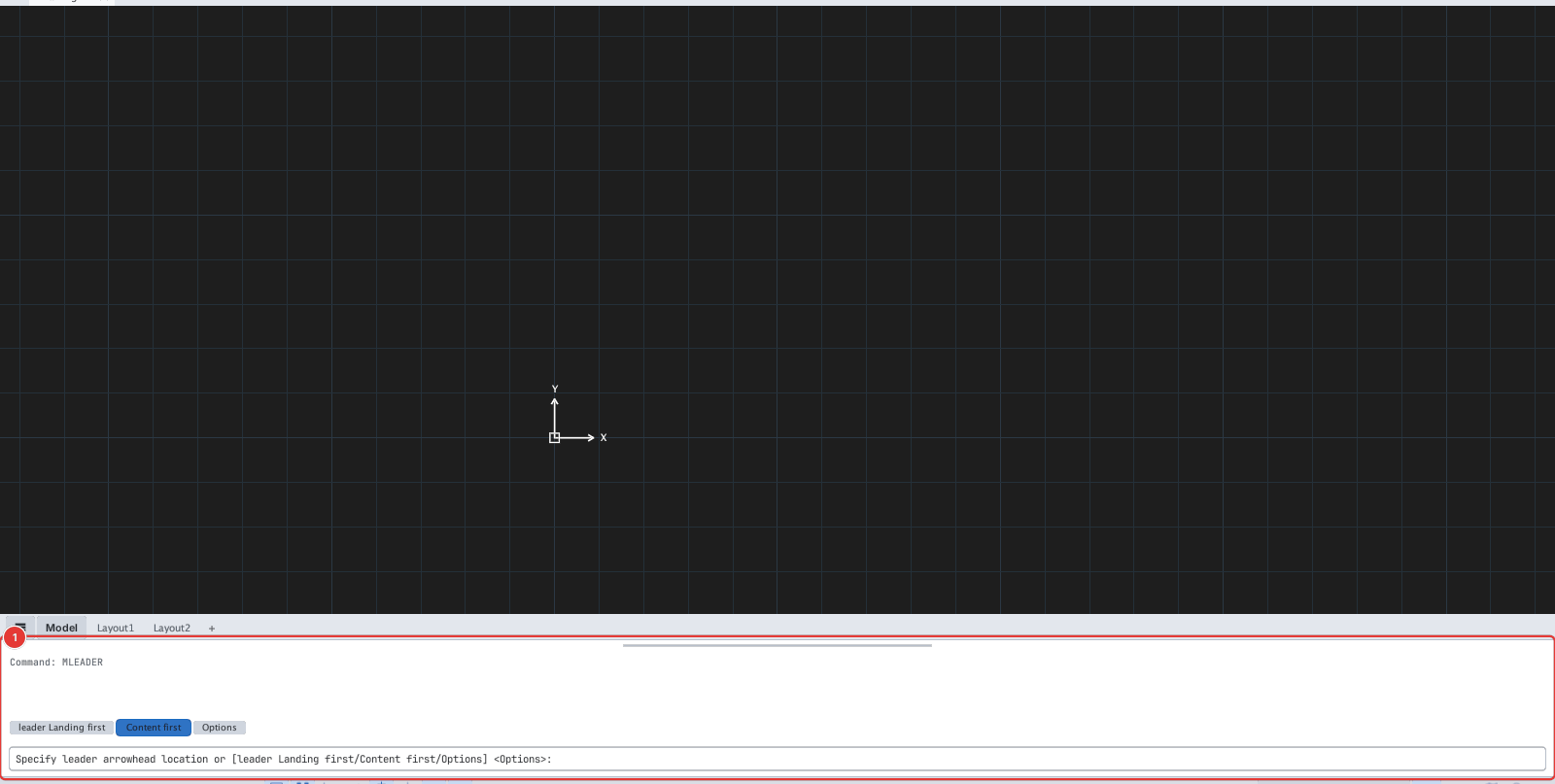
The O (Options) choice changes the leader type, landing length, content type (Block / Mtext / None) and maximum points.
Add, remove and align leaders
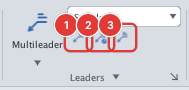
MLEADERADD(orMLEADEREDIT): select a multileader, then click the new arrow tip.MLEADERREMOVE: click the leader to remove.MLEADERALIGN: select the multileaders, pick the one to align to, then give the direction.