MOVE — Move objects
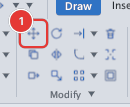
 Ribbon: Draw ▸ Modify ▸ MoveCommand:
MOVEAlias: M
MOVE shifts objects from one place to another, keeping their size and direction. Use it to rearrange parts of a drawing.
Before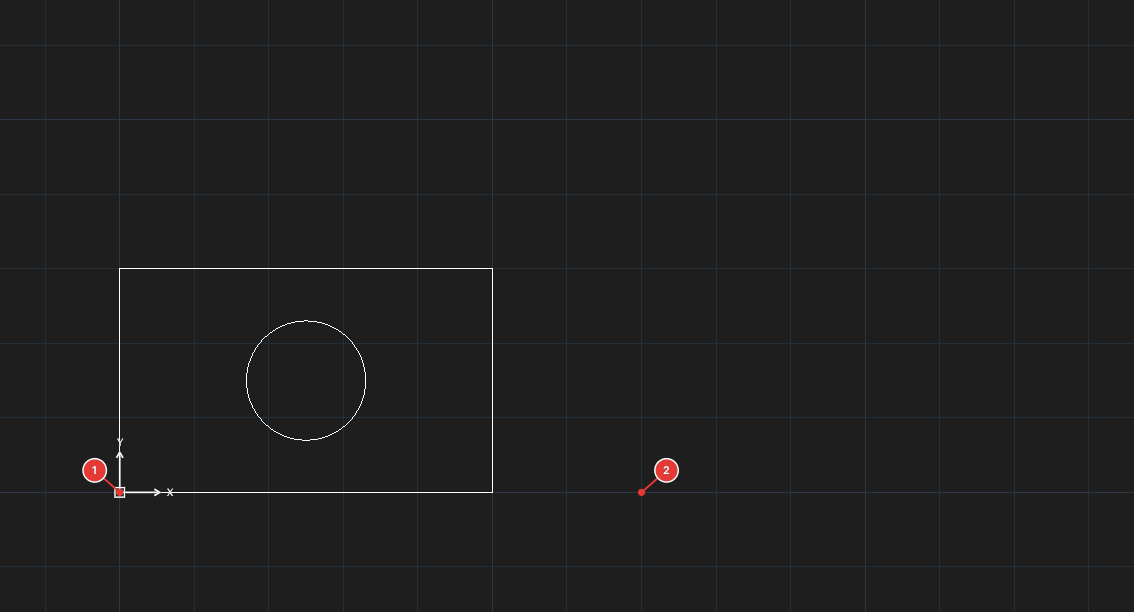
→
After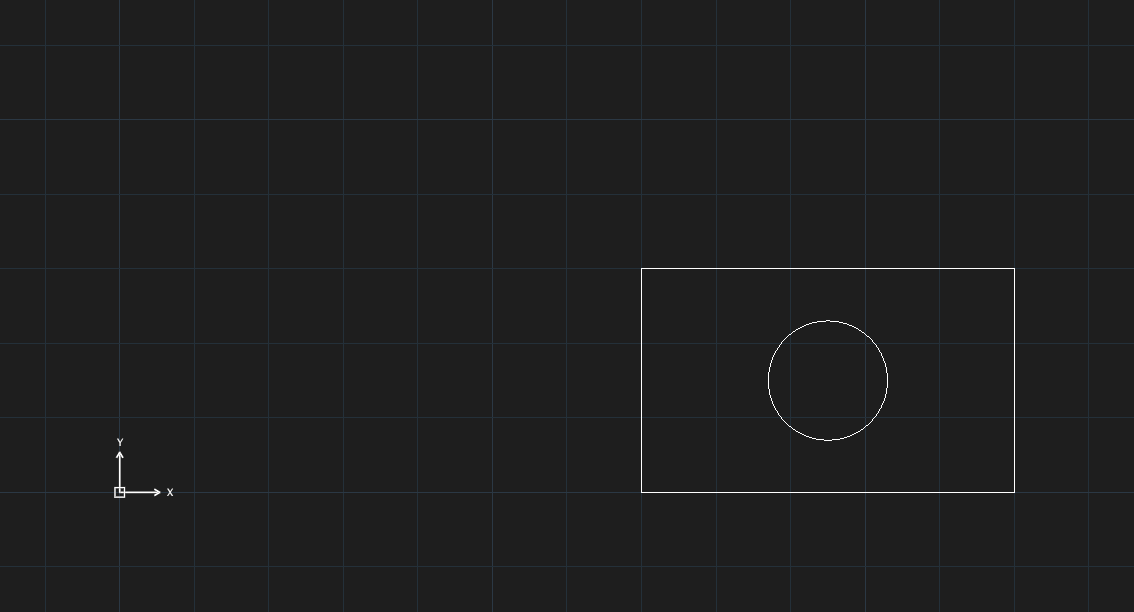
Move with two points
- Select the objects (select first and then run the command, or run the command and then select; finish selecting with Enter). For all the ways to select objects (window, crossing, lasso, fence, ALL…) see chapter 2.
- Click Move, or type
Mand press Enter. The command line asksSpecify base point or [Displacement] <Displacement>. - Click the base point 1 — any reference point, usually an endpoint or a centre (use Osnap to hit it exactly).
- Move the mouse: a preview of the objects follows the cursor. Click the destination point 2. The command ends.
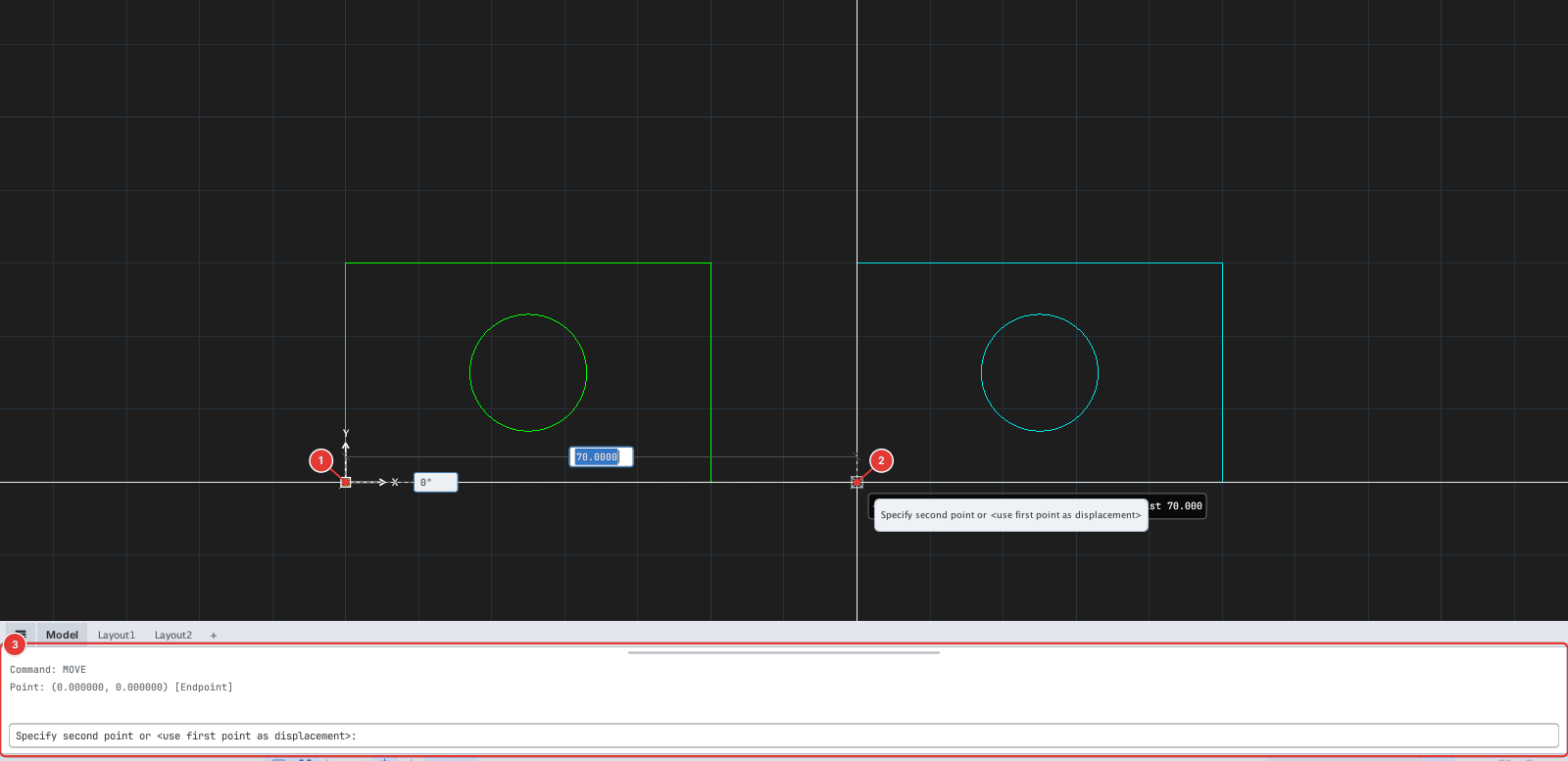
Typing coordinates instead of clicking
At the base-point and destination prompts you can type coordinates, for example 0,0 then 70,0: the objects move by the difference between the two points.
Type D (Displacement) and enter a displacement x,y to move directly without a base point.
Notes
- Each run of MOVE is one undo step.
- Objects on a locked layer cannot be moved (chapter 7).