ALIGN — Align by points
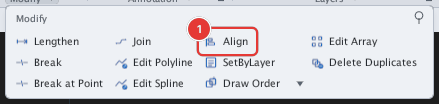
 Ribbon: Draw ▸ Modify ▸ slide-out ▸ AlignCommand:
ALIGNAlias: AL
ALIGN moves and rotates objects so that two source points land on two destination points, optionally scaling to fit. Use it to seat a part against a slanted face of another part.
Before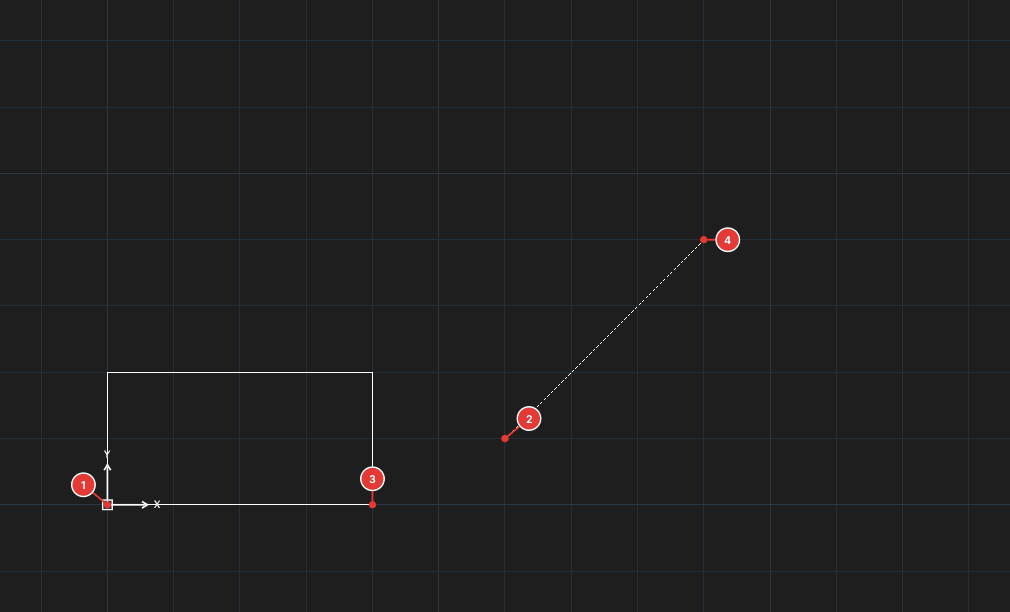
→
After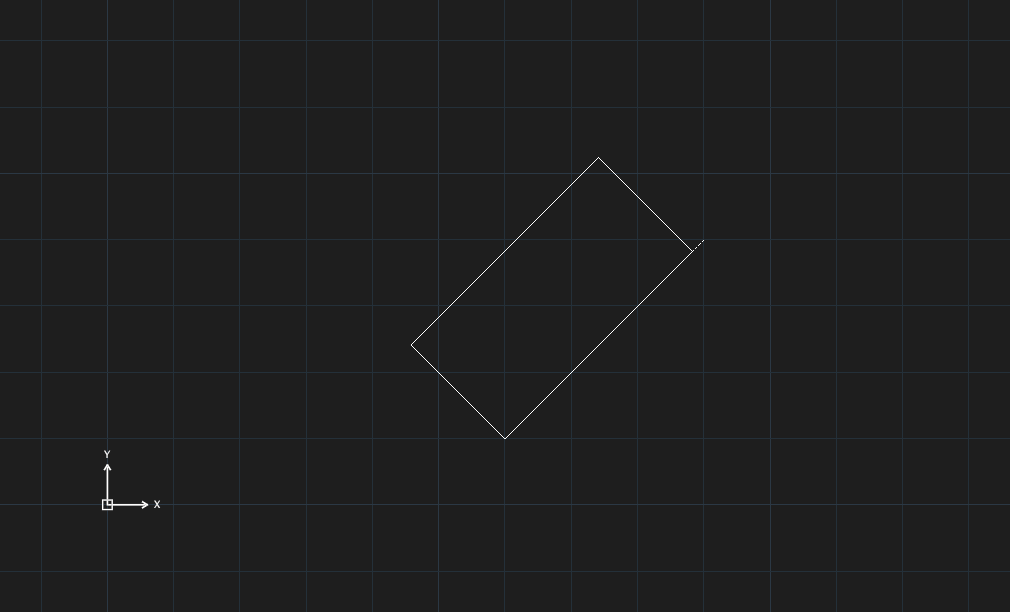
Aligning with two pairs of points
- Select only the objects to move (do not also select the target objects). Click Align, or type
AL, Enter. For all the ways to select objects (window, crossing, lasso, fence, ALL…) see chapter 2. - At
Specify first source pointclick the first source point 1. - At
Specify first destination pointclick the first destination point 2. The objects are dragged so the first source point lands on the first destination point. - At
Specify second source pointclick the second source point 3. - At
Specify second destination pointclick the second destination point 4. The objects turn about the first point so the source line points the same way as the destination line. - The prompt reads
Scale objects to alignment points? [Yes/No] <No>. Press Enter (or typeN) to only move and rotate; typeYto also scale so the distance between the source points equals the distance between the destination points.
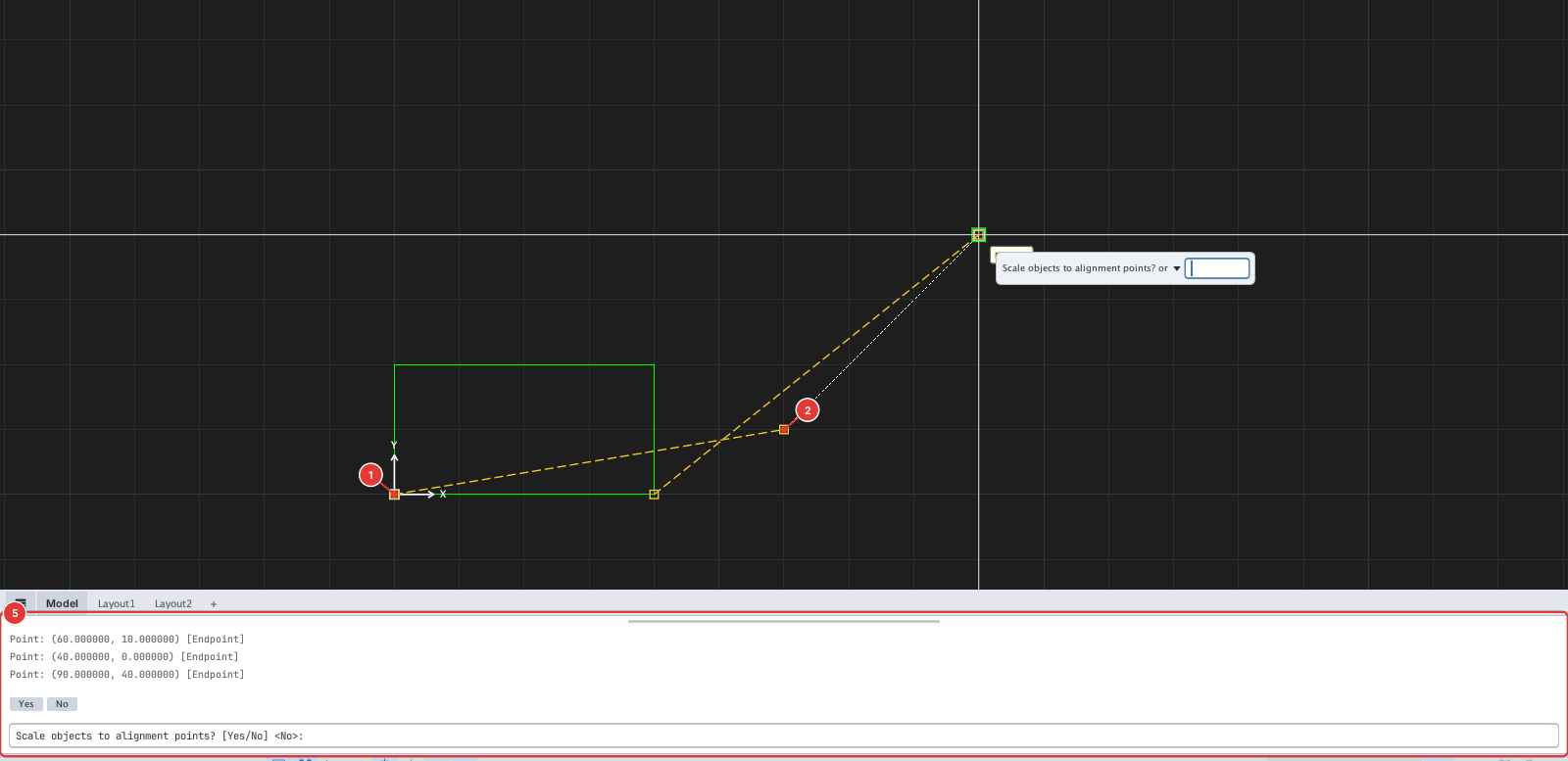
Notes
- You can click the points with the mouse (Osnap recommended) or type coordinates on the command line.
- To move only: press Enter at the second source point prompt — the object is just moved by the first pair of points, without rotating.
- Each run of ALIGN is one undo step.