SPLINEDIT — Edit splines
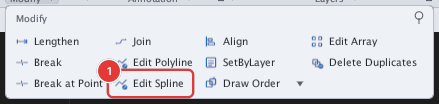
 Ribbon: Draw ▸ Modify ▸ slide-out ▸ Edit SplineCommand:
SPLINEDITAlias: SPE
SPLINEDIT closes, opens or reverses a spline. You can still drag a spline's grips directly on the drawing to move individual points.
Before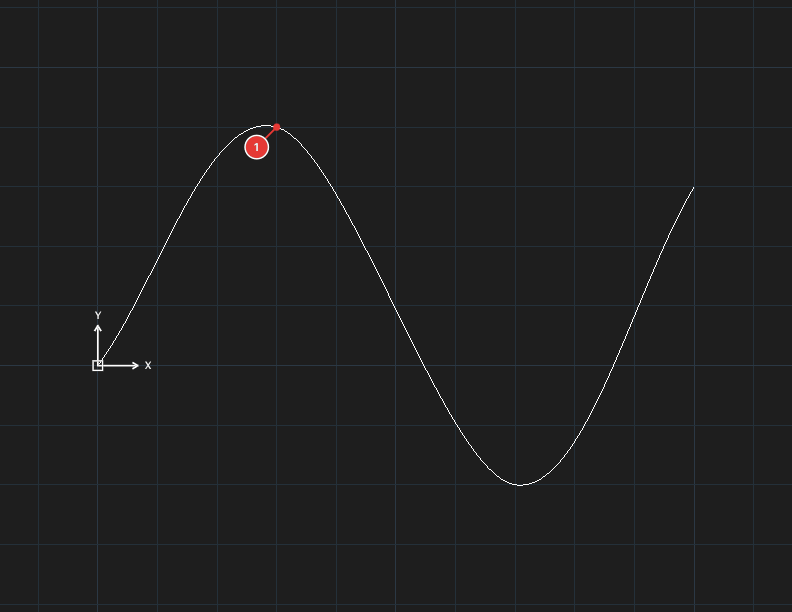
→
After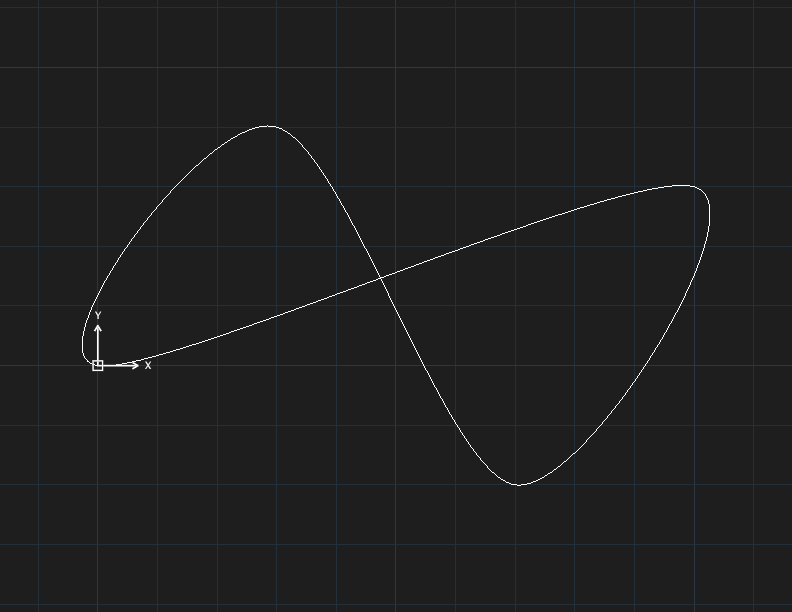
C to close it: the curve is joined back to its start.Running SPLINEDIT
- Click Edit Spline, or type
SPLINEDIT, Enter. The prompt readsSelect spline to edit. - Click the spline 1. The prompt lists the options. Type a letter and press Enter:
| Type | Option | Effect |
|---|---|---|
C | Close | Close the spline (join its start and end into a closed curve). |
O | Open | Re-open a closed spline. |
R | Reverse | Reverse the direction: the start becomes the end. |
X | eXit | End the command. |
For a spline defined by control vertices the prompt offers more:
| Type | Option | Effect |
|---|---|---|
A | Add-CV | Click a point: a new control vertex is added there. |
D | Delete-CV | Click near a control vertex to remove it. It will not delete when the spline has only 4 control vertices left. |
W | Weight | Click near a control vertex, then type a weight factor (above 1 pulls the curve toward the point, below 1 loosens it). |
These options have no effect on a spline through fit points.
Notes
- Each run of SPLINEDIT is one undo step.
- To turn a polyline into a spline use PEDIT ▸
S.