SCALE — Scale objects
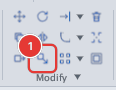
 Ribbon: Draw ▸ Modify ▸ ScaleCommand:
SCALEAlias: SC
SCALE resizes objects by a factor around a base point that stays fixed. A factor above 1 enlarges, below 1 shrinks.
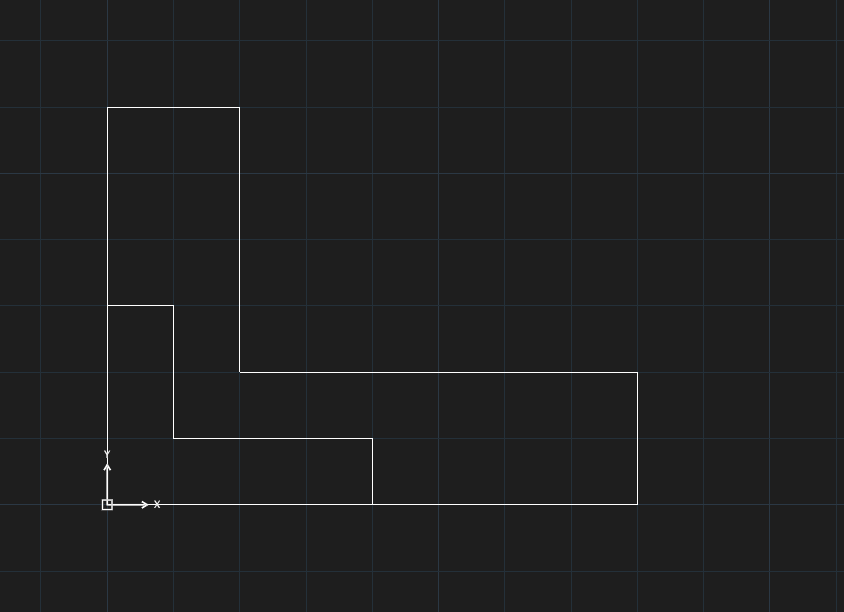
Before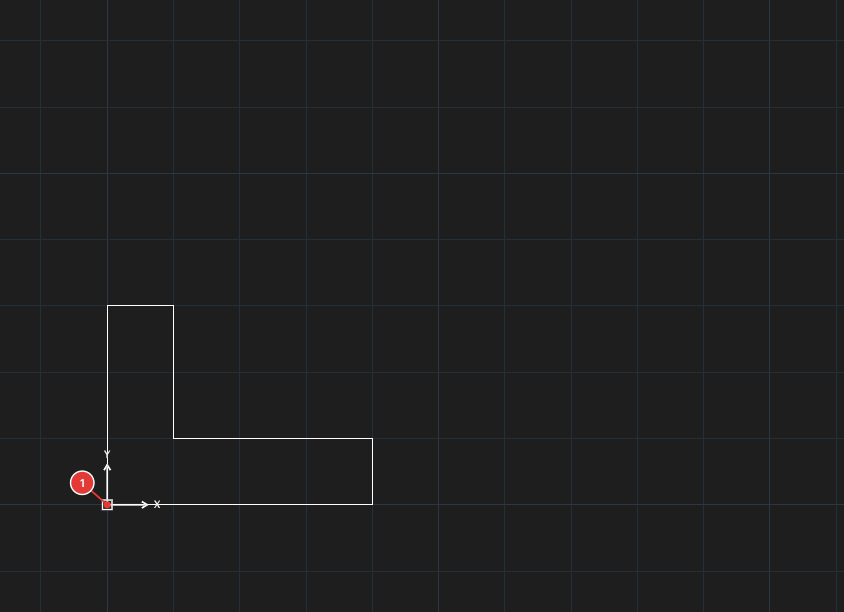
→
After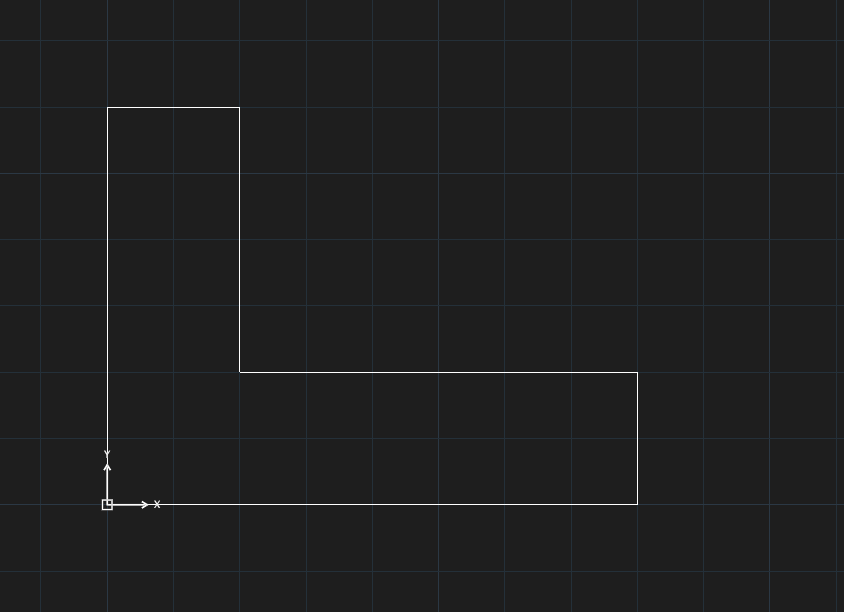
Scaling by a factor
- Select the objects and click Scale (or type
SC, Enter). For all the ways to select objects (window, crossing, lasso, fence, ALL…) see chapter 2. - Click the base point 1.
- The command line asks
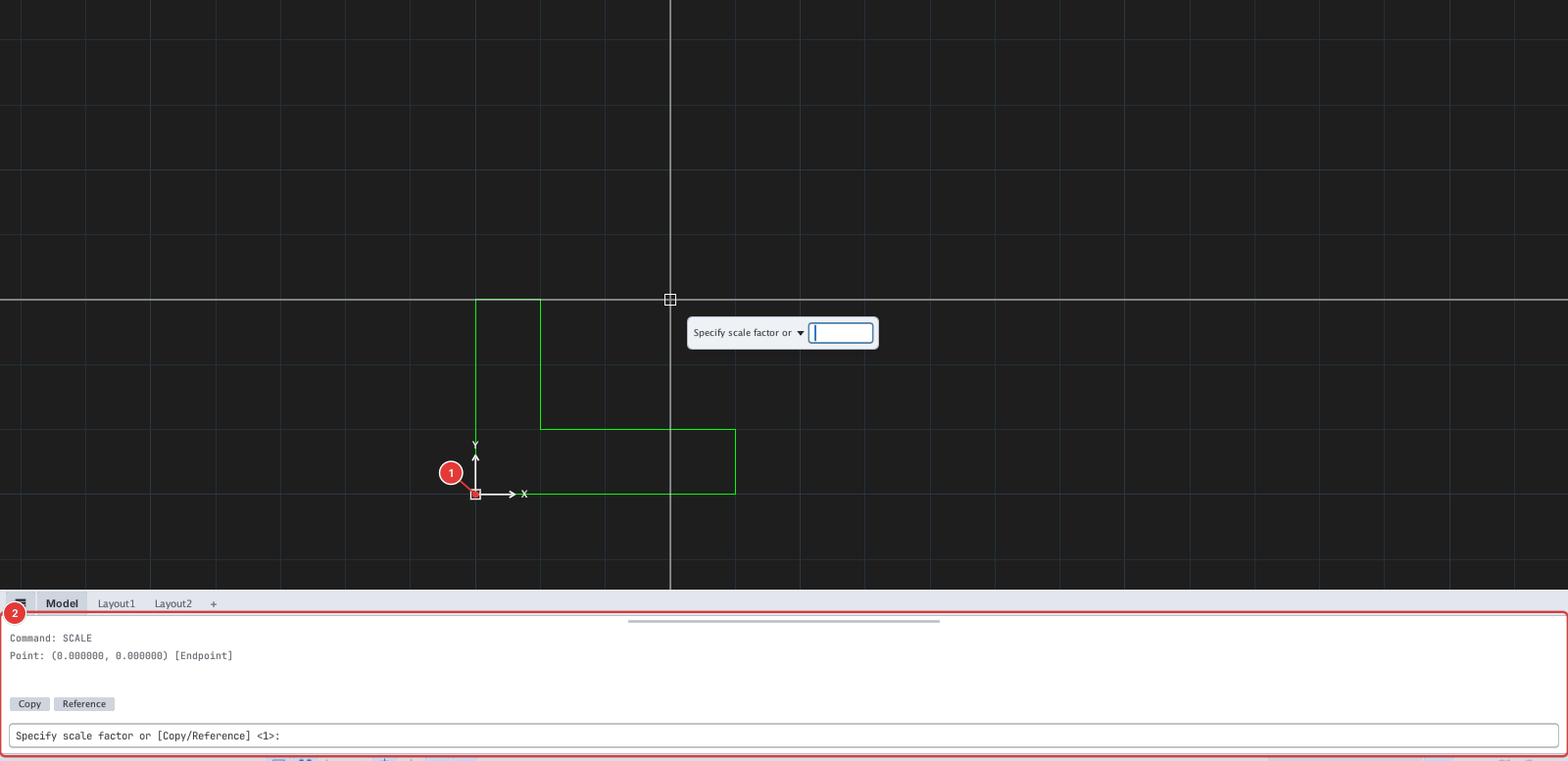
Specify scale factor or [Copy/Reference] <1>. Type a factor, for example2, and press Enter.
Scale and keep the original (Copy)
Type C and press Enter at the factor prompt, then type the factor: the original stays and the scaled object is a copy.
Scale by a reference length (Reference)
Use it when you know the current length and the length you want, but not the factor.
- At the factor prompt type
R, Enter. The prompt readsSpecify reference length <1>. - Type the current length (or click two points).
- At
Specify new lengthtype the new length. The factor is new length ÷ reference length.
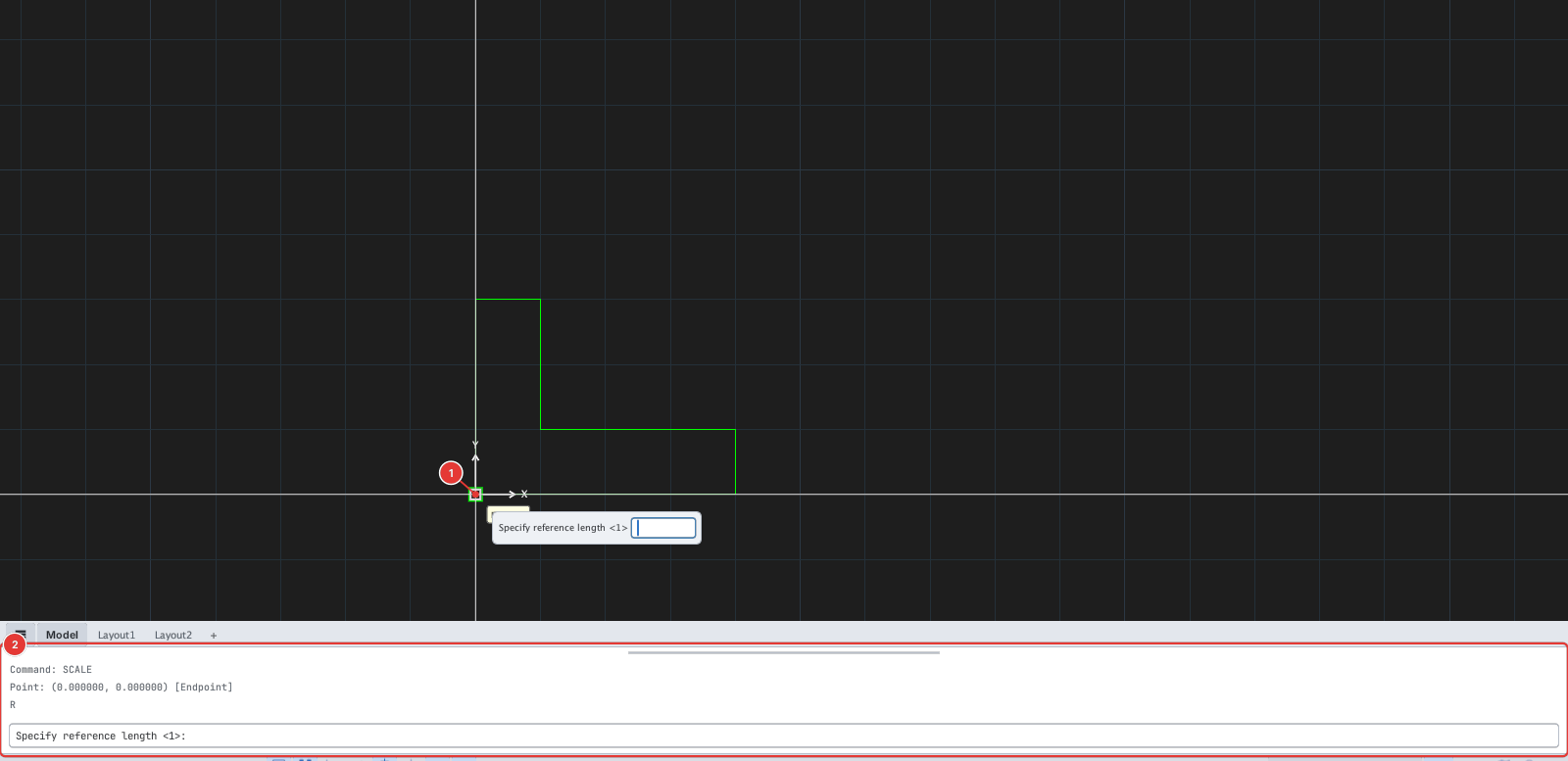
R: the command line 2 asks for the reference length. The base point is at 1.Notes
- The factor must be greater than 0.
- SCALE resizes text, circles, arcs… by the same ratio; plotted line thickness (lineweight) does not change.
- Each run of SCALE is one undo step.