TRIM — Cut off excess
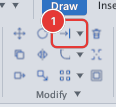
 Ribbon: Draw ▸ Modify ▸ TrimCommand:
TRIMAlias: TR
TRIM removes the part of an object that lies between or beyond cutting edges — other objects that cross it. Use it to clean up wall junctions, remove construction overshoots, open a door gap, and so on.
Quick trim
The most common way: every object in the drawing is a cutting edge, and you just click what to remove.
- Click Trim, or type
TRand press Enter. - The command line asks
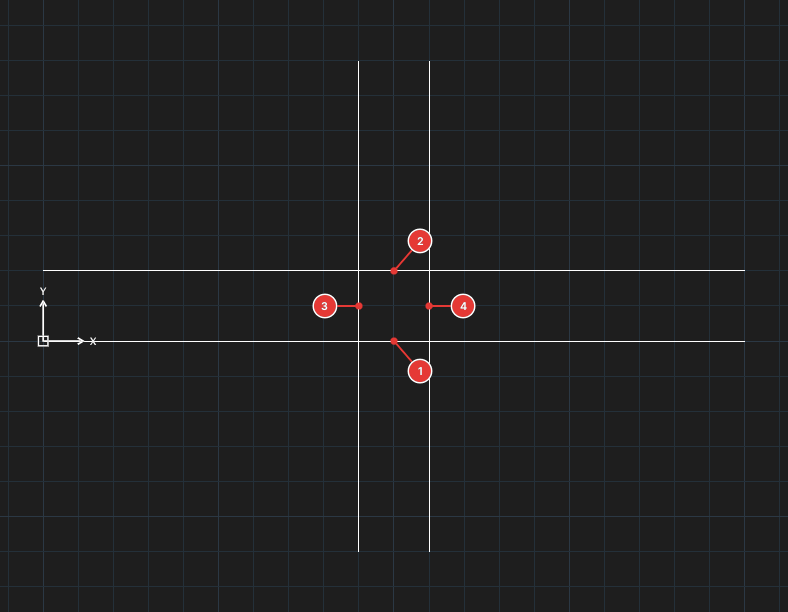
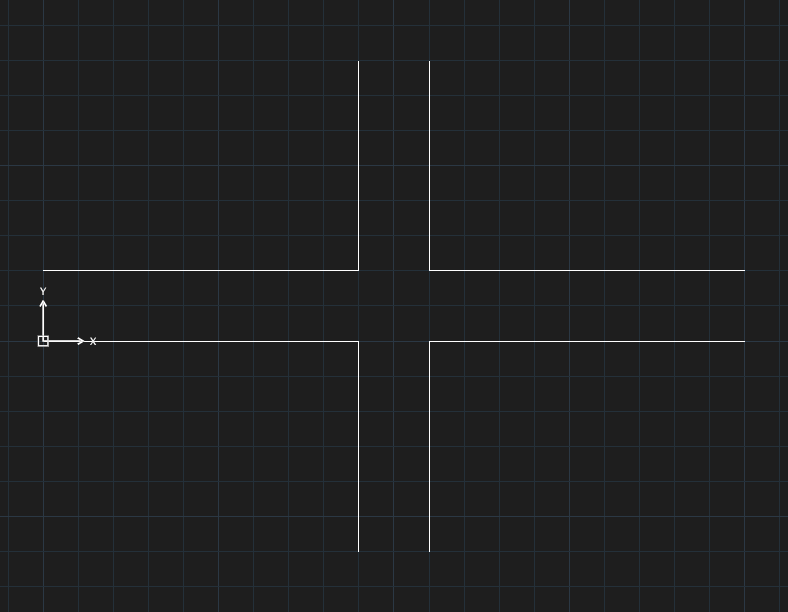
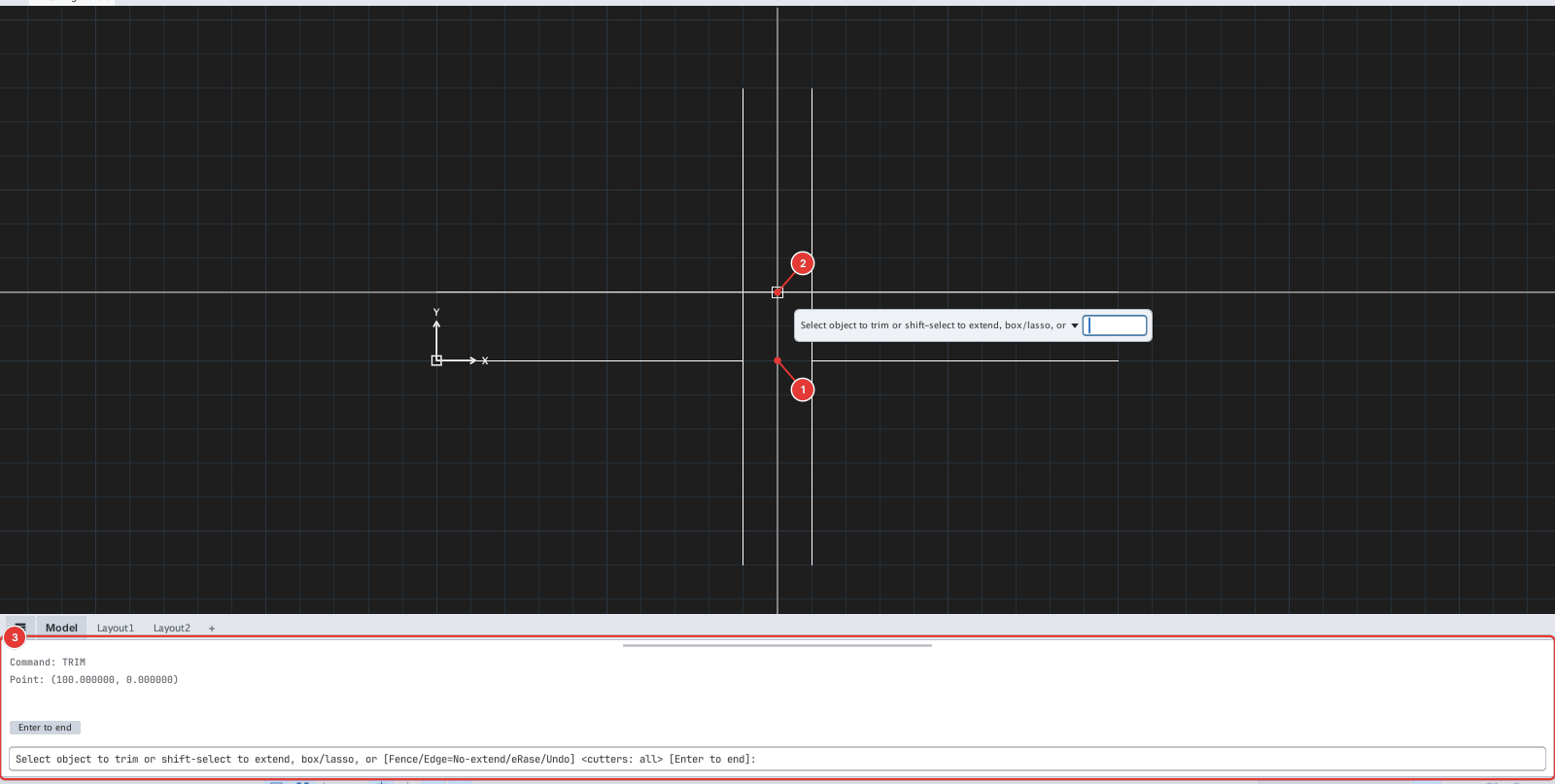
Select cutting edges, then Enter (Enter now = use all objects). Press Enter straight away without selecting anything. - Click the part to remove, for example segment 1 in Figure 6.2. The piece between the two intersections nearest the click is removed at once. Clicking an end piece removes it from the intersection to the endpoint.
- Keep clicking the other segments 2, 3, 4.
- Press Enter or Esc to finish.
Trimming to selected edges only
In a busy drawing, quick trim may cut at intersections you want to keep. Pick the cutting edges first:
- Type
TR, Enter. - Click each object to use as a cutting edge. Selected objects are highlighted; click again to deselect.
The command line counts them:
Select cutting edges (2 picked), Enter to continue. - Press Enter, then click the parts to remove as in quick trim. Objects are cut only at the edges you picked.
Trimming many segments at once
While picking parts to remove, instead of clicking one segment at a time you can:
- Window: click an empty spot, then click the opposite corner. Every segment inside the window is trimmed.
- Lasso: press and hold on an empty spot, drag a loop around the segments, then release.
- Fence: type
F, Enter, click the points of a polyline that crosses the segments to remove, then press Enter. Every segment the fence crosses is trimmed.
Options
Type the letter and press Enter while the command is running.
| Type | Option | What it does |
|---|---|---|
F | Fence | Trims every segment a polyline crosses (see above). |
E | Edge | Switches between No-extend (default — cut only where an object really meets a cutting edge) and Extend (treat cutting edges as infinitely long, so objects that do not reach them can be cut too). The prompt shows the current value: Edge=No-extend. |
R | eRase | Turns erase mode on / off: clicking an object deletes the whole object instead of trimming a piece. |
U | Undo | Undoes the last cut and stays in the command so you can keep trimming. Type it again to step back further. |
Hold Shift while clicking an object to extend it to the nearest edge (as EXTEND does) without leaving TRIM. The prompt reminds you: shift-select to extend.
Notes
Trimmed the wrong piece? Type U inside the command to undo that cut. Once you have left the command, type U (or Ctrl+Z): every cut from that TRIM run is undone together.
- Cuts are made at the exact intersection of the object and the cutting edge, whatever the zoom level.
- You do not need a pixel-perfect click: TRIM picks objects within a few pixels of the cursor, and object snaps are off while picking.
See also: EXTEND — the opposite, lengthening up to an edge.