GROUP and UNGROUP — Group objects
 Ribbon: Draw ▸ Groups ▸ Group / UngroupCommand:
GROUP UNGROUP
GROUP gathers several objects into a named group: clicking one object selects the whole group, so you can move, copy or erase it in one go. UNGROUP dissolves the group; the objects themselves stay.
Before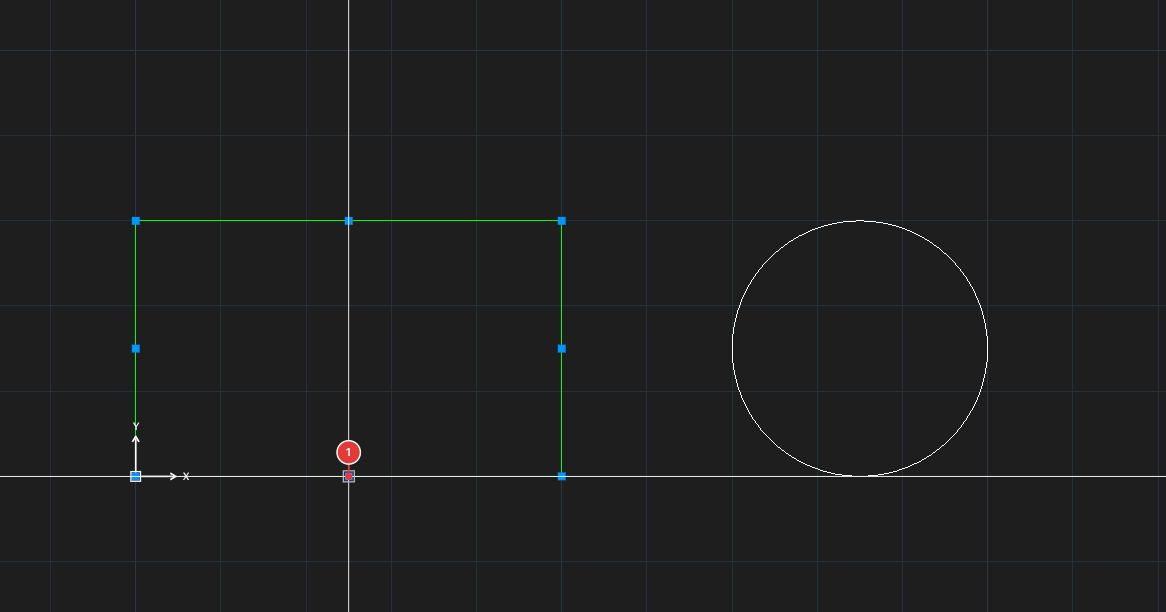
→
After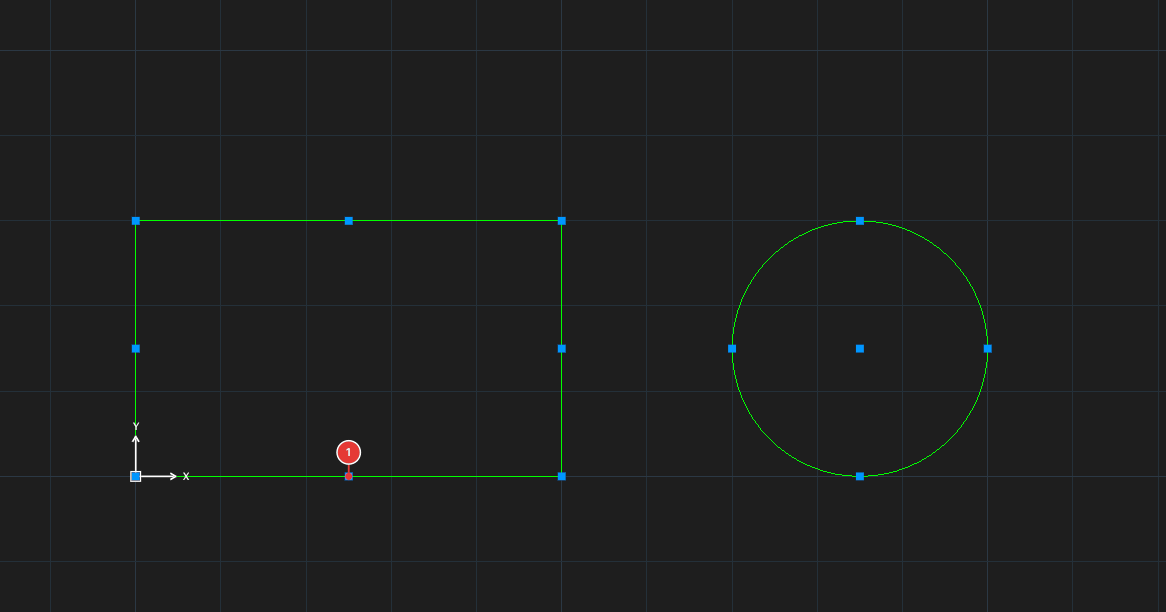
Grouping
- Select the objects to group. For all the ways to select objects (window, crossing, lasso, fence, ALL…) see chapter 2.
- Click Group, or type
GROUP, Enter. The group is created at once; the command does not ask for a name.
Ungrouping
- Click one object of the group (the whole group is selected).
- Click Ungroup, or type
UNGROUP, Enter. The group is dissolved; the objects stay where they are and can be selected one by one.
Notes
- Each run of GROUP or UNGROUP is one undo step.