BREAK — Break objects
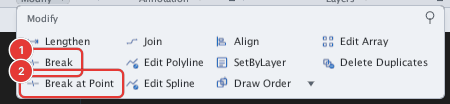
 Ribbon: Draw ▸ Modify ▸ slide-out ▸ Break / Break at PointCommand:
BREAK BREAKATPOINTAlias: BR BP
BREAK removes the stretch of a circle, arc, line or polyline between two points, leaving two parts. Break at Point only splits an object in two at one point, removing nothing.
Before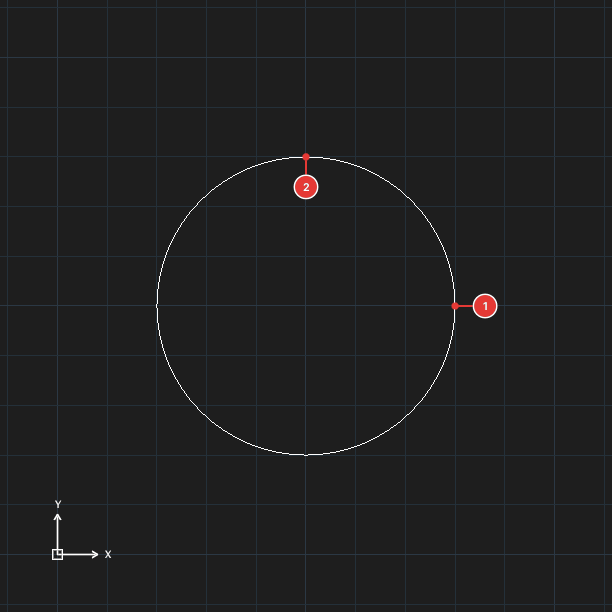
→
After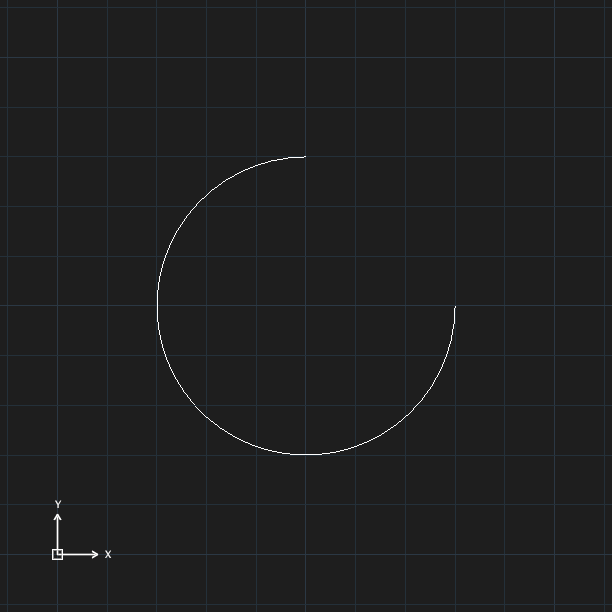
Breaking between two points (Break)
- Click Break, or type
BR, Enter. The prompt readsSelect object to break. - Click the object at the first break point 1 — this click both selects the object and sets the first point.
- The prompt reads
Specify second break point or [First point] (@ = break at point). Click the second point 2. - The part between the two points is removed. For a circle the removed part runs counter-clockwise from the first point to the second.
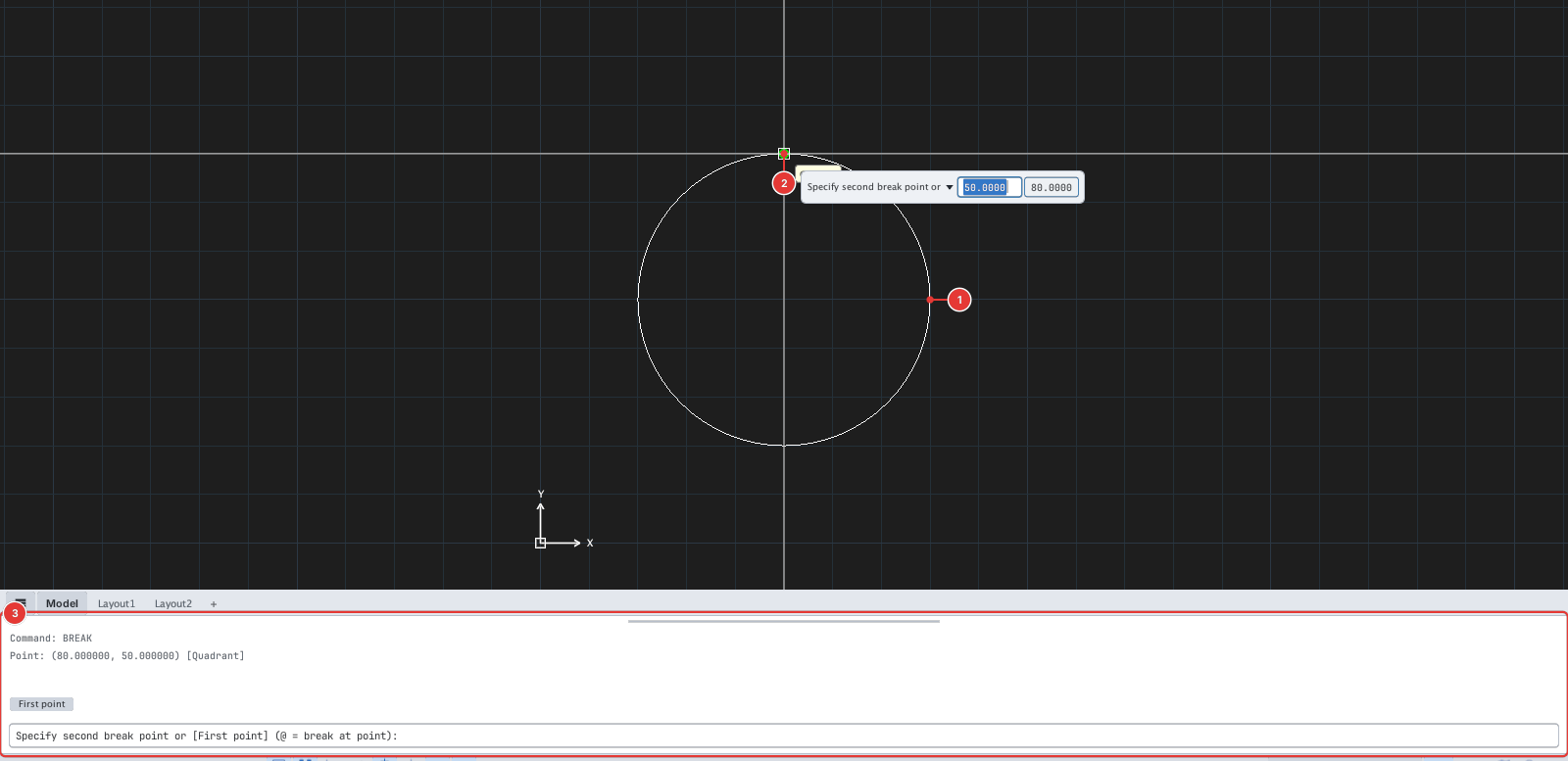
Choosing the first point again (First)
If the click that selected the object was not the break point you wanted, type F (First point), Enter at the second-point prompt, click the right first point and then the second point.
Notes on Break
- A circle becomes an arc; an arc is cut into one or two arcs (both points must lie on the arc).
- On a line, the part between the two points is removed, leaving two lines.
- On a polyline, the part between the two points is removed, leaving two polylines (arc segments stay arcs).
- At the second-point prompt, type
@to break right at the first point (like Break at Point). - The remaining pieces keep the original object's properties (layer, ByLayer colour, linetype).
Breaking at a point (Break at Point)
- Click Break at Point, or type
BREAKATPOINT, Enter. The prompt readsSelect object, then the point to split at. - Click the object (line, arc) to select it.
- Click the split point {n(1)}. The object becomes two parts that meet at that point.
Before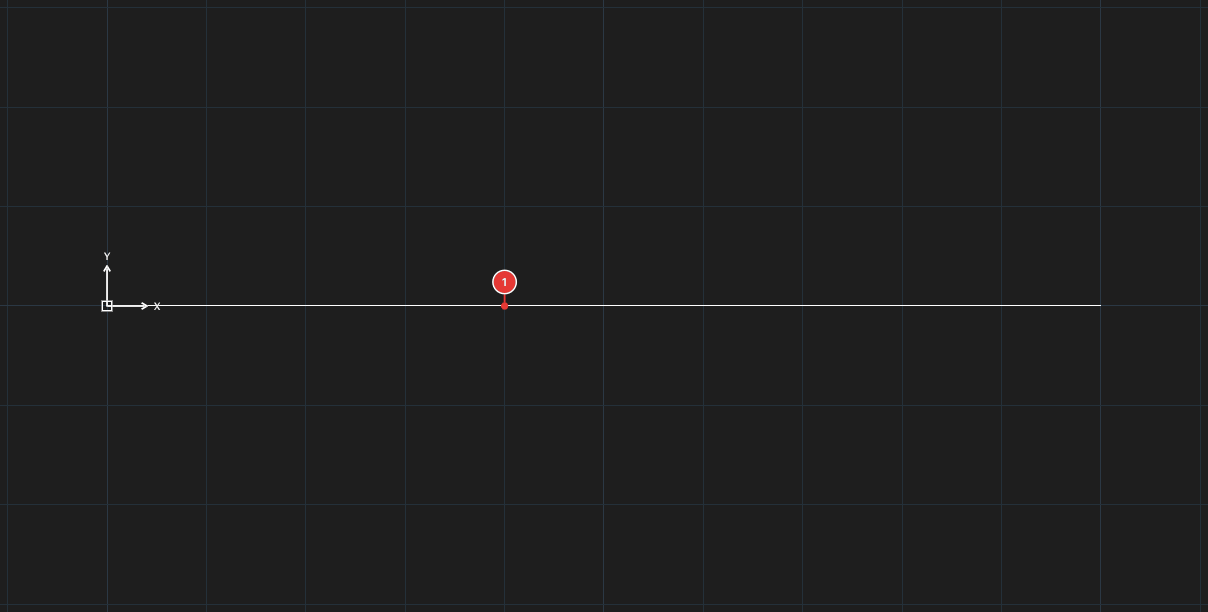
→
After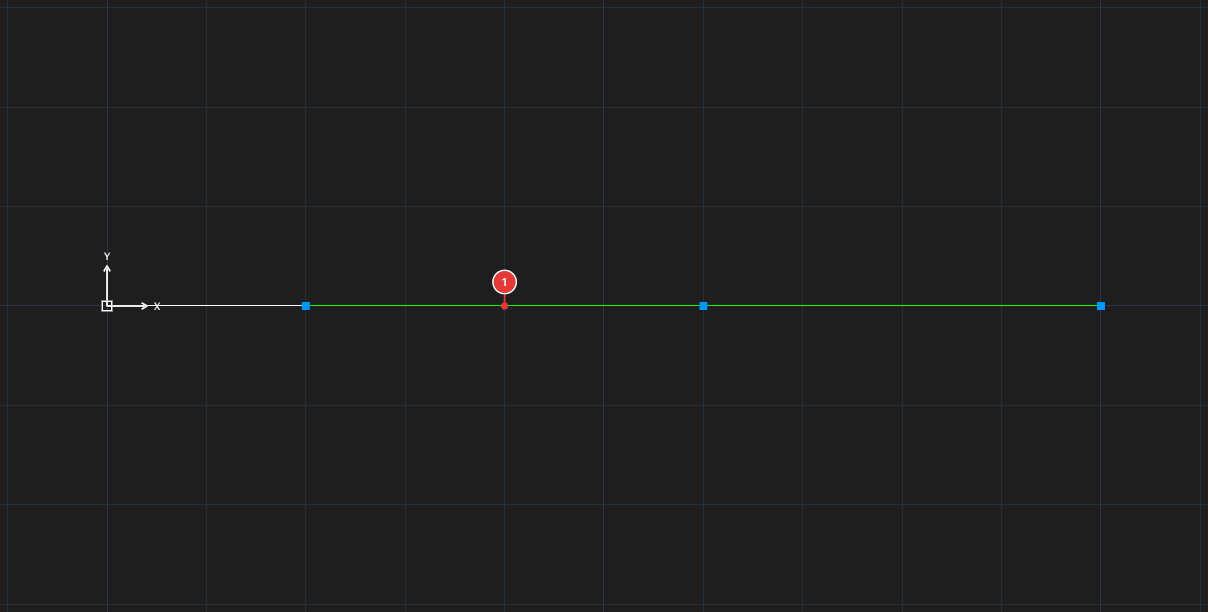
Both halves after Break at Point keep the original object's layer, colour and linetype.
Each run of BREAK or BREAK AT POINT is one undo step.