JOIN — Join objects
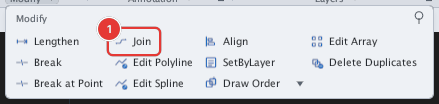
 Ribbon: Draw ▸ Modify ▸ slide-out ▸ JoinCommand:
JOINAlias: J
JOIN merges lines, arcs and polylines that follow one another into a single object. Two collinear lines become one line; segments that meet end to end become one polyline.
Before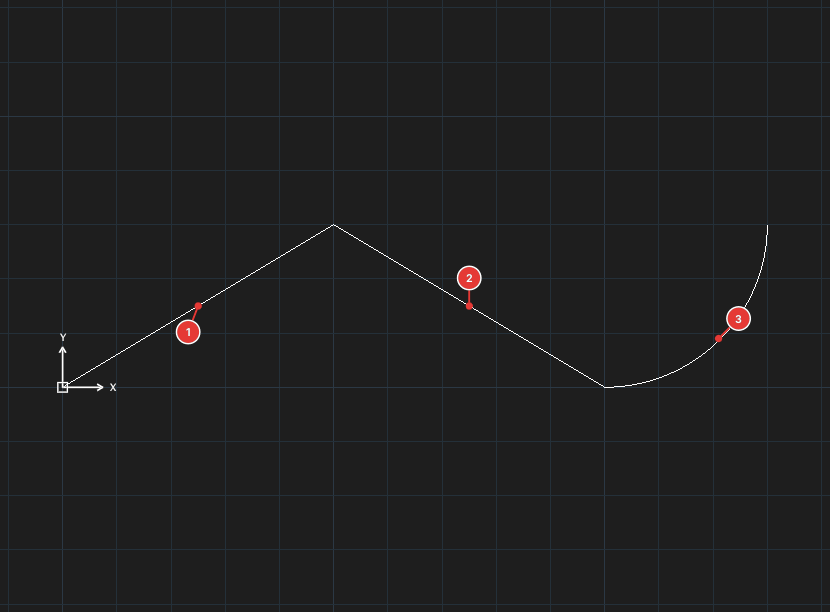
→
After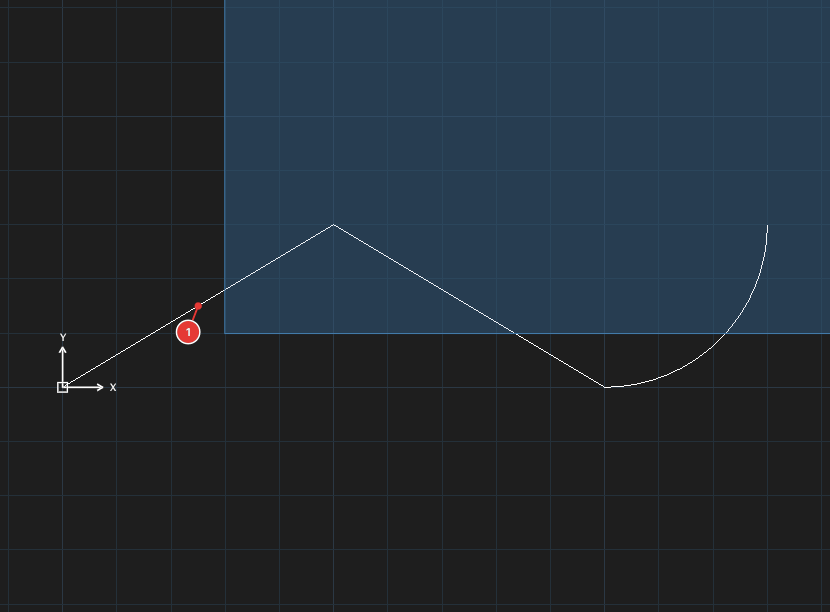
Joining objects
- Select the objects to join (select first and then run the command, or run the command, select and press Enter). For all the ways to select objects (window, crossing, lasso, fence, ALL…) see chapter 2.
- Click Join, or type
J, Enter. - Objects that follow one another are merged at once. The command line asks nothing more.
The result takes the layer, colour and linetype of the first object in the set.
What can be joined
- Two collinear lines that touch become one line.
- Arcs with the same centre and radius become one arc.
- A chain of lines, arcs and polylines that meet end to end becomes one polyline (arcs become bulge segments).
- Objects that cannot follow on (for example a line in another direction that does not touch) are left alone.
Notes
PEDIT ▸ Join(typeJin PEDIT) joins the same way, starting from the selected polyline.- Each run of JOIN is one undo step.