COPY — Copy objects
 Ribbon: Draw ▸ Modify ▸ CopyCommand:
COPYAlias: CO CP
COPY makes copies of objects somewhere else; the originals stay. It runs in Multiple mode by default — select once, place as many copies as you like.
Before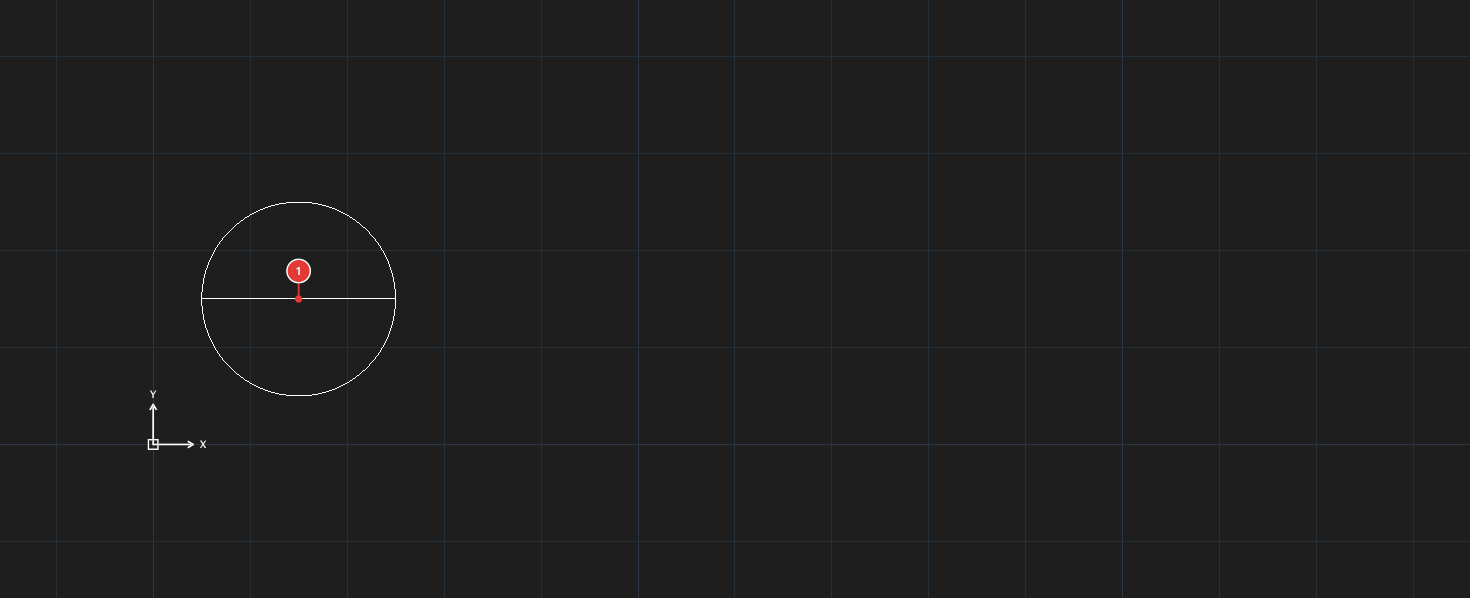
→
After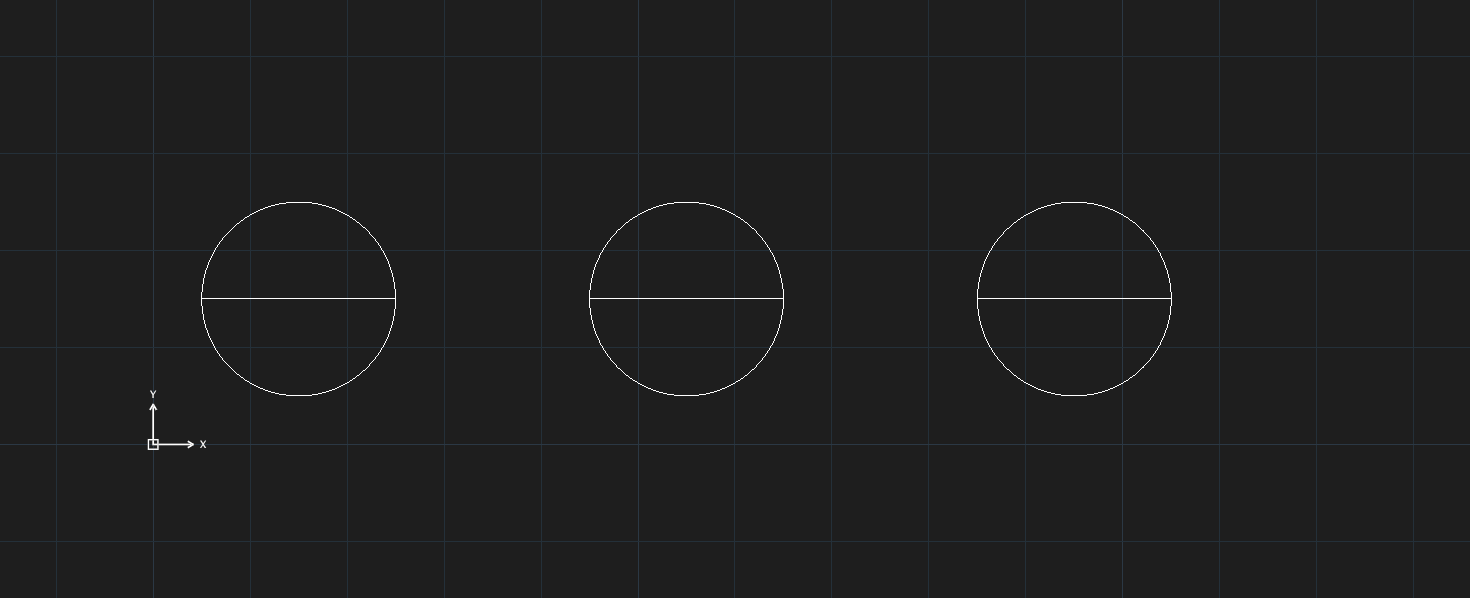
Making several copies
- Select the objects and click Copy (or type
CO, Enter). For all the ways to select objects (window, crossing, lasso, fence, ALL…) see chapter 2. - The command line shows
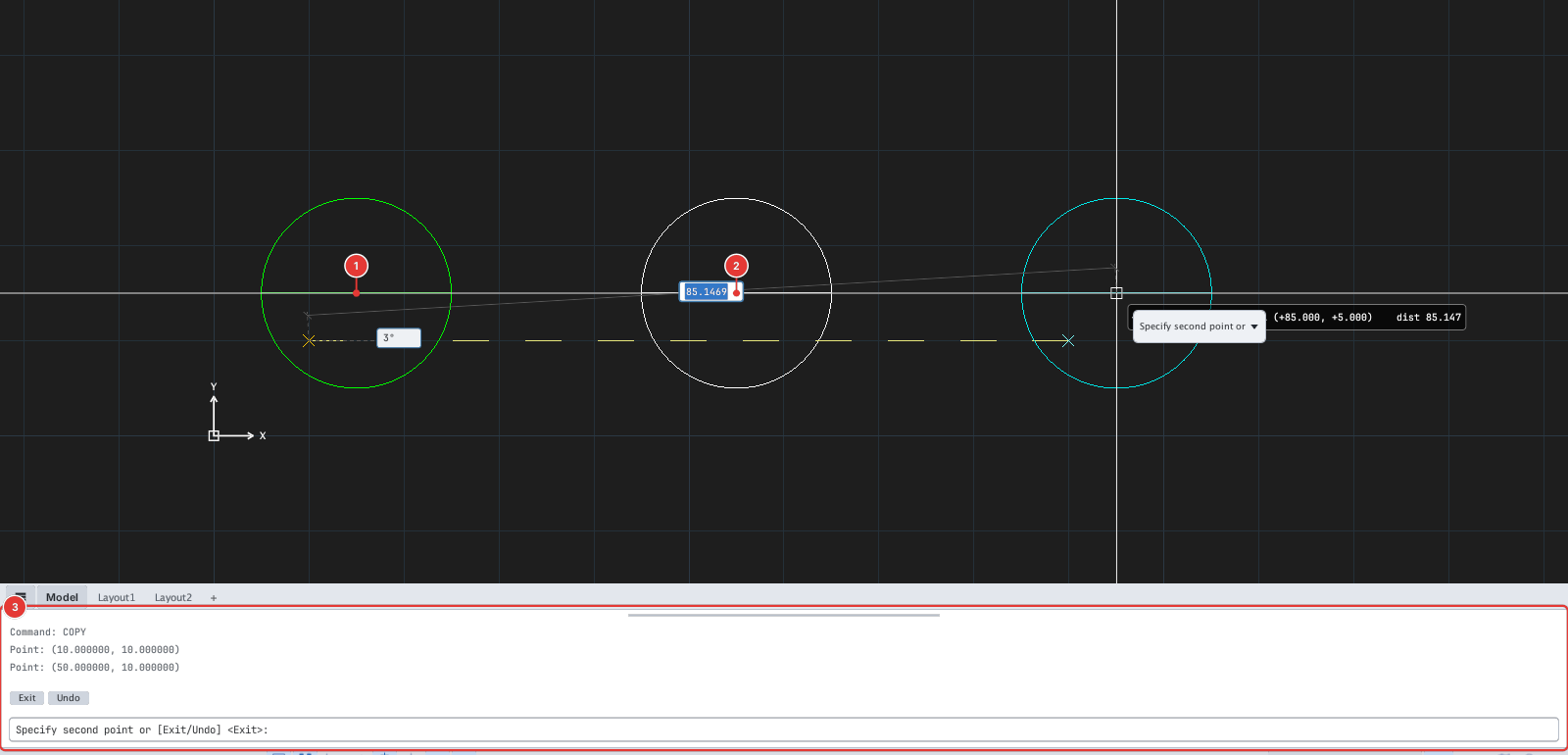
Current settings: Copy mode = Multiple — Specify base point or [Displacement/mOde]. Click the base point 1. - Click the position of the first copy 2. The prompt changes to
Specify second point or [Exit/Undo] <Exit>. - Keep clicking to place more copies.
- Press Enter to finish.
Options
| Type | Option | Effect |
|---|---|---|
D | Displacement | Enter a displacement x,y in place of two points. |
O | mOde | Only at the base-point prompt: switch between Single (one copy, then exit) and Multiple (default). Type S or M after O. |
U | Undo | Remove the copy you just placed (available at the [Exit/Undo] prompt, after the first copy). |
E | Exit | End the command. |
Notes
- Each run of COPY is one undo step.
- Copies keep the layer, colour and linetype of the originals.
- To paste into another drawing use
COPYCLIP/PASTECLIP(see the chapter on working with files).