MIRROR — Mirror objects
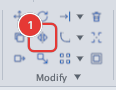
 Ribbon: Draw ▸ Modify ▸ MirrorCommand:
MIRRORAlias: MI
MIRROR creates a mirror image of objects across an axis defined by two points. You can keep or erase the originals. Draw half of a symmetric part and flip the other half.
Before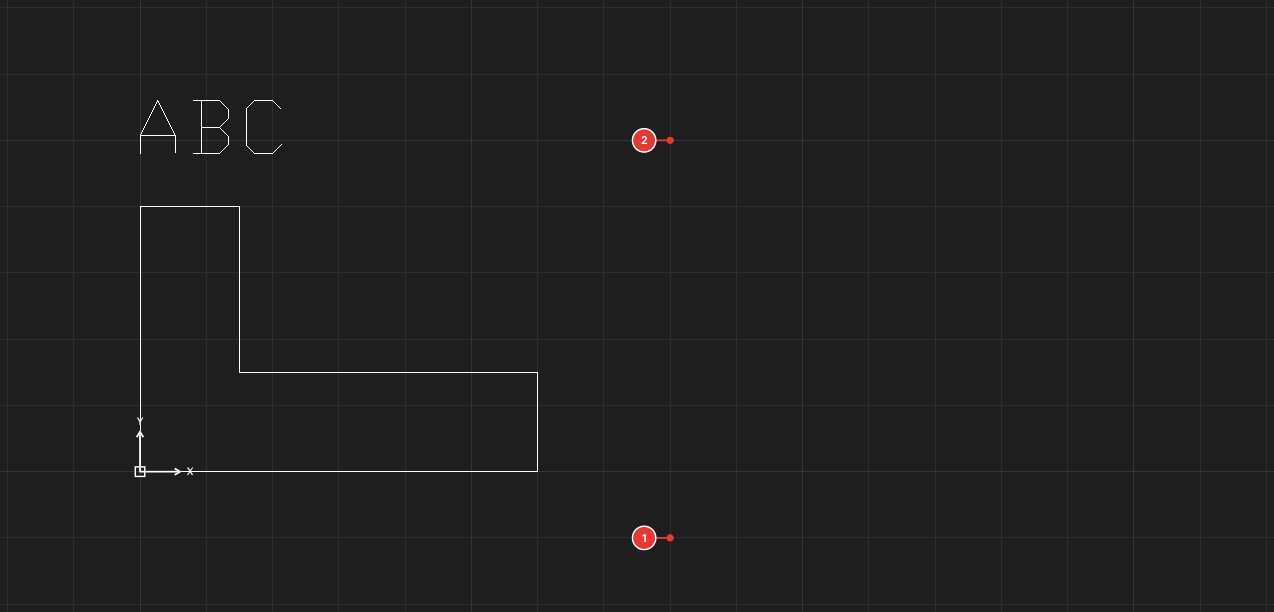
→
After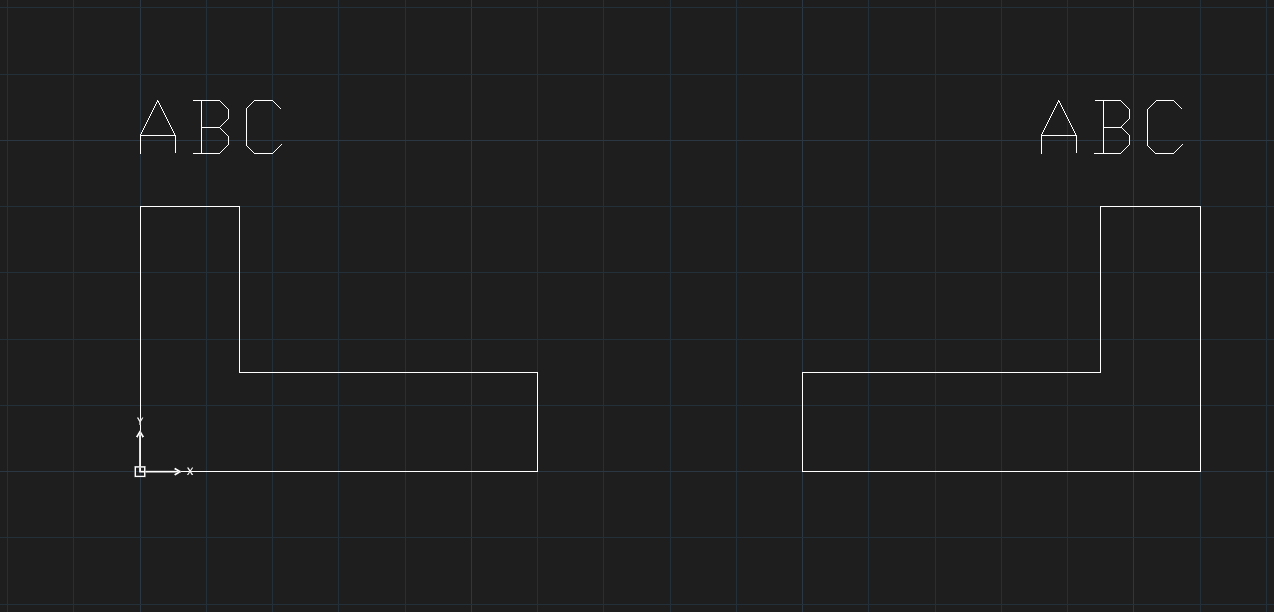
Mirroring across an axis
- Select the objects and click Mirror (or type
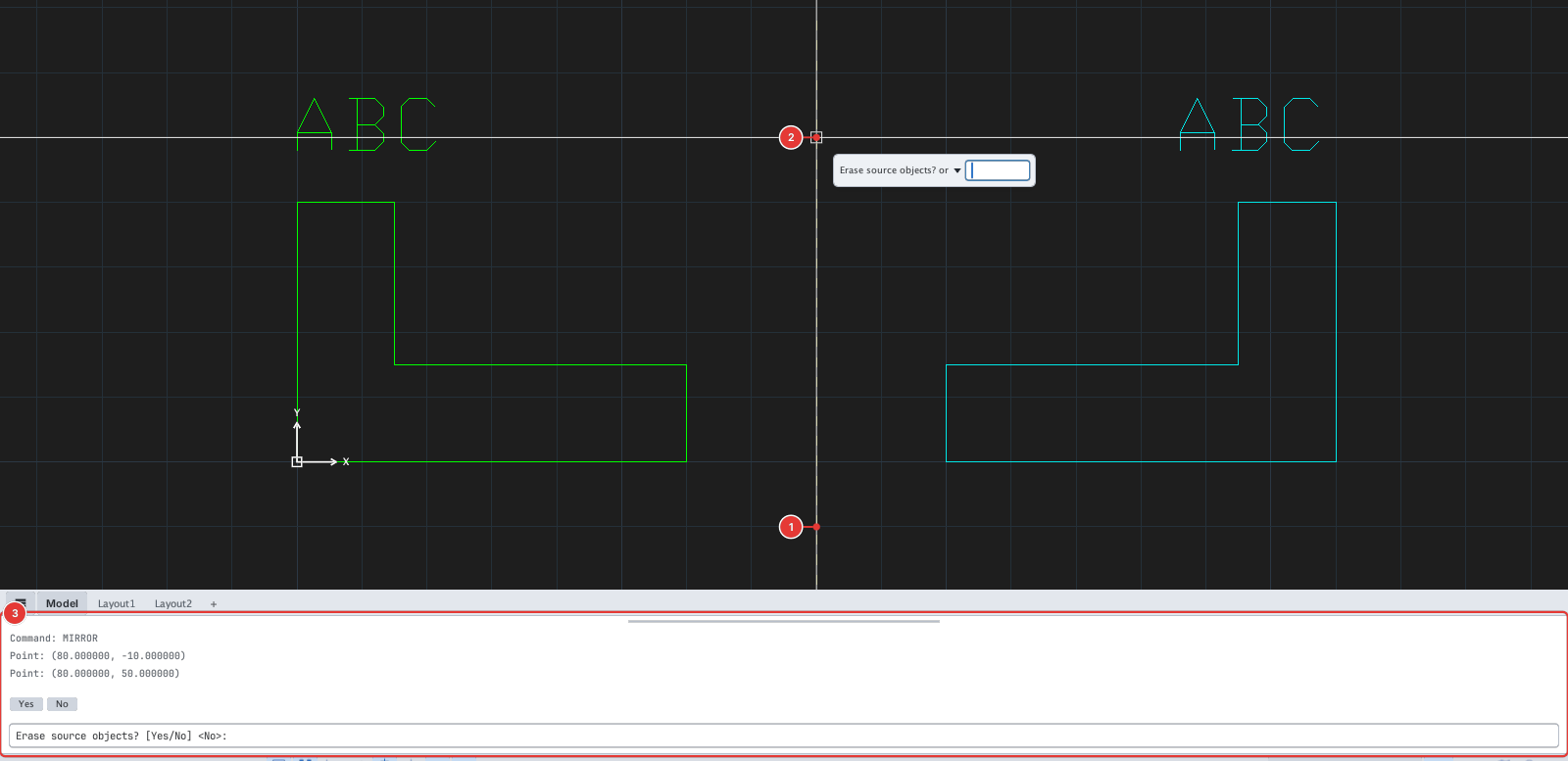
MI, Enter). For all the ways to select objects (window, crossing, lasso, fence, ALL…) see chapter 2. - Click the first point of the mirror line 1.
- Click the second point of the mirror line 2 (move the mouse to see a preview).
- The command line asks
Erase source objects? [Yes/No] <No>. TypeN(keep the originals) orY(erase them) and press Enter.
Text when mirrored
The MIRRTEXT variable decides whether text (TEXT) is flipped:
MIRRTEXT = 0(default): text still reads forward — only its position is reflected across the axis.MIRRTEXT = 1: text is reversed like a mirror image.
Change it by typing MIRRTEXT, Enter, then 0 or 1, Enter.
Notes
- The axis can be slanted; the two axis points must not coincide.
- Click the two axis points with the mouse (Osnap works) or type their coordinates on the command line.
- Each run of MIRROR is one undo step.