OFFSET — Create parallel copies
 Ribbon: Draw ▸ Modify ▸ OffsetCommand:
OFFSETAlias: O
OFFSET makes a parallel copy of a line or polyline, or a concentric copy of a circle or arc, at a given distance from the original. Use it for the second line of a wall, set-back boundaries, grooves, borders…
Before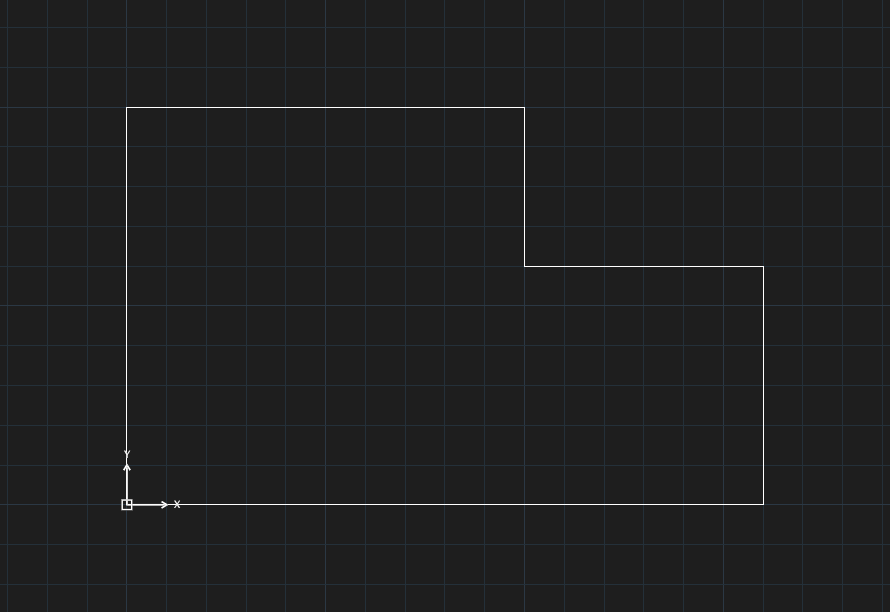
→
After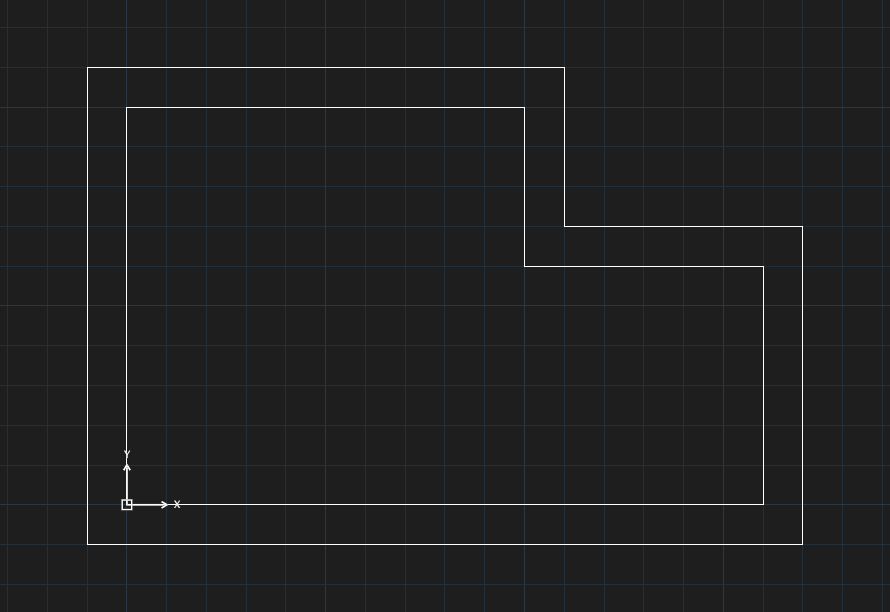
Offset by distance
- Click Offset, or type
Oand press Enter. - The command line asks
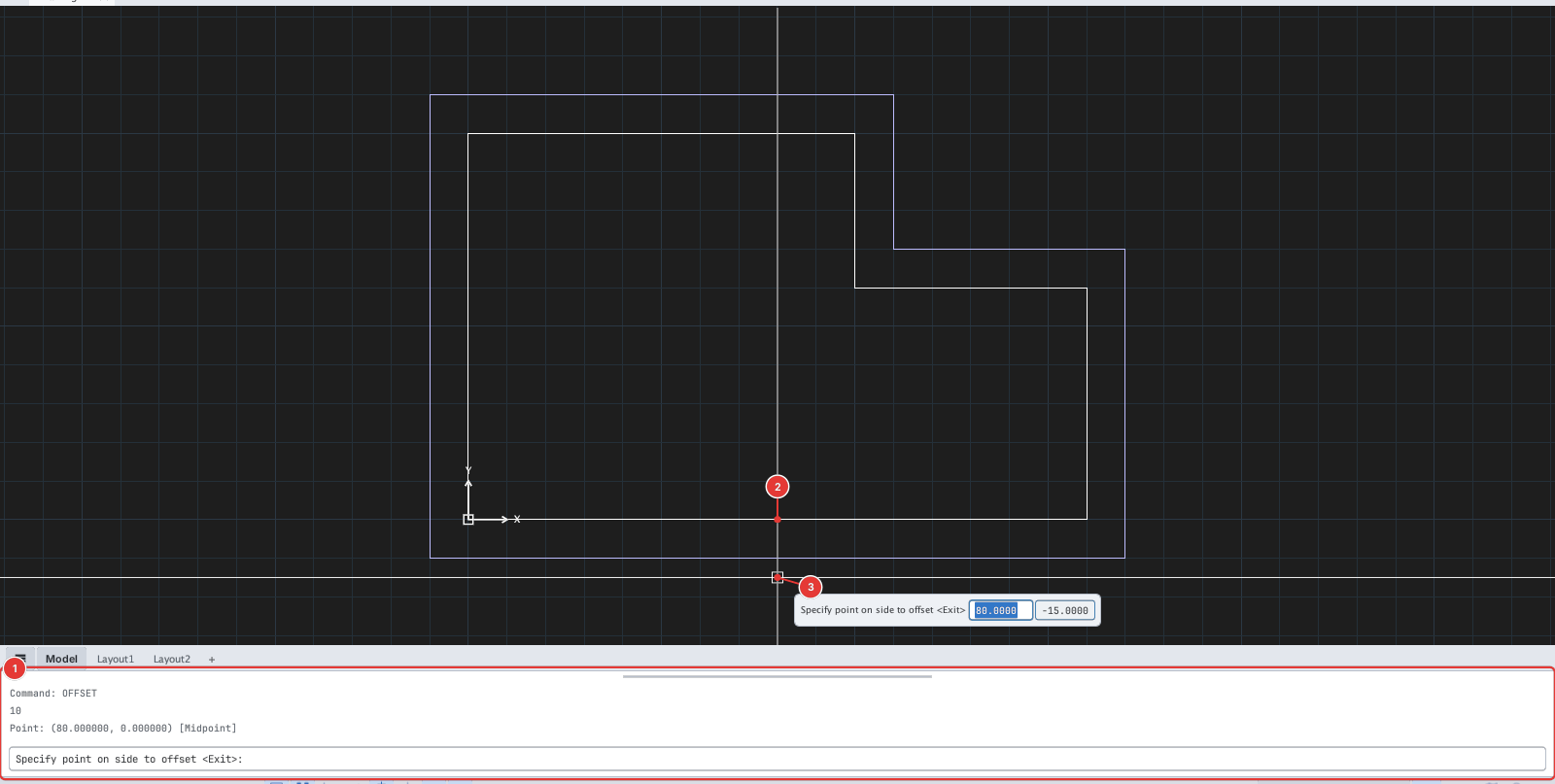
Specify offset distance or [Through/Multiple]. Type the distance, for example10, and press Enter 1. While the command runs, the current distance is shown in< >on the prompt. KufCad remembers this distance for the next OFFSET run: next time just press Enter to reuse it. - Click the object to offset 2.
- Move the cursor to the side where the copy should go — KufCad previews the copy — and click 3.
- Repeat steps 3–4 for other objects, or press Enter / Esc to finish.
Offset through a point (Through)
When you do not know the distance, only a point the copy must pass through:
- Type
O, Enter, thenT, Enter. - Click the object to offset.
- Click the point the copy must pass through (use object snaps to hit an existing point exactly).
Options
| Type | Option | What it does |
|---|---|---|
| (number) | Distance | Sets the offset distance. |
T | Through | The copy passes through the point you click; no distance needed. |
E | Erase | On / off: delete the original after offsetting (keep only the copy). Not shown on the prompt, but you can type it. |
L | Layer | On / off: put the copy on the current layer instead of the original's layer. |
M | Multiple | Makes several copies in a row from the same object (see below). |
Several copies (Multiple)
To draw a row of evenly spaced parallel lines (stair treads, for example):
- Type
O, Enter, type the distance (for example10), Enter, then typeM, Enter. - Click the source object.
- At the prompt
Specify point on side to offset <next object>, click on the side where the copy should go. Each click adds one more copy, measured from the copy just made, so the copies are exactly one distance apart (10, 20, 30…). - Press Enter to pick another object; press Enter again (or Esc) to end the command.
Notes
- Polylines with arc segments stay tangent when offset (the new arcs are concentric with the old ones).
- Offsetting a circle inwards by more than its radius cannot create a copy.
- After leaving the command,
Uundoes the whole OFFSET run.