CHAMFER — Bevel a corner
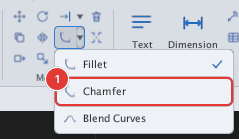
 Ribbon: Draw ▸ Modify ▸ ▾ next to Fillet ▸ ChamferCommand:
CHAMFERAlias: CHA
CHAMFER joins two lines with a straight bevel and trims the excess. The distance can differ on each line. Use it to break the edge of a mechanical part.
Before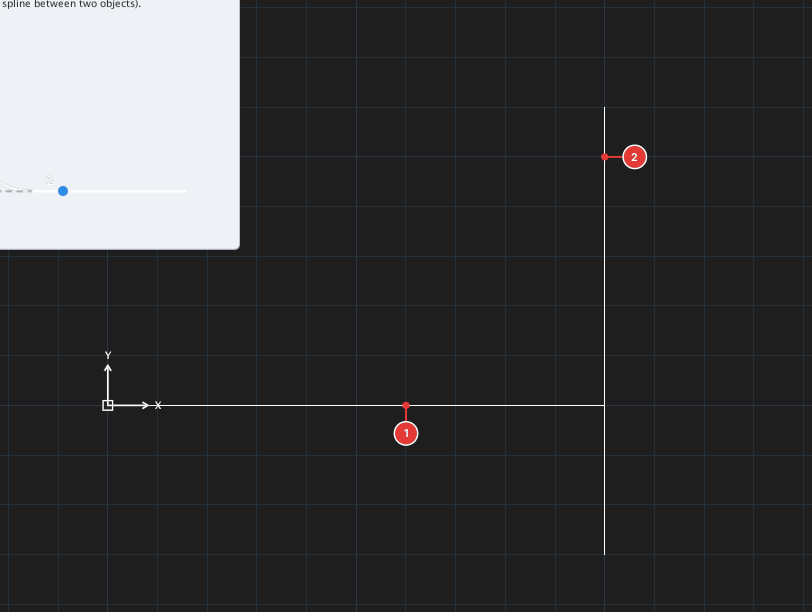
→
After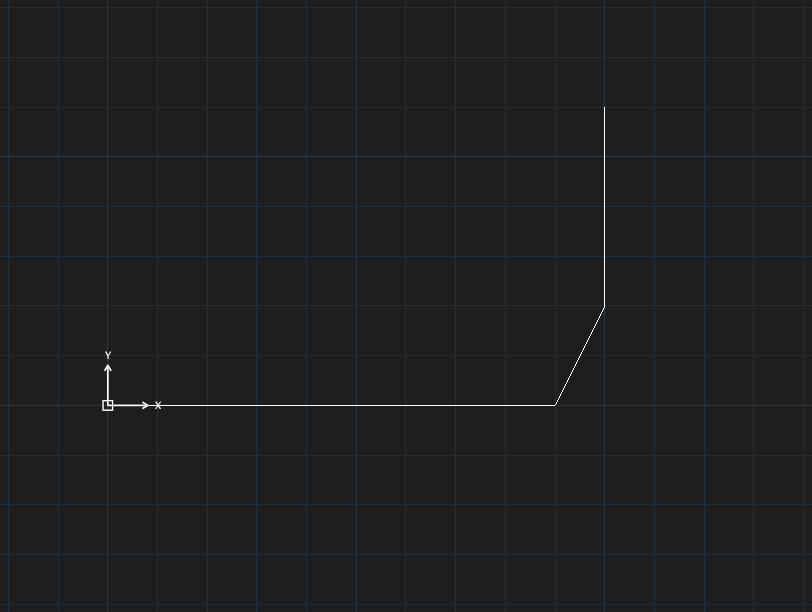
Chamfer by two distances (Distance)
- Run Chamfer (type
CHA, Enter). The prompt readsSelect first line or [Distance/Angle/Polyline/Multiple/Trim] (D=1.000,1.000). - Type
D, Enter. Enter the first distance (for example10), Enter, then the second (for example20), Enter. - Click the first line 1, then the second line 2. The first distance applies to the first line, the second to the second line.
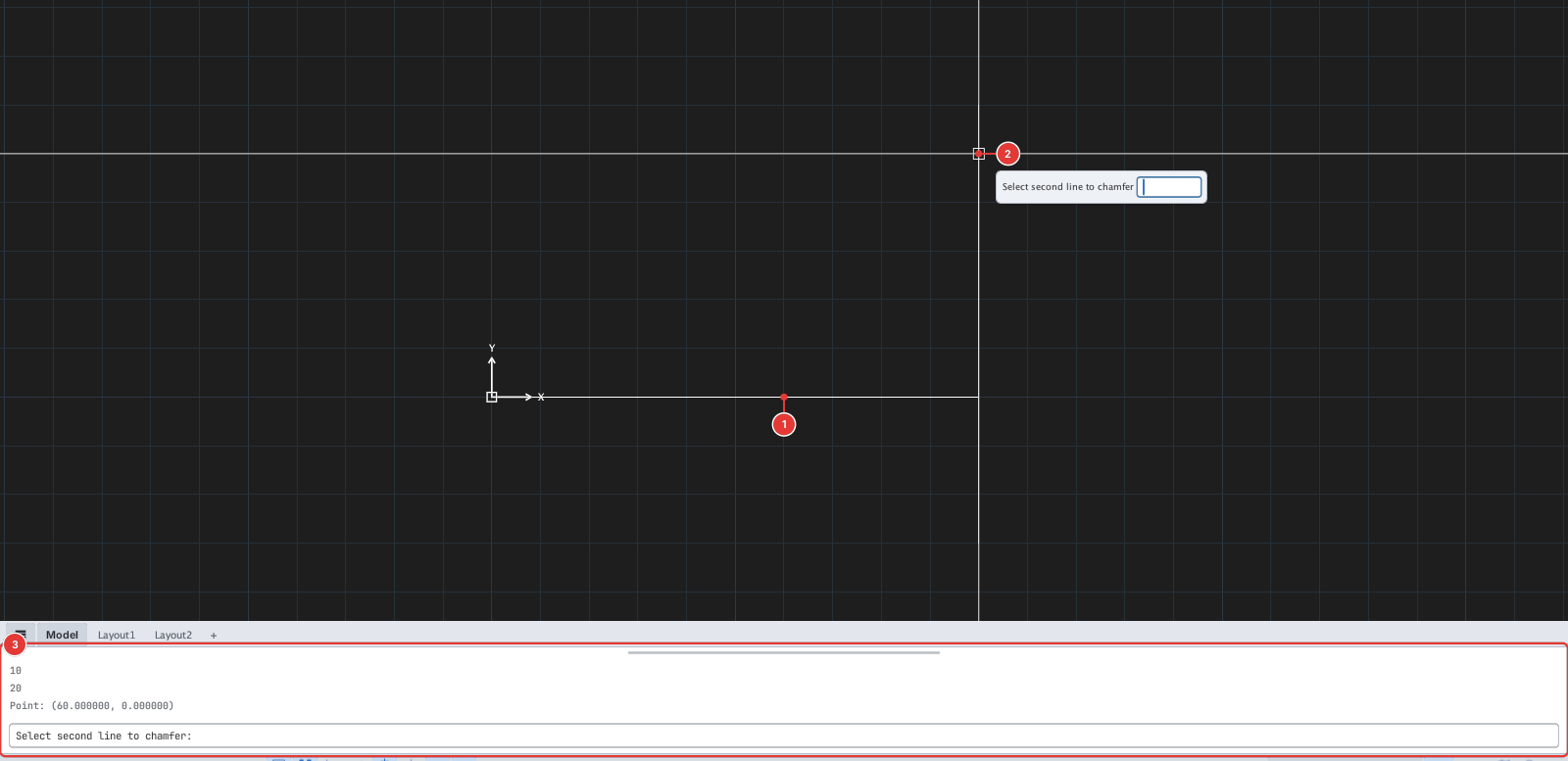
D=10.000,20.000.Chamfer by length and angle (Angle)
Type A, Enter. Enter the chamfer length along the first line (Specify chamfer length along first line), then the angle from the first line (Specify chamfer angle from first line (deg)). KufCad converts these into the two matching distances (shown in D=…), then you pick the two lines as above.
Chamfer every corner of a polyline
Type P, Enter, then click the polyline or rectangle: every corner is bevelled with the current distances.
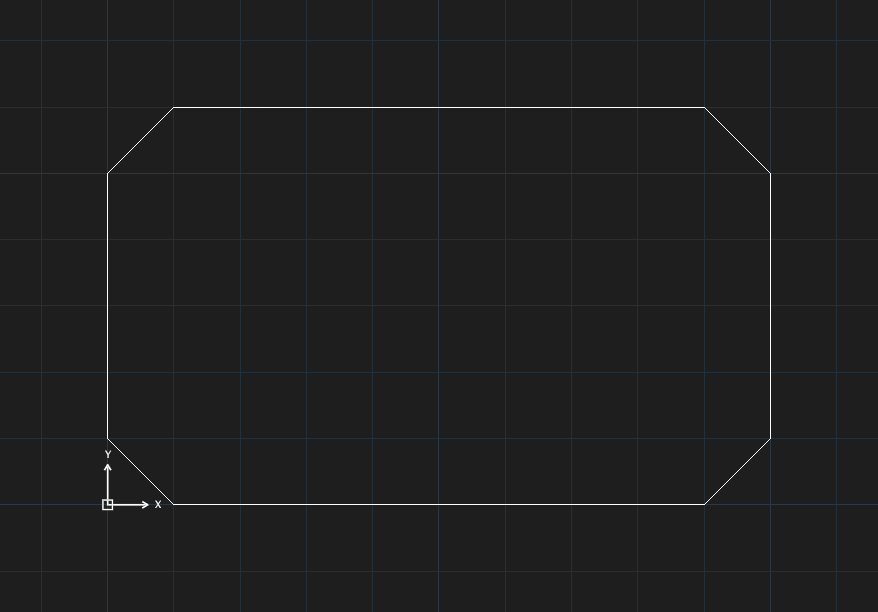
CHAMFER, D 10 10, P: all four corners are bevelled 10 × 10.Options
| Type | Option | Effect |
|---|---|---|
D | Distance | Set the two chamfer distances. |
A | Angle | Set the chamfer length and angle. |
P | Polyline | Bevel every corner of a polyline / rectangle. |
M | Multiple | Chamfer several pairs in a row. |
T | Trim | Switch Trim / NoTrim (keep both lines, only add the bevel). |
KufCad has no separate Method option: how it chamfers is decided by whether you last used D or A.
Notes
- Two parallel lines cannot be chamfered.
- The new bevel segment takes the layer, colour (including ByLayer) and linetype of the chamfered objects; a polyline chamfered with
Pkeeps its own properties. - Each run of CHAMFER is one undo step.