DRAWORDER — Draw order
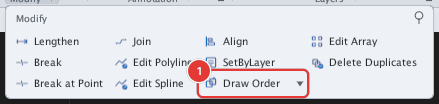
 Ribbon: Draw ▸ Modify ▸ slide-out ▸ Draw OrderCommand:
DRAWORDER DRAWORDERFRONT DRAWORDERBACK TEXTTOFRONT HATCHTOBACKAlias: DR
DRAWORDER decides which object sits on top and which underneath when they overlap. You see it clearly with solid hatches, wipeouts and images, which hide whatever lies beneath.
Before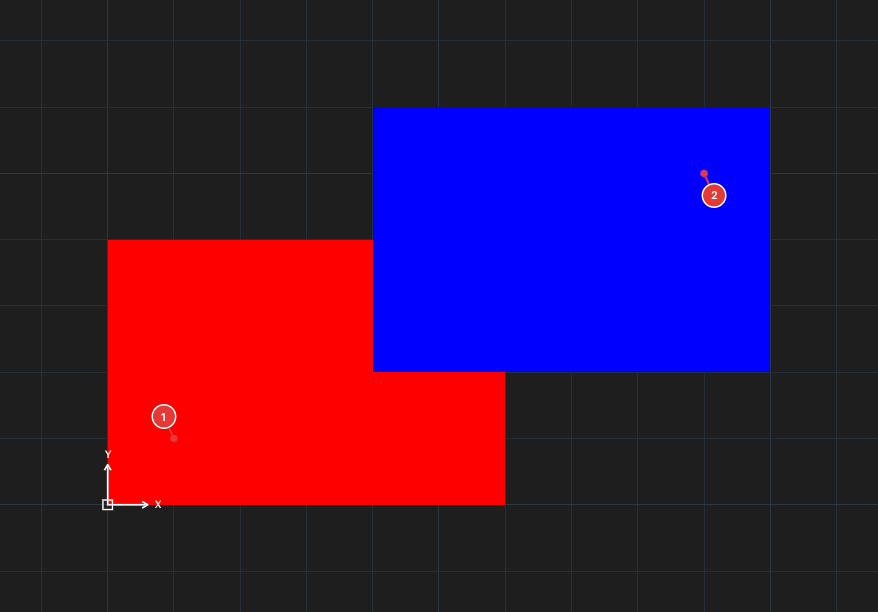
→
After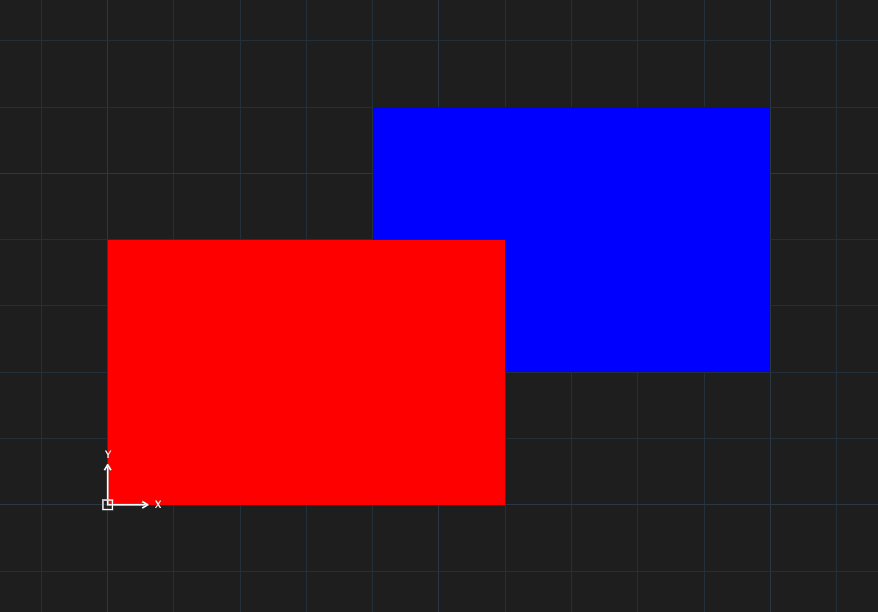
DRAWORDER ▸ F: the red hatch is on top.Changing the order
- Select first the objects whose order you want to change (click them). The command does not ask you to select if nothing is selected. For all the ways to select objects (window, crossing, lasso, fence, ALL…) see chapter 2.
- Type
DR, Enter. The prompt readsEnter object ordering option [Above objects/Under objects/Front/Back] <Back>. - Type a letter and press Enter:
| Type | Option | Effect |
|---|---|---|
F | Front | Put the selected objects on top of the drawing. |
B | Back | Put them at the bottom. |
A | Above objects | Place them just above a reference object: the command asks you to select the reference objects, finish with Enter. |
U | Under objects | Place them just below the reference object, done like A. |
The quick buttons
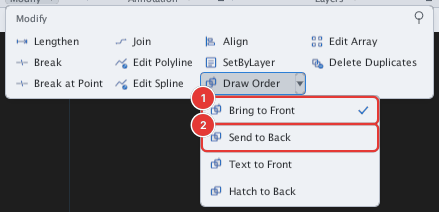
- Bring to Front / Send to Back: top / bottom for the selected objects, with no questions (commands
DRAWORDERFRONT,DRAWORDERBACK). - Text to Front: puts all text, dimensions and multileaders on top — no selection needed (command
TEXTTOFRONT). - Hatch to Back: puts every hatch (except wipeouts) at the bottom so hatches never hide linework (command
HATCHTOBACK).
Notes
- The order is most visible with objects that have a fill.
- Each run of DRAWORDER is one undo step. For hatches see chapter 8.