EXTEND — Extend to a boundary
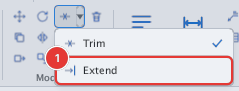
 Ribbon: Draw ▸ Modify ▸ ▾ next to Trim ▸ ExtendCommand:
EXTENDAlias: EX
EXTEND lengthens a line until it meets a boundary — another object in the direction it points. It works just like TRIM: choose boundaries (or use them all), then click the objects to extend.
Before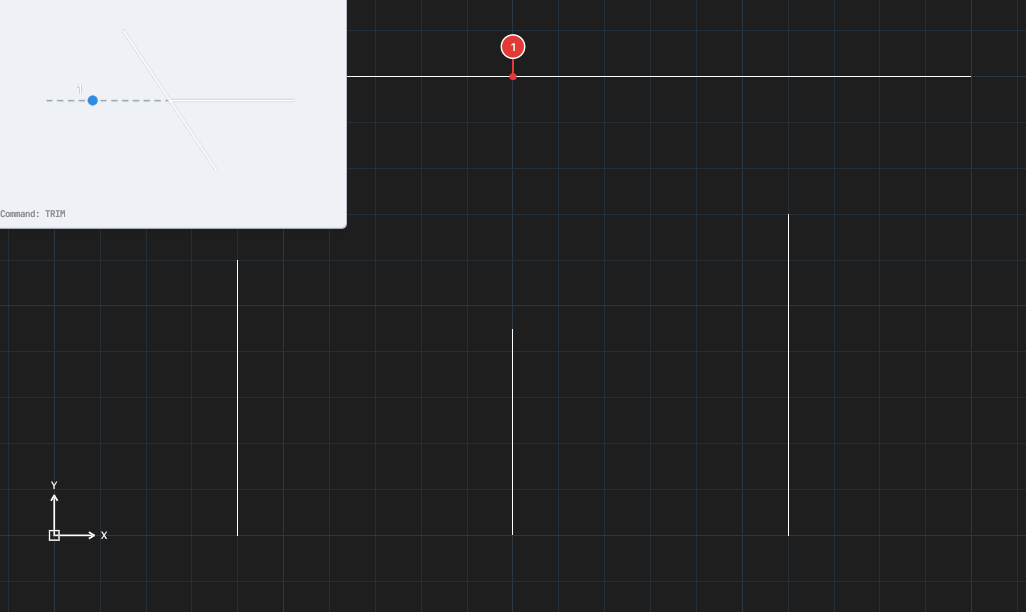
→
After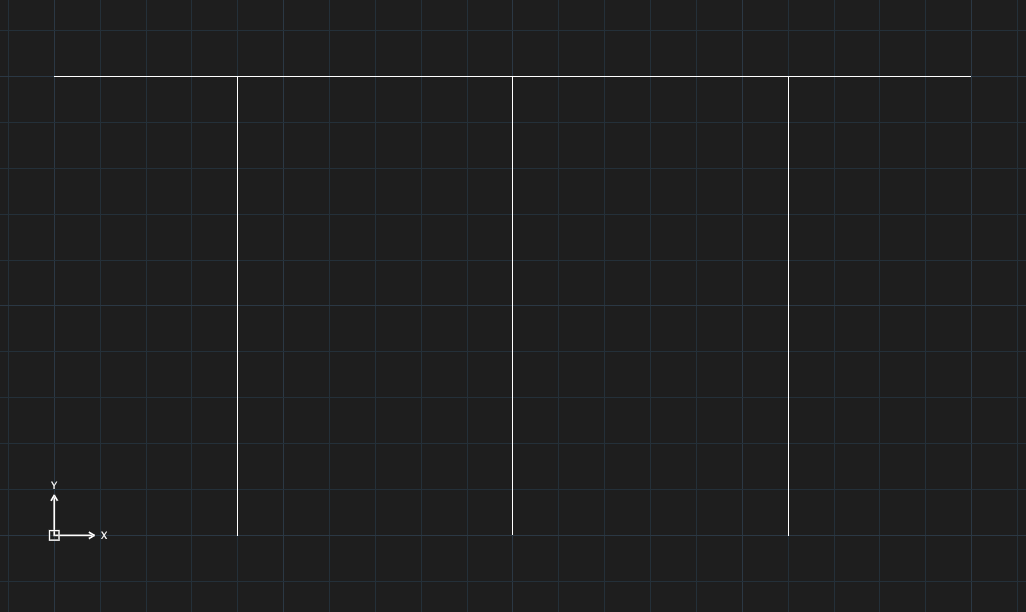
Quick extend
- Choose Extend on the ribbon, or type
EXand press Enter. - The command line asks
Select boundary edges to extend to, then Enter (Enter now = use all objects). Press Enter straight away: any object can act as a boundary. - Click the object to extend, near the end you want to lengthen 1. That end grows to the nearest boundary in its direction.
- Click the other objects 2…
- Press Enter or Esc to finish.
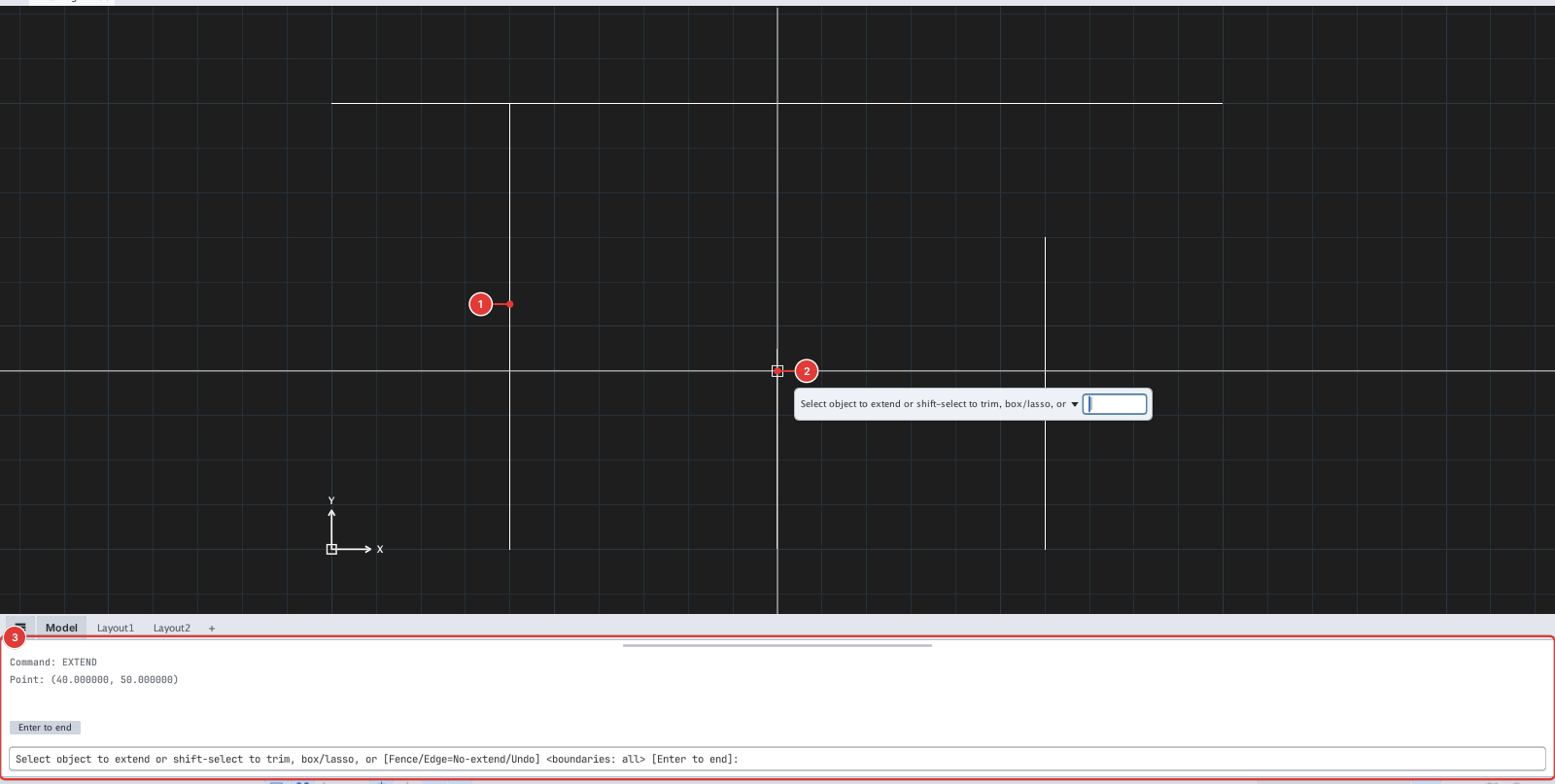
Which end grows depends on where you click: click near the top end and the top end is extended. To extend both ends, click twice, once near each end.
Extending to selected boundaries only
In step 2, click the objects to use as boundaries (click again to deselect), then press Enter. Objects then extend only to those boundaries, even if another object is closer.
Extending many objects at once
- Window: click an empty spot, then click the opposite corner. Every line inside the window is extended; the end nearer the window centre grows.
- Lasso: press and hold on an empty spot, drag a loop around the lines, then release.
- Fence: type
F, Enter, click the points of a polyline that crosses the lines to extend, then press Enter.
Options
| Type | Option | What it does |
|---|---|---|
F | Fence | Extends every line a polyline crosses. |
E | Edge | No-extend (default): extend only to a boundary the line would actually reach. Extend: treat boundaries as infinitely long and extend to their imaginary intersection too. |
U | Undo | Undoes the last extension and stays in the command. |
Hold Shift while clicking an object to trim it at the boundary (as TRIM does) without leaving EXTEND (shift-select to trim).
- If there is no boundary in the extension direction, the object stays as it is.
- After leaving the command,
Uundoes the whole EXTEND run.