ERASE — Delete objects
 Ribbon: Draw ▸ Modify ▸ EraseCommand:
ERASEAlias: E
ERASE removes the selected objects from the drawing. Use it to get rid of construction lines and anything you no longer need. If you erase by mistake, undo with U or Ctrl+Z.
Before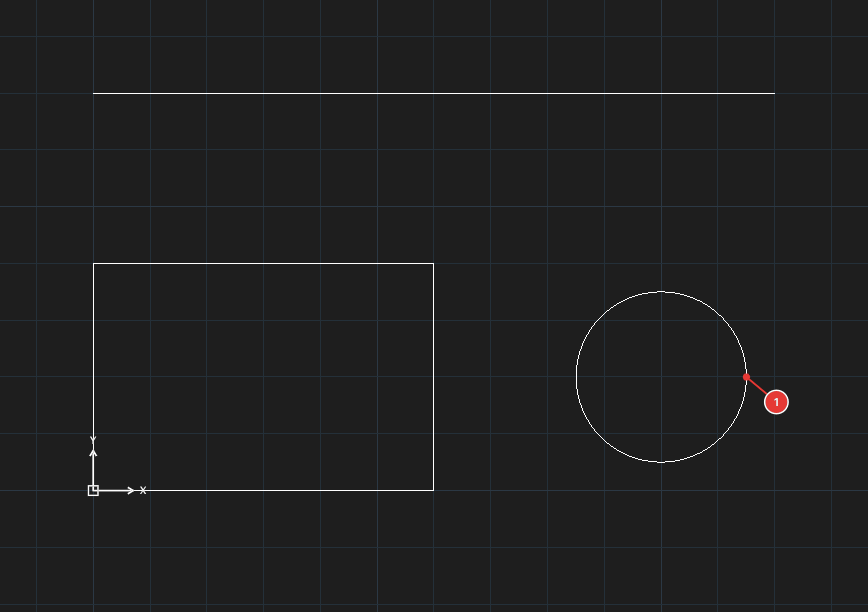
→
After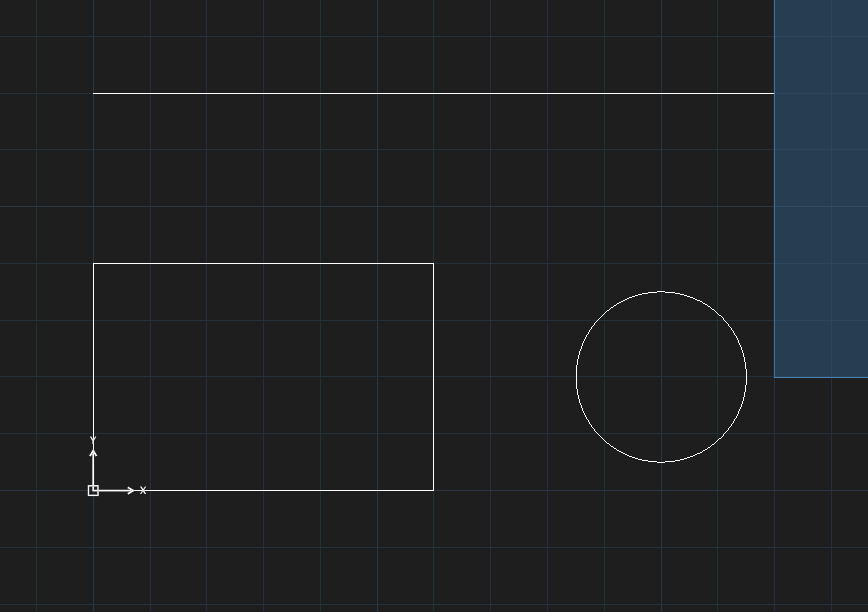
Erase with the command
- Click Erase, or type
Eand press Enter. - The command line asks
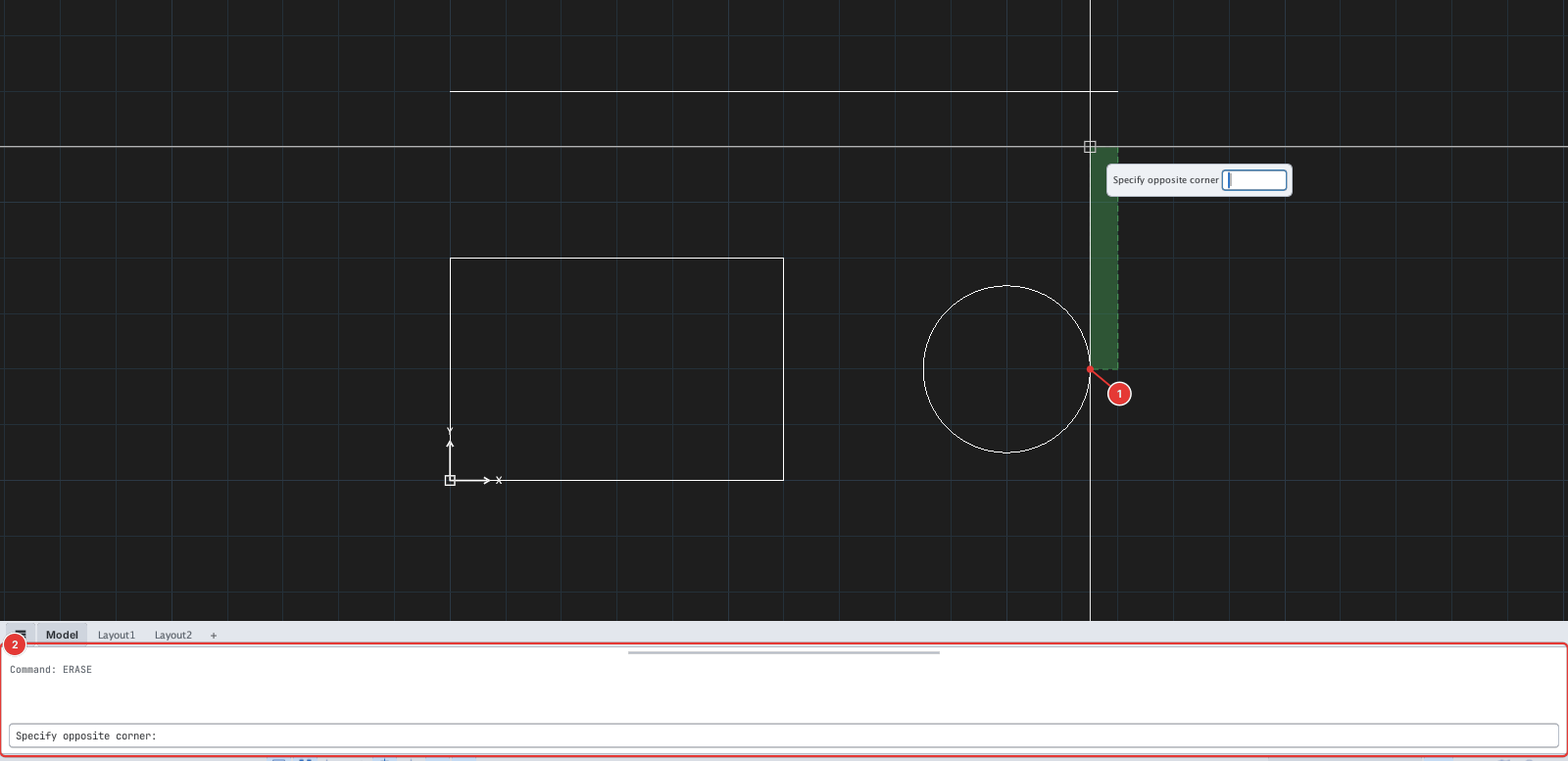
ERASE — Select objects [W/C/WP/CP/F/ALL/L/P/R/A/U]. Click the object to erase 1: it lights up and the command line countsSelect objects (1 selected). - Click more objects if you need to, or use any of the multiple-selection methods. For all the ways to select objects (window, crossing, lasso, fence, ALL…) see chapter 2.
- Press Enter to erase. The command ends.
Select first, erase after
You can also select objects first (click them while no command is running), then type E and press Enter: the selected objects are erased at once without further questions.