Quick layer commands (LAYOFF, LAYISO, LAYMCUR…)
 Ribbon: Draw ▸ Layers (the two rows of small buttons) and the panel's slide-outCommand:
LAYOFF LAYON LAYFRZ LAYTHW LAYLCK LAYULK LAYISO LAYUNISO LAYMCUR LAYMCH LAYCUR LAYMRG LAYDEL LAYWALK
These commands change layer states by clicking an object instead of looking up the layer name in the manager: turn off, freeze or lock the object's layer, make it current, isolate it… Use them when a drawing has many layers and you can see the object but do not remember its layer name.
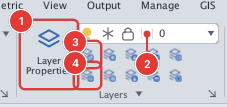
The commands
The top row of the panel (works on the layers of the objects you pick):
| Button | Command | How to use it |
|---|---|---|
| Layer Off | LAYOFF | Select objects, Enter: turns off their layers. |
 Layer Freeze | LAYFRZ | Select objects, Enter: freezes their layers. |
 Layer Lock | LAYLCK | Select objects, Enter: locks their layers. |
 Make Object's Layer Current | LAYMCUR | Click one object: its layer becomes the current layer (no Enter needed). |
 Layer Isolate | LAYISO | Select objects, Enter: turns off every other layer, leaving only the layers of the selected objects. |
The bottom row (undoing those, nothing to select):
| Button | Command | How to use it |
|---|---|---|
 Turn All Layers On | LAYON | Turns every layer back on. |
 Thaw All Layers | LAYTHW | Thaws every layer. |
 Layer Unlock | LAYULK | Unlocks every layer. |
 Layer Match | LAYMCH | Select the objects to move, then click a destination object (LAYMCH: pick the target object): the selected objects move to the destination object's layer. |
 Layer Unisolate | LAYUNISO | Undoes LAYISO: turns the layers it switched off back on. |
The commands accept the usual multiple selection and frames; For how to select objects see chapter 2.
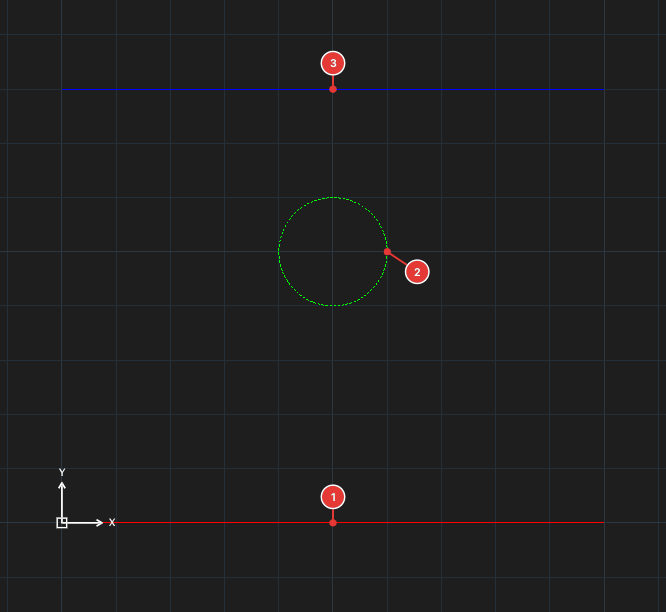
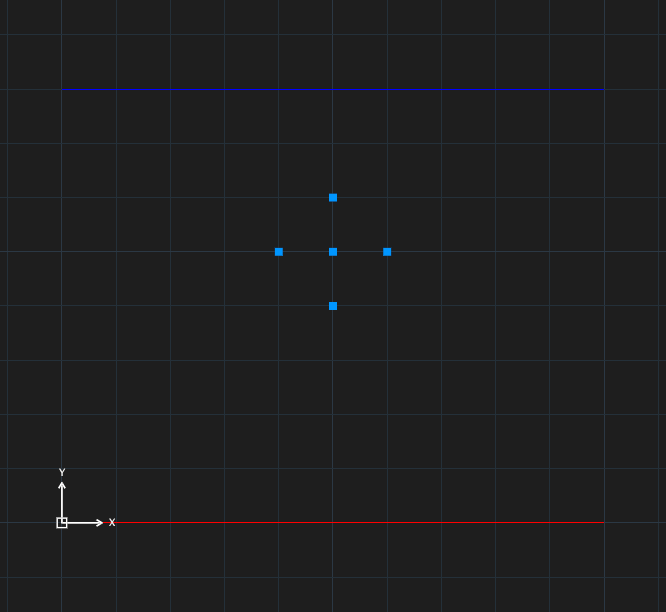
LAYOFF, click the circle 2, Enter: layer DIM is turned off so the circle disappears; the two lines stay.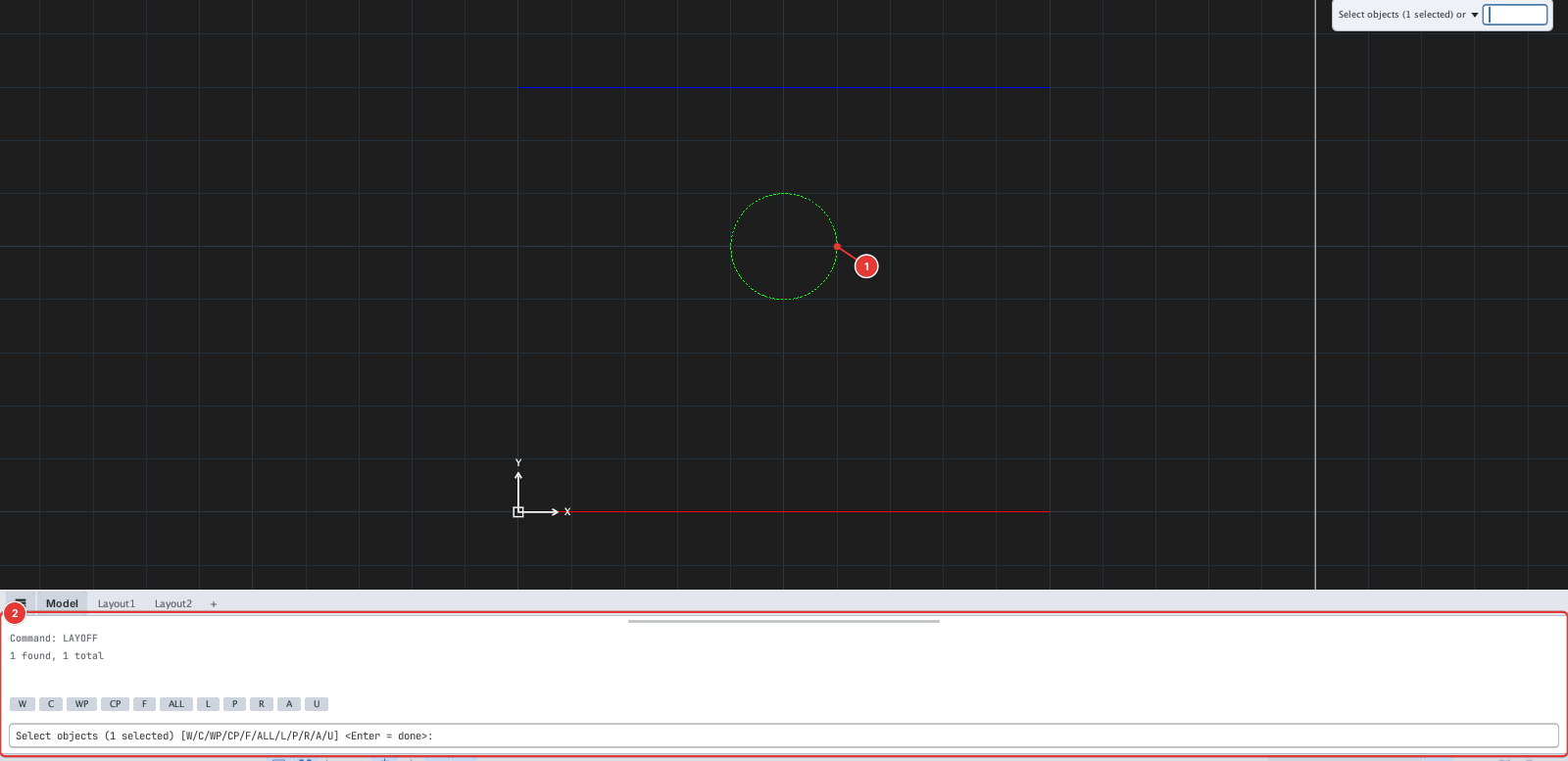
1 found and waits for more objects or Enter.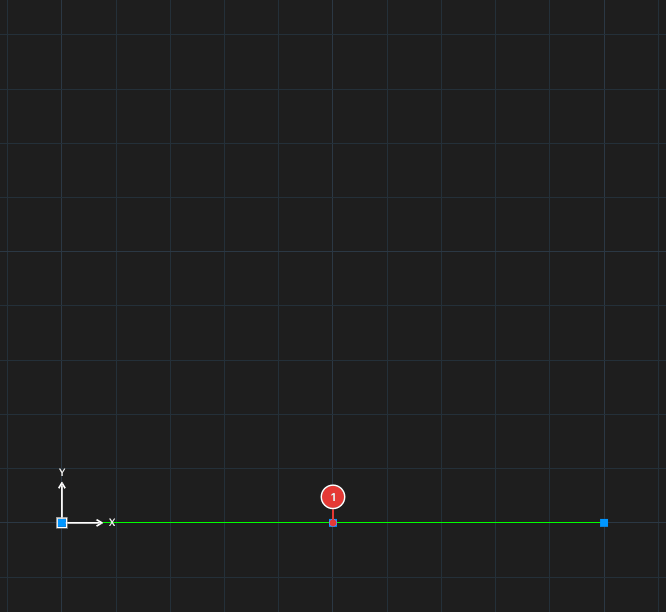
LAYISO then click the line 1 (layer WALL): the other layers are turned off, only this line remains. LAYUNISO brings them all back.The panel's slide-out
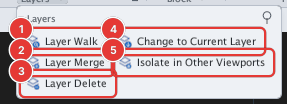
Click the ▾ next to the Layers panel name to open the further commands 1–5 below.
| Command | How to use it |
|---|---|
LAYWALK | Opens the Layer Walk dialog: click a layer name to show only that layer, click Show all or close the dialog to go back. Use it to "walk" through the layers and see what each holds. |
LAYMRG | Select first objects on the layer to merge, then run the command. At the prompt LAYMRG: select object on target layer or type the target layer name, click an object on the destination layer or type its name. The objects move to that layer and the old layer is deleted (LAYMRG: 1 layer(s) merged into "B".). |
LAYDEL | Select first objects on the layer to delete, then run the command: deletes the layer together with every object on it (the command line reports LAYDEL: removed n layer(s) and their objects). Undo with U. |
LAYCUR | Moves the selected objects to the current layer. |
LAYVPI | Meaningful only on a layout: freezes the object's layer in the other viewports (chapter 11). |
Notes
- Merging and deleting layers are dangerous because the layer name is lost;
LAYDELalso deletes the objects. Check with the layer manager before running them. - Each run is one undo step.