LINETYPE — Linetypes and scale
Ribbon: Draw ▸ Properties ▸ Linetype box; Draw ▸ Properties ▸ slide-out ▸ Linetype ScaleCommand: LINETYPE LTSCALE CELTSCALEAlias: LT LTYPE LTS
A linetype is a dash pattern — dashed, dash-dot, centre — used to tell kinds of line apart: axis, hidden, centre lines. The Linetype Manager lets you see and load linetypes; LTSCALE adjusts the length of the dashes to suit the plot scale.
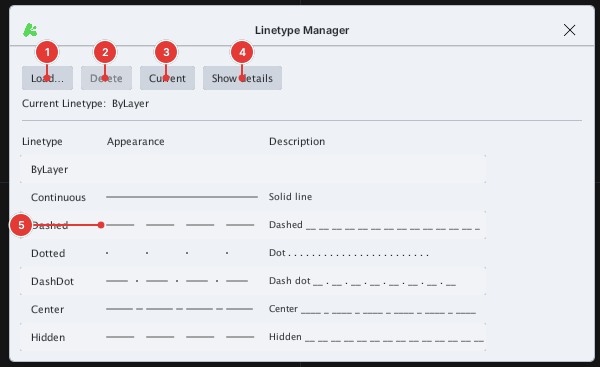
LT (or LINETYPE): Load… 1, Delete 2, Current 3, Show details 4; the list of linetypes with their sample strokes 5.The Linetype Manager
The list holds ByLayer and the loaded linetypes: Continuous (solid), Dashed, Dotted, DashDot, Center, Hidden… each with a sample stroke and a description.
| Button | Effect |
|---|---|
| Load… | Loads more linetypes from a .lin file (see below). |
| Delete | Deletes the selected linetype. A linetype in use cannot be deleted (the dialog says … is in use — it cannot be deleted). |
| Current | Makes the selected linetype the current linetype for objects you draw next (instead of ByLayer). |
| Show details / Hide details | Shows extra details below: the selected linetype's name, the Global scale factor (LTSCALE) and the Current object scale (CELTSCALE). |
Normally you do not set a current linetype but leave objects ByLayer and assign the linetype to the layer (layer manager); then changing a whole group's linetype means editing one place.
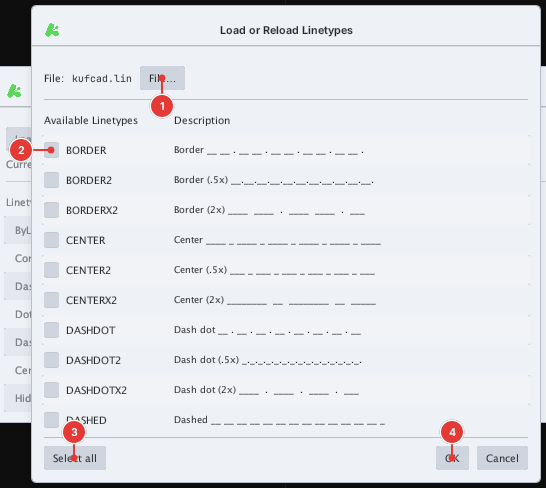
.lin file; the list of linetypes in the file 2 with tick boxes; Select all 3; OK 4.Loading linetypes from a .lin file
- In the Linetype Manager click Load…. The Load or Reload Linetypes dialog opens on the default file
kufcad.lin(BORDER, CENTER, DASHDOT, DASHED… already there). - To load from another file (for example one you wrote yourself) click File… and pick the
.linfile in the operating system's file dialog. - Tick the linetypes to load (or Select all) and click OK. The new linetypes appear in the list and in the linetype boxes.
A .lin file is plain text: each linetype is a name-and-description line starting with *, then a pattern line starting with A, followed by numbers — positive is a dash, negative is a gap, 0 is a dot. For example the file MY_LIN.LIN:
*MY_LIN,My line-type experiment
A,0.5,-0.25,0.25,-0.25
defines the linetype MY_LIN: a long dash of 0.5, a gap of 0.25, a short dash of 0.25, a gap of 0.25, repeating.
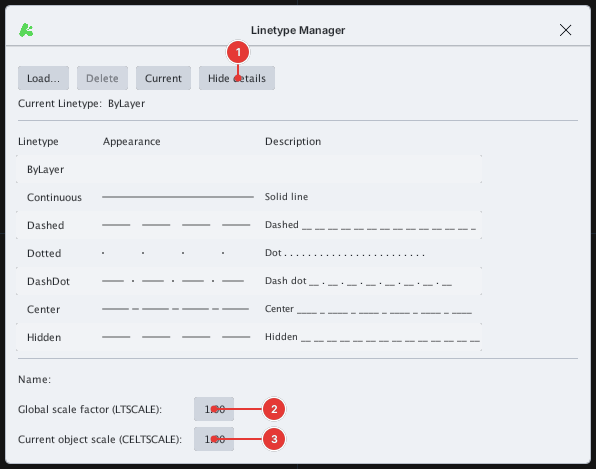
Linetype scale: LTSCALE and CELTSCALE
LTSCALE(shortLTS) — the global scale, applied to every object. TypeLTSCALE, Enter, then a number (promptEnter global linetype scale (LTSCALE)). A larger number gives longer dashes; a smaller number packs them tighter. Choose a number that makes the dashes read clearly at your plot scale — try and see.CELTSCALE— the scale for the next objects you draw (promptEnter new value for CELTSCALE, showing the current value). Each object also has its own scale in the Properties palette (the Linetype scale row); the effective scale is the product of the two.- Both can also be set in the details part of the Linetype Manager.
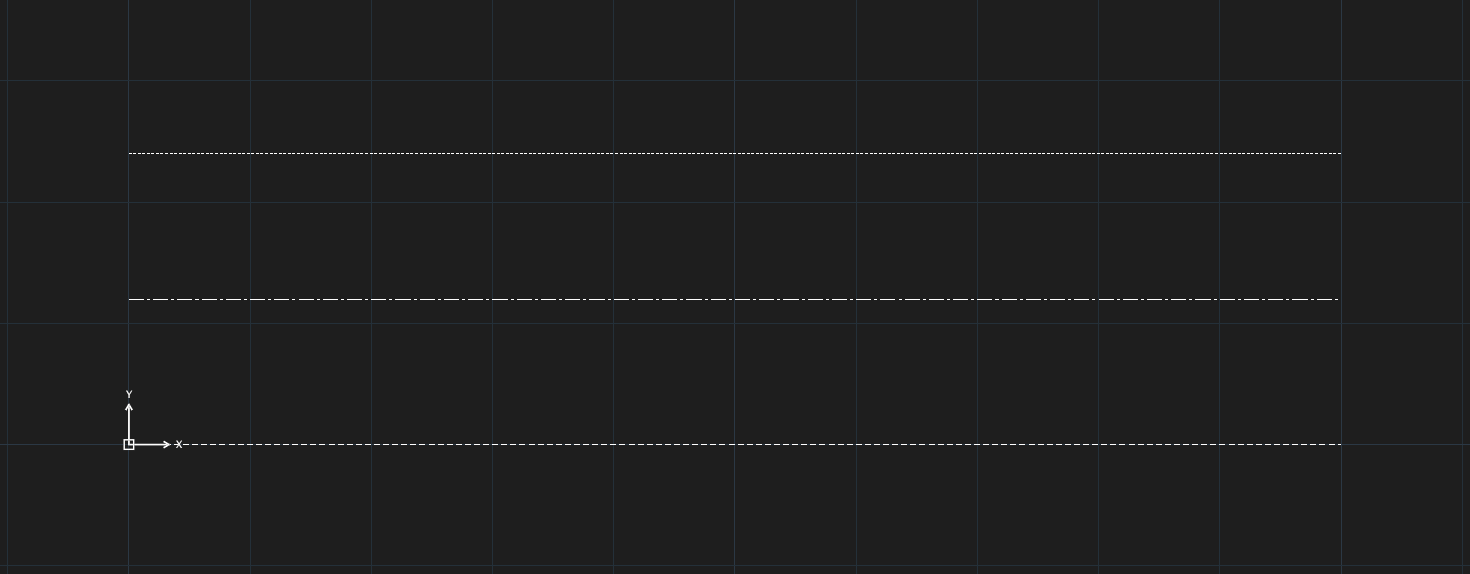
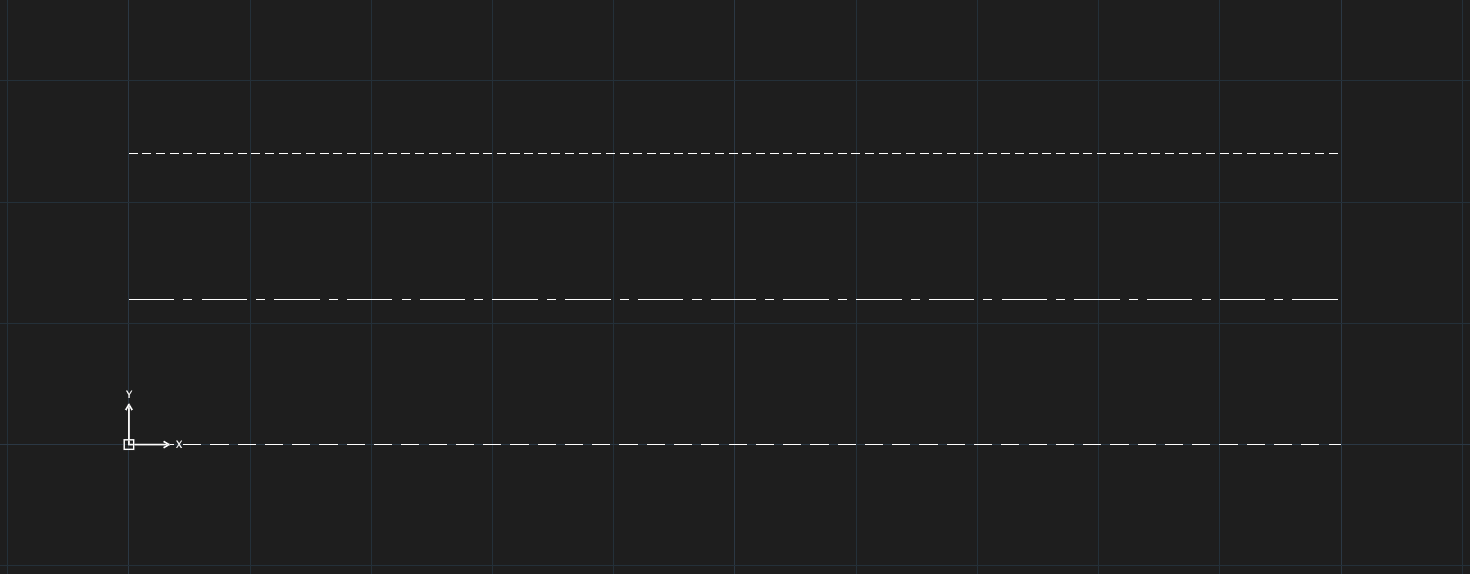
LTSCALE 1 and 3: at 3 the dashes are three times as long.Giving an object a linetype
Besides leaving it ByLayer, you can give the selected objects their own linetype in the Properties palette (the Linetype row), or set the linetype of the objects you will draw in the Linetype box of the Properties panel.
Notes
- A line that is very short compared to the dash length can look solid; lower
LTSCALE.