COLOR — Choosing a colour
 Ribbon: Draw ▸ Properties ▸ Color box ▸ Select Color…Command:
COLORAlias: COL
The Select Color dialog is used everywhere a colour is needed: a layer's colour, an object's colour, the current colour. A colour can be an AutoCAD index (Index Color, 255 colours) or any RGB colour (True Color).
Opening the dialog
- Type
COL(orCOLOR), Enter: pick the current colour for objects drawn afterwards. - In the layer manager click a layer's colour swatch: choose that layer's colour (the dialog title names the layer).
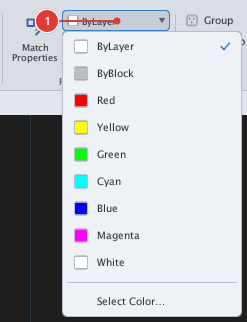
- In the Color box on the ribbon's Properties panel choose Select Color….
The Index Color tab
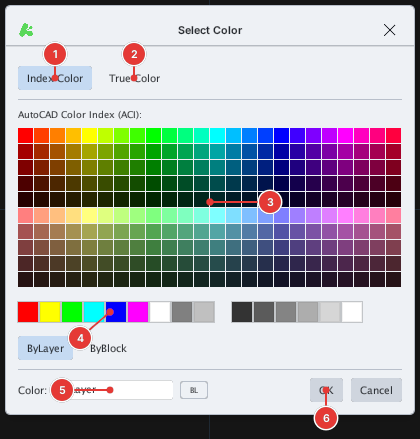
Click a cell of the palette to choose it. The line below tells the colour number and RGB value (for example Index color: 1 Red, Green, Blue: 255,0,0). The small row under the palette holds the standard colours (numbers 1–7) and the greys. You can also type a name (red) or a colour number into the Color box below.
The True Color tab
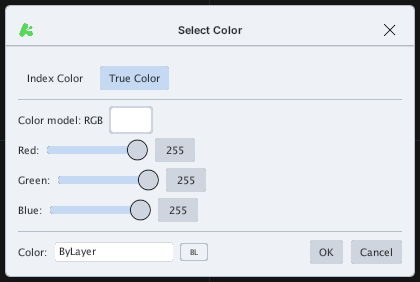
Pick an RGB colour with the three sliders Red, Green, Blue (0–255). The Color box shows the current value.
ByLayer, ByBlock and fixed colours
The ribbon's colour list holds ByLayer (take the layer's colour — preferred), ByBlock (take the colour of the block that contains it) and the fixed colours. See ByLayer and ByBlock.
Notes
- The current colour only affects objects drawn afterwards; to change existing objects use the Properties palette or CHPROP.
- Changing a layer's colour changes every ByLayer object on that layer.