PROPERTIES — The Properties palette
 Ribbon: (the palette sits at the right of the window)Command:
PROPERTIESAlias: PR PROPS CH MO
The Properties palette shows and lets you edit every property of the selected objects: colour, layer, linetype, lineweight and the geometry of each kind (coordinates, radius, length…). Select several objects and one edit applies to all of them.
Opening and closing
Type PR (or PROPERTIES, CH, MO), Enter to toggle the palette. The ✕ in its corner closes it too.
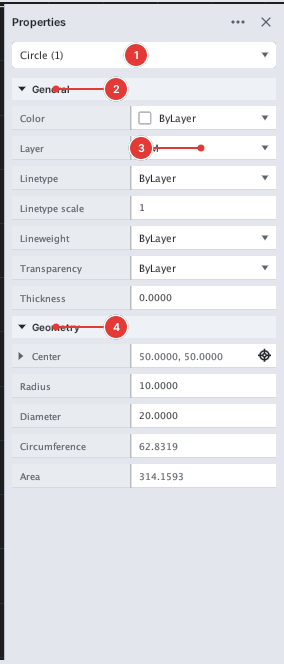
Reading the palette
- The first row: a box naming the kind (for example
Circle (1);All (3)when several kinds are mixed). With nothing selected the palette saysNo selectionand shows only the drawing-wide items (Annotation scale, UCS icon On). - General: Color, Layer, Linetype, Linetype scale, Lineweight, Transparency, Thickness — properties common to every object.
- Geometry: the measurements of the kind. For example a line has Start, End, Delta, Length, Angle; a circle has Center, Radius, Diameter, Circumference, Area.
Editing one object
Click the row to edit. A drop-down (Color, Layer, Linetype…) opens a list to choose from; a number box takes a new value and Enter. The change applies to the object at once and is one undo step.
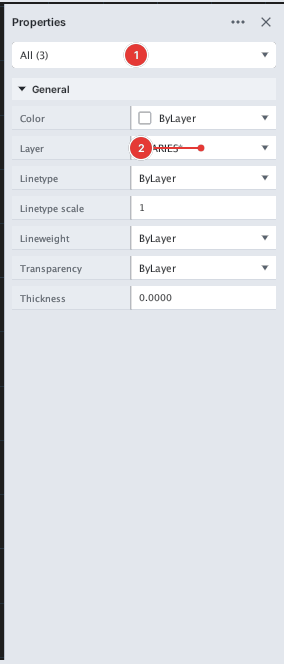
All (3) 1): the Layer box 2 reads *VARIES* because they sit on different layers.Editing several objects at once
When several objects are selected, a row where they all agree shows that value; a row where they differ shows *VARIES*. Changing a row applies to all selected objects. The example below selects all three objects, opens the Layer box 1 and chooses DIM.
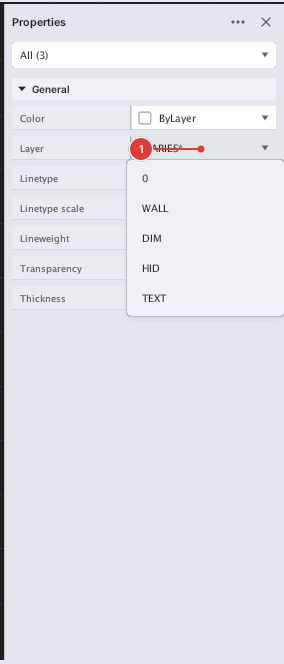
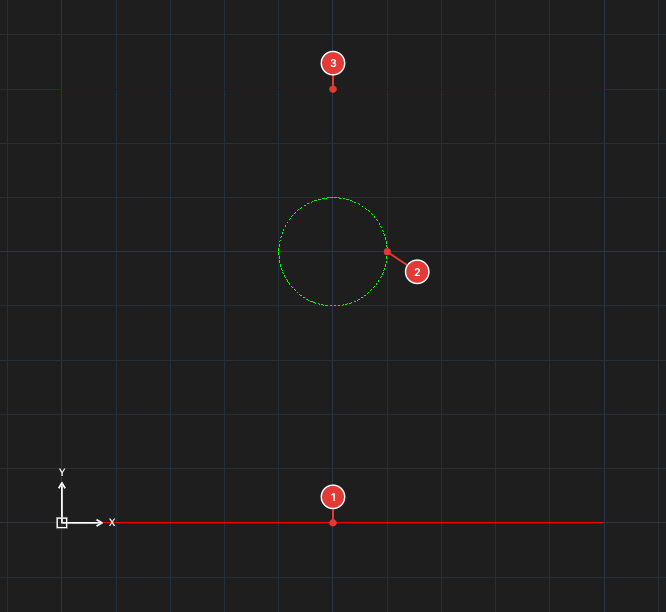
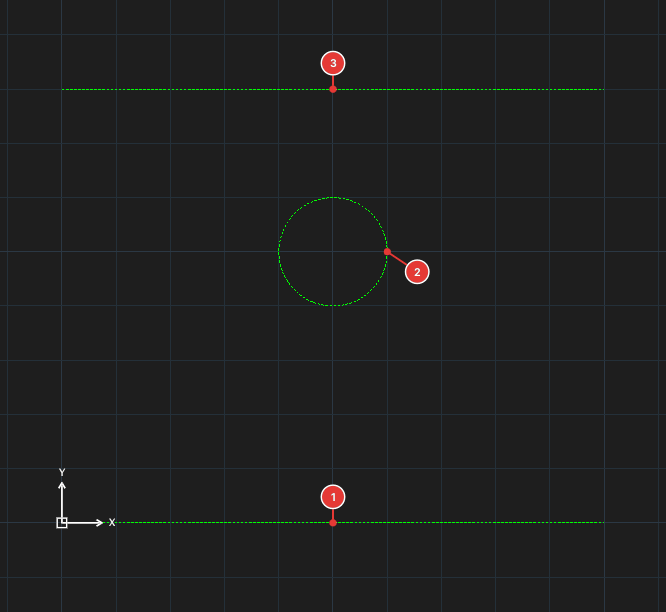
DIM in the Layer box: all three are on layer DIM — green and Dashed, like that layer.Notes
- The Properties palette shares its display with Quick Properties.