LAYER — The Layer Properties Manager
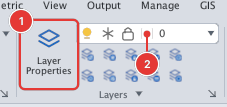
 Ribbon: Draw ▸ Layers ▸ Layer PropertiesCommand:
LAYERAlias: LA
A layer is like a transparent sheet laid over the others, each holding one group of objects (walls, dimensions, text…). The Layer Properties Manager is where you create layers and set each one's colour, linetype, lineweight, on / off, freeze, lock and plot state.
Opening the manager
Click Layer Properties, or type LA and press Enter (or LAYER). The manager appears in the middle of the window; you can drag and resize it, or use the ⋯ menu in its corner to dock it to the left / right / top / bottom of the window (Dock Left, Dock Right, Dock Top, Dock Bottom) or float it again (Float).
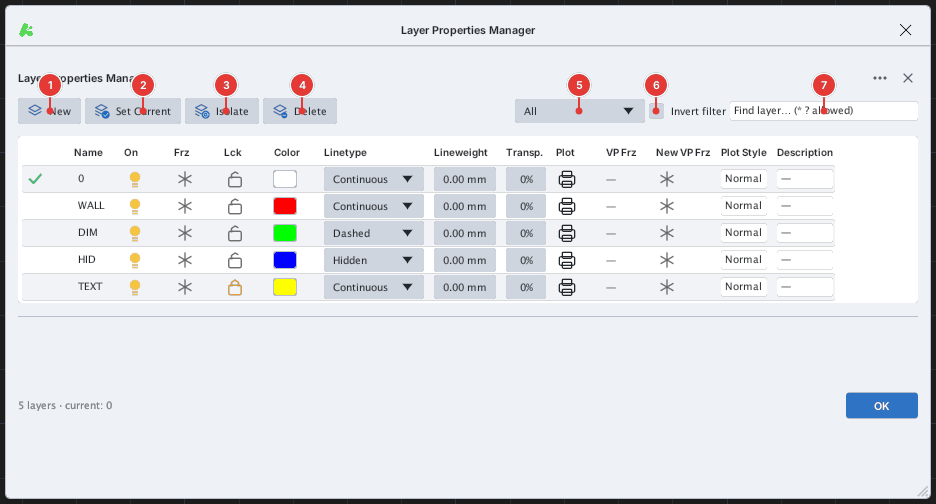
The toolbar
| Button | Effect |
|---|---|
| New | Adds a new layer named Layer1, Layer2… (a new row appears at the end of the table and its name can be edited right away). |
| Set Current | Makes the selected layer the current layer — where new objects are drawn. The current layer has a ✓ in the first column. |
| Isolate | Keeps only the selected layer and turns every other layer off (the surer way: LAYISO). |
| Delete | Deletes the selected layer. Only layers that hold no objects can be deleted; the current layer, layer 0 and Defpoints cannot be deleted either. For a layer that still has objects the command line reports Layer "…" is in use (referenced by objects) and cannot be deleted. Use LAYMRG or LAYDEL. — use LAYMRG or LAYDEL. |
The filter (drop-down) shortens the list by state: All, All Used Layers (layers that hold objects), On, Off, Frozen, Locked, Not Plotted. Tick Invert filter to reverse it: for example choose Frozen and invert to see only layers that are not frozen. Type in the Find layer… box to search by name, with * standing for any run of characters and ? for exactly one character (for example WALL*).
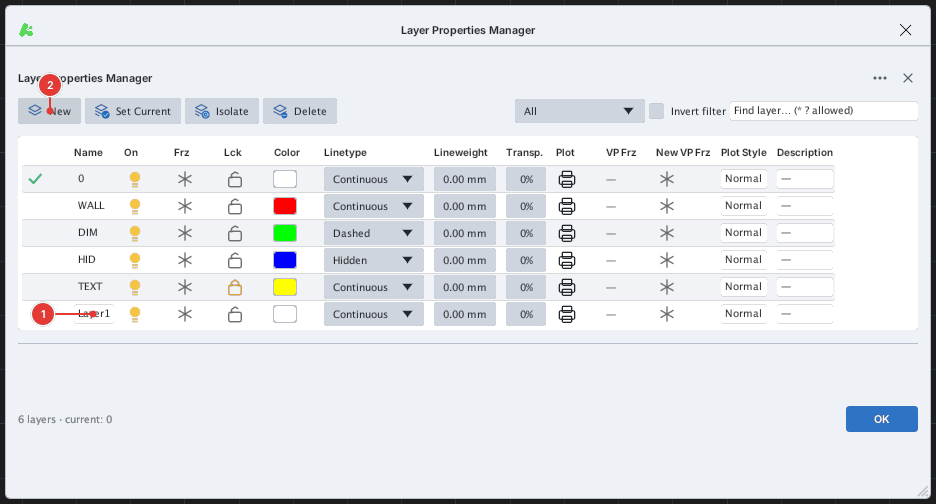
Layer1 row 1 appears at the end of the table.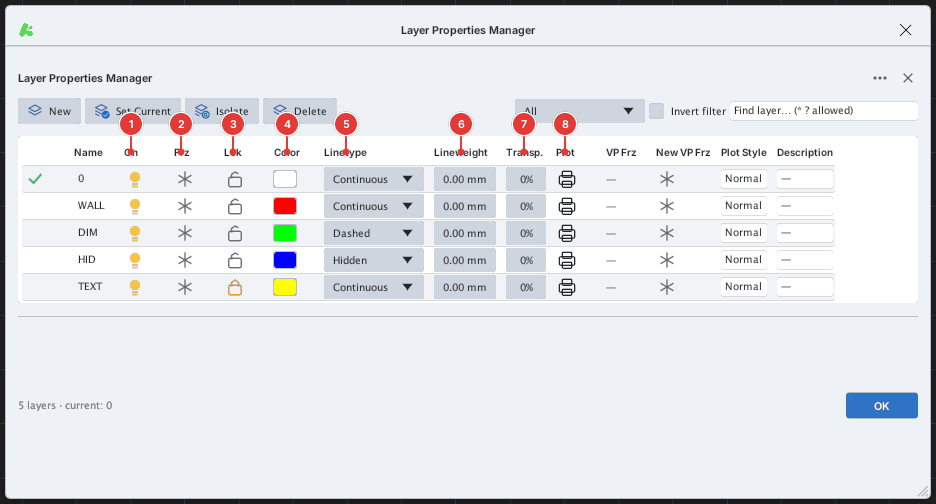
The columns
| Column | Meaning |
|---|---|
| ✓ | Marks the current layer. |
| Name | The layer name. |
| On (bulb) | Click to turn the layer off / on. An off layer is neither shown nor plotted, but its objects still exist and still take part in calculations (for example TRIM). |
| Frz (snowflake) | Freeze: like off, but the objects are also skipped when the drawing regenerates, which is faster on big drawings. The current layer cannot be frozen. |
| Lck (padlock) | Lock: the objects are still shown (dimmed) but cannot be edited. |
| Color | The layer's colour; click the swatch to open the Select Color dialog (colour). |
| Linetype | The layer's linetype (linetype). |
| Lineweight | The layer's lineweight (lineweight). |
| Transp. | The layer's transparency (transparency). |
| Plot (printer) | Whether this layer is plotted. |
| VP Frz, New VP Frz | Freeze the layer in single viewports of a layout, and set the default for new viewports (chapter 11). |
| Plot Style, Description | The plot style and a free-text note for the layer. |
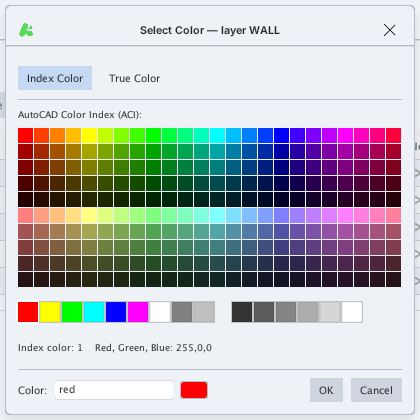
WALL opens the Select Color — layer WALL dialog.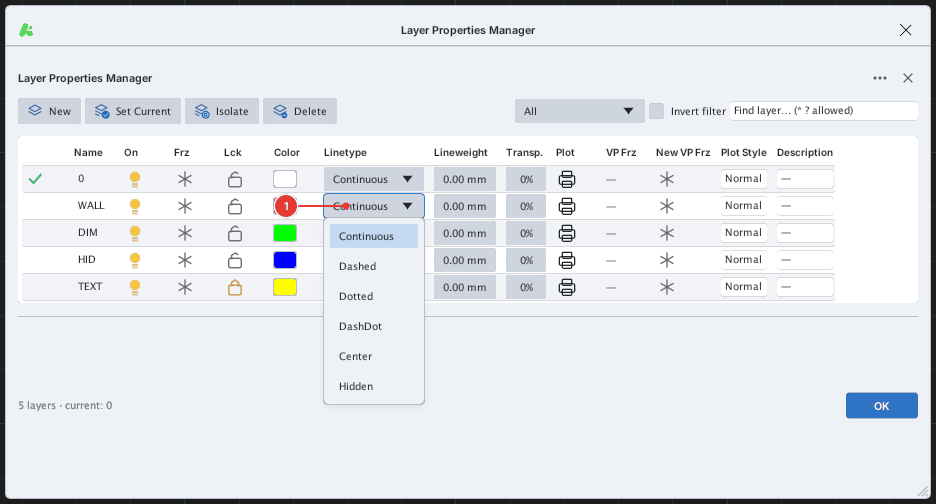
WALL 1 opens the list of loaded linetypes.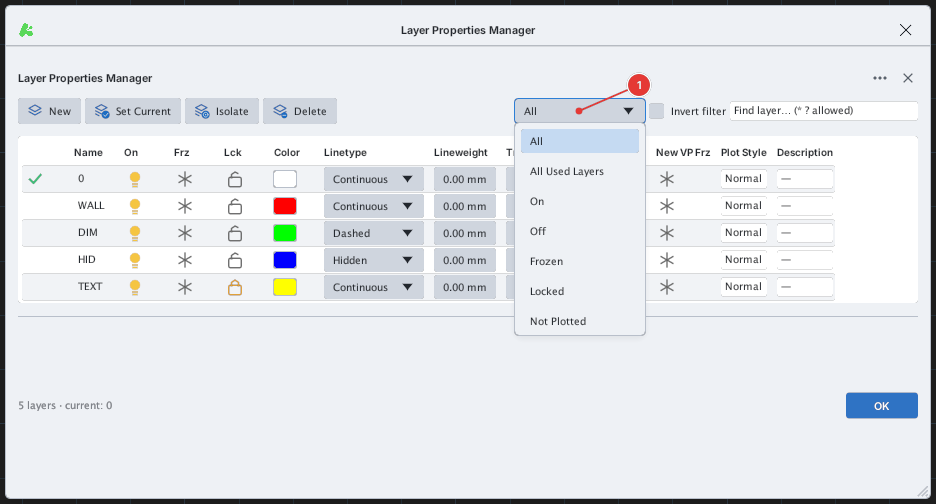
Turning layers off, freezing and locking
Click the bulb, snowflake or padlock in a row to change the state at once (there is no Apply button). The dialog below turns layer DIM off, freezes layer HID and shows layer TEXT locked.
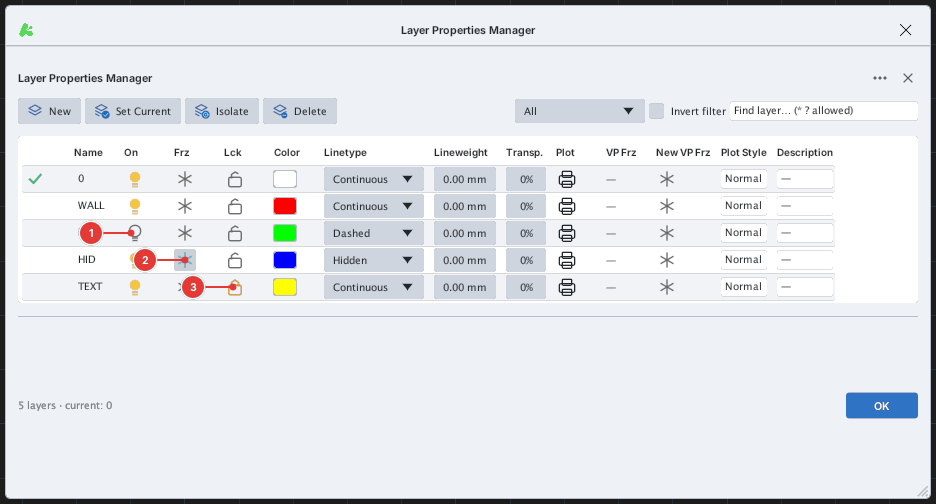
DIM 1 is off, the snowflake of HID 2 has just been clicked, the padlock of TEXT 3 is locked (orange).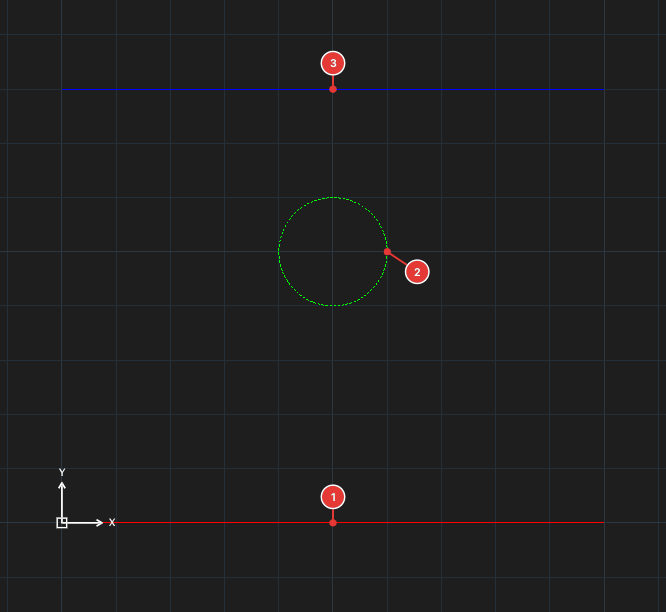
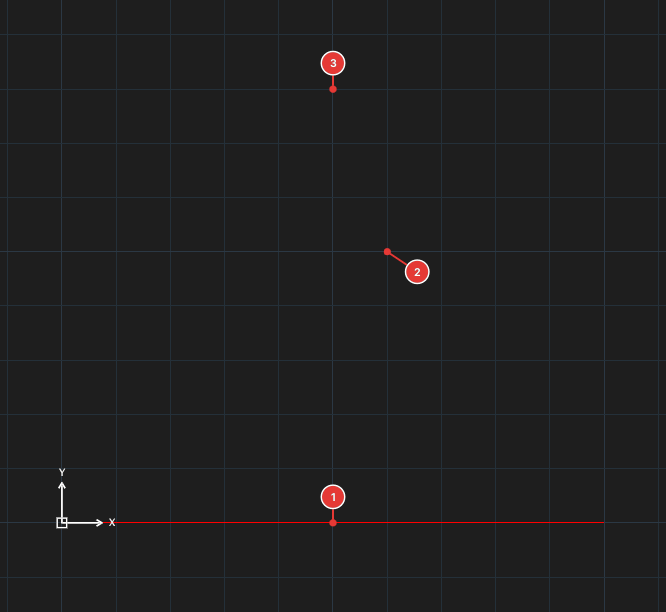
WALL), the circle 2 (DIM) and the line 3 (HID). After: only the WALL line 1 is left; the circle 2 and the line 3 vanish because their layers are off / frozen.Notes
- Changes made in the manager take effect on the drawing at once and are one undo step.
- Objects whose colour and linetype are ByLayer follow the layer; objects given their own colour keep it (ByLayer and ByBlock).
- To change layer states quickly without opening the manager see the quick layer commands; to save a whole set of states for reuse see layer states.