LINE — Draw straight segments
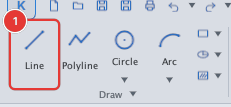
 Ribbon: Draw ▸ Draw ▸ LineCommand:
LINEAlias: L
LINE draws a chain of straight segments; each segment is a separate object. It is the most basic drawing command, used for sketch lines, outlines, centre lines and so on.
Steps
- Click Line, or type
Land press Enter. - The command line asks
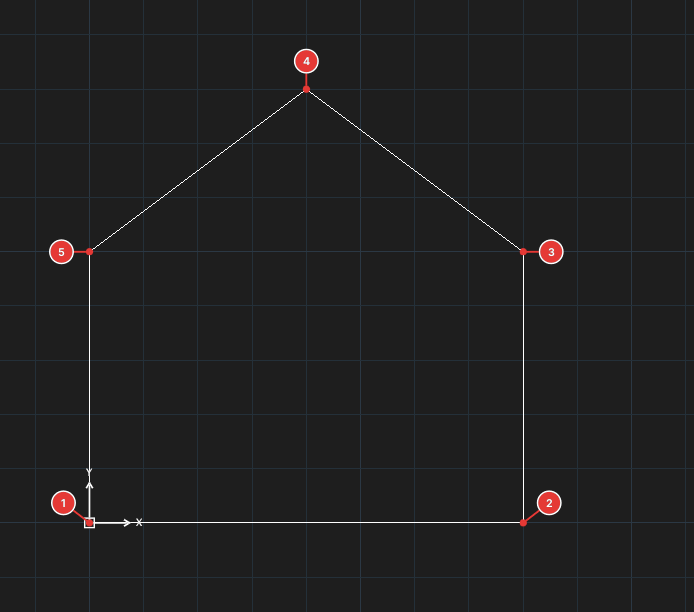
Specify first point:. Click a point on the canvas 1, or type coordinates (for example0,0). - The command line asks
Specify next point or [Undo]:. Click the next point 2 or type coordinates. A segment joins the previous point to the new one; a rubber band 3 follows the cursor. - Keep picking points. To close the figure, click the start point again (with the Endpoint object snap on).
- Press Enter or Esc to finish. The command line 4 always shows the current step.
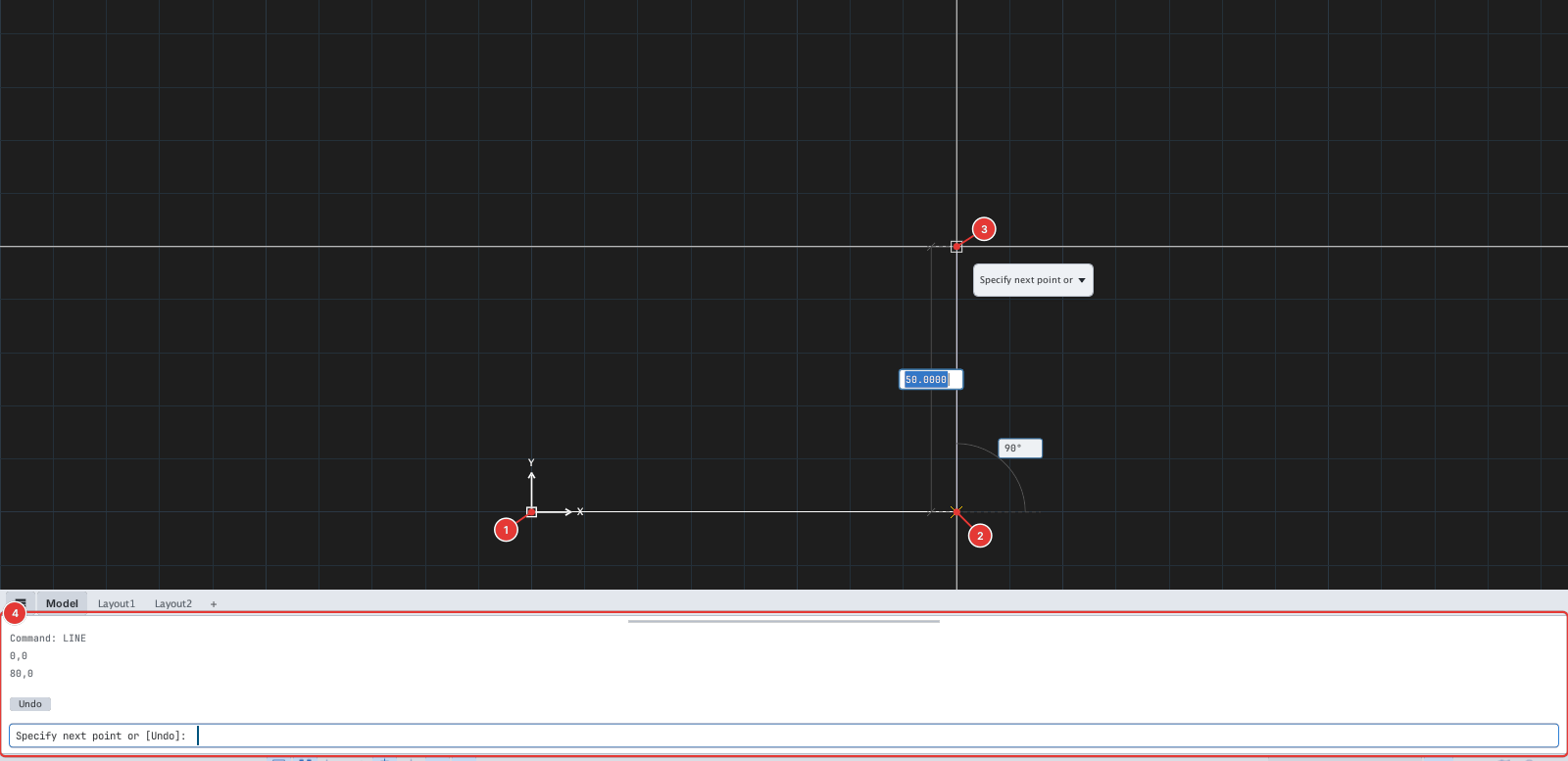
When you type coordinates instead of clicking: the first point is absolute (x,y); from the second point on, with Dynamic Input on (the default), dx,dy is relative to the previous point, distance<angle is relative polar and #x,y is absolute. See chapter 4, page "Entering coordinates".
Options
| Type | Option | What it does |
|---|---|---|
U | Undo | Removes the last segment and continues. |
C | Close | Joins the last point to the first and ends the command. |
Enter at the Command: prompt | Repeat | Calls the last LINE again. |
At present the C and U options typed on the command line have no effect (the prompt does not show Close either). Workarounds: to close a figure, click the start point or type its absolute coordinates #x,y; to remove the last segment, press Esc and use Ctrl+Z.
Notes
- Every segment is a separate LINE object. If you want the whole chain to be one object (closable, with width), use POLYLINE.
- Turn on Ortho (F8) for horizontal / vertical lines, Polar (F10) for fixed angles, and direct distance to type lengths (chapter 4).
See also: POLYLINE.