KufCad

Ribbon

Location: below the QAT

The ribbon groups commands into tabs (Draw, Insert, Annotate, Parametric, View, Output, Manage, GIS), each made of panels.

The tab row: 1 the current tab (blue); 2 click another tab to switch.
Figure 1.7 — The tab row: 1 the current tab (blue); 2 click another tab to switch.

The tabs

The Draw tab: Draw, Modify, Annotation, Layers, Block, Properties, Groups, U
Figure 1.8 — The Draw tab: Draw, Modify, Annotation, Layers, Block, Properties, Groups, Utilities, Clipboard.
The Insert tab.
Figure 1.9 — The Insert tab.
The Annotate tab.
Figure 1.10 — The Annotate tab.
The Parametric tab.
Figure 1.11 — The Parametric tab.
The View tab: Navigate, Views, Coordinates, Palettes, Interface, Display.
Figure 1.12 — The View tab: Navigate, Views, Coordinates, Palettes, Interface, Display.
The Output tab: Plot, Publish, Export, Layout.
Figure 1.13 — The Output tab: Plot, Publish, Export, Layout.
The Manage tab.
Figure 1.14 — The Manage tab.
The GIS tab.
Figure 1.15 — The GIS tab.

Split buttons

A button with a ▾ arrow below or beside it has two parts: click the button part to run the command shown; click the arrow to open a list of variants.
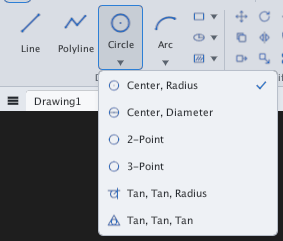
The arrow under Circle opens the list of ways to draw a circle; the ✓ marks
Figure 1.16 — The arrow under Circle opens the list of ways to draw a circle; the ✓ marks the one currently used as the default.

Slide-outs

Click a panel title that has a ▾ arrow (for example Draw ▾) to reveal its less-used commands.
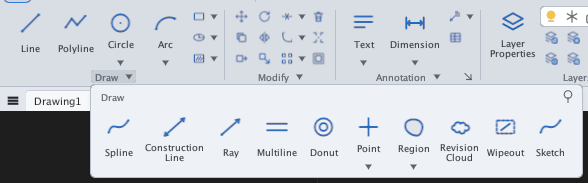
The slide-out of the Draw panel. The 📌 pin at the corner keeps it open.
Figure 1.17 — The slide-out of the Draw panel. The 📌 pin at the corner keeps it open.

Density and collapsing

The Auto button at the top right chooses panel density; the ▴ arrow collapses the whole ribbon to give you more drawing room.
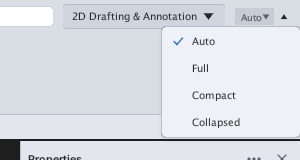
The density list: Auto, Full, Compact, Collapsed.
Figure 1.18 — The density list: Auto, Full, Compact, Collapsed.
DensityMeaning
AutoChosen from the window width
FullEvery panel expanded
CompactSmall buttons, packed tightly
CollapsedEach panel becomes one button that opens it
Full density.
Figure 1.19 — Full density.
Compact density.
Figure 1.20 — Compact density.
Collapsed density.
Figure 1.21 — Collapsed density.

Click the ▴ arrow at the right to hide the ribbon entirely, leaving only the tab row:

The collapsed ribbon.
Figure 1.22 — The collapsed ribbon.

Hover a button to see its tooltip. To find a command quickly use the Find a command… box.










