Start page and updates
Command: STARTPAGE, CHECKUPDATETab: Start (first drawing tab)
When KufCad opens without a drawing it shows the Start page instead of creating a blank Drawing1. For a blank drawing click New drawing.
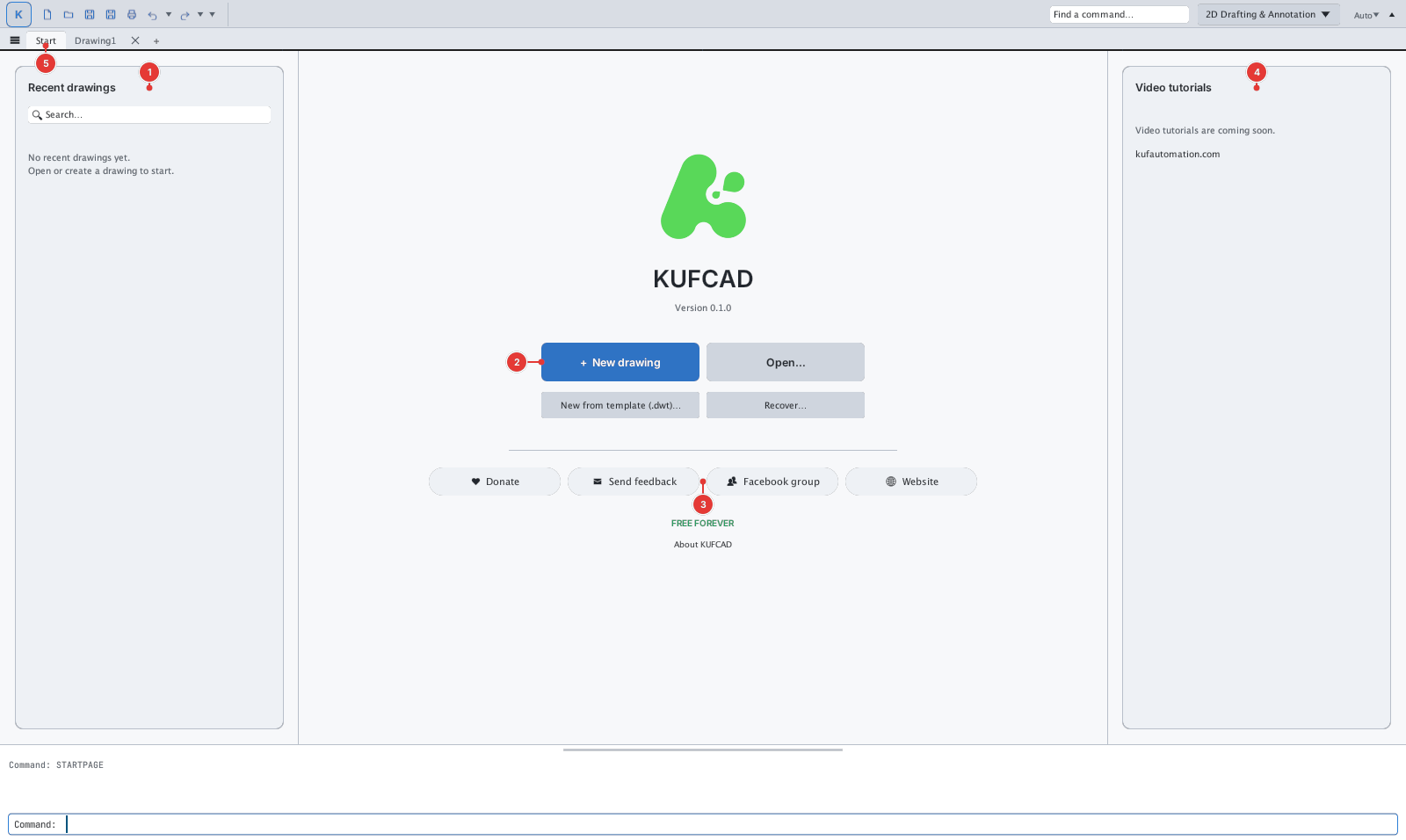
- Recent drawings 1
- The last 30 drawings opened or saved, with a thumbnail (taken when saving) and the modified date. Click one to open it.
- Right-click for Pin to top, Open containing folder, Copy path and Remove from list.
- Missing files show File not found.
- New drawing / Open… 2
- New drawing opens the template chooser; Open… opens a DWG / DXF.
- New from template (.dwt)… and Recover… (open a damaged drawing).
- Links 3: Donate, Send feedback, Facebook group, Website (kufautomation.com).
- Video tutorials 4
- Click a thumbnail to open the video in the browser.
- The videos and links are loaded from kufautomation.com, so new videos appear without updating KufCad.
- The Start tab 5
- Always first in the drawing tab bar. Click it (or type
STARTPAGE) to come back while drawing. - Closing the last drawing also returns here.
- Always first in the drawing tab bar. Click it (or type
With no drawing open, commands that need one report open or create a drawing first. NEW, OPEN, OPTIONS, HELP, QUICKCALC and similar commands still work. Turn the Start page off in Options ▸ System ▸ Show the Start page when KufCad opens without a drawing.
Update notifications
KufCad checks for a new version at most once a day (in the background, about 10 seconds after it opens). Type CHECKUPDATE to check now; when you already have the latest version the command line says KufCad … is up to date.
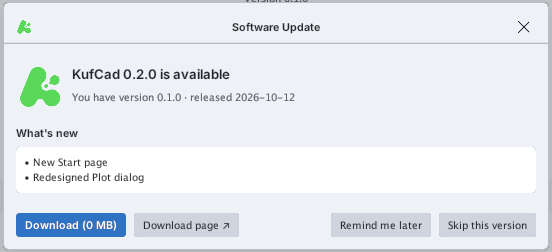
- Download
- Saves the installer package to your Downloads folder with a progress bar.
- When the download finishes, KufCad checks its checksum to make sure the file is intact; Show in folder opens the folder.
- Close KufCad and install the new version from that file: on Windows unzip over the old folder, on macOS drag
KufCad.appto Applications.
- Download page opens the web download page.
- Remind me later: no reminder for 3 days.
- Skip this version: no more notices for that version.
- When an update exists the Start page also shows KufCad … is available.
- The update information is digitally signed by KufCad; forged information is ignored.
- If the new version needs a new license (e.g. a 0.x license and version 1.0), the box says so before you download.
- Turn automatic checks off in Options ▸ System ▸ Check for updates automatically.
About KUFCAD
The ABOUT command, menu K ▸ About KUFCAD…, or the About KUFCAD link on the Start page.
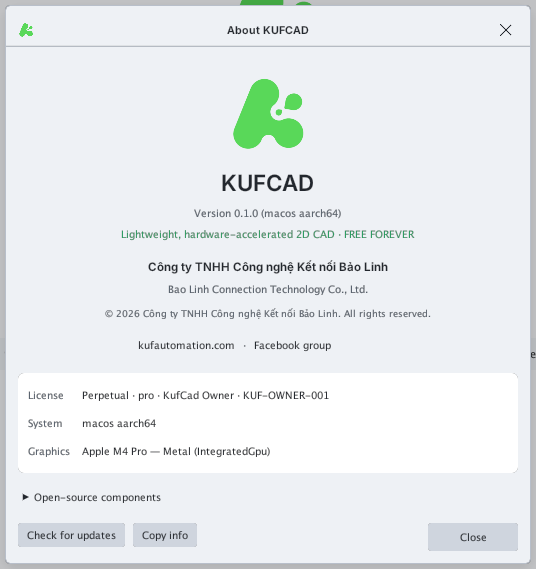
- The box shows the version, the company that owns the software, the copyright line, and the website and Facebook group links.
- The table below shows the license status (type, edition, licensee), the operating system and the graphics card.
- Open-source components lists the open-source parts and fonts with their licences.
- Check for updates looks for a new version; Copy info copies the version, system and license details for support requests.