Drawing tabs
Location: the tab strip right above the canvas
KufCad can keep several drawings open; each has its own tab.

* means unsaved changes, ✕ closes it; 3 the current tab; the + at the right creates a new drawing.- Click a tab to switch drawings; Ctrl+Tab / Ctrl+Shift+Tab move forward / back.
- Click + or type
NEWto create a new drawing in a new tab. - A blank, untouched drawing is replaced when you open a file (no extra tab).
The tab's right-click menu
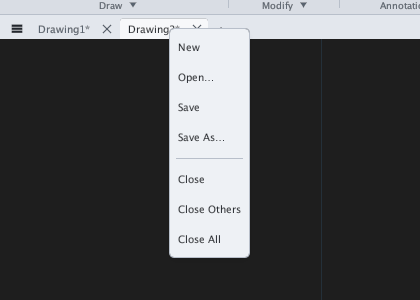
Saving, opening and closing are covered in chapter 3.