Command line
Location: the bottom of the window, above the status bar
The command line is where you type commands and read KufCad's prompts.

Command: when idle).- History shows the last few lines; drag the bar at its top edge to change the number of lines (1–20). F2 toggles between compact and large history.
- Suggestions: while you type, matching commands are listed; use the arrow keys to choose and Enter to run.
- Command options appear as buttons just above the input line; click one or type the capital letters inside
[ ].

ARC is waiting: 1 the prompt with [Start/CONtinue]; 2 the matching option buttons.Dynamic Input
While drawing, an input box with distance and angle fields follows the cursor; type a number and press Enter. Toggle it with the DYN button (F12).
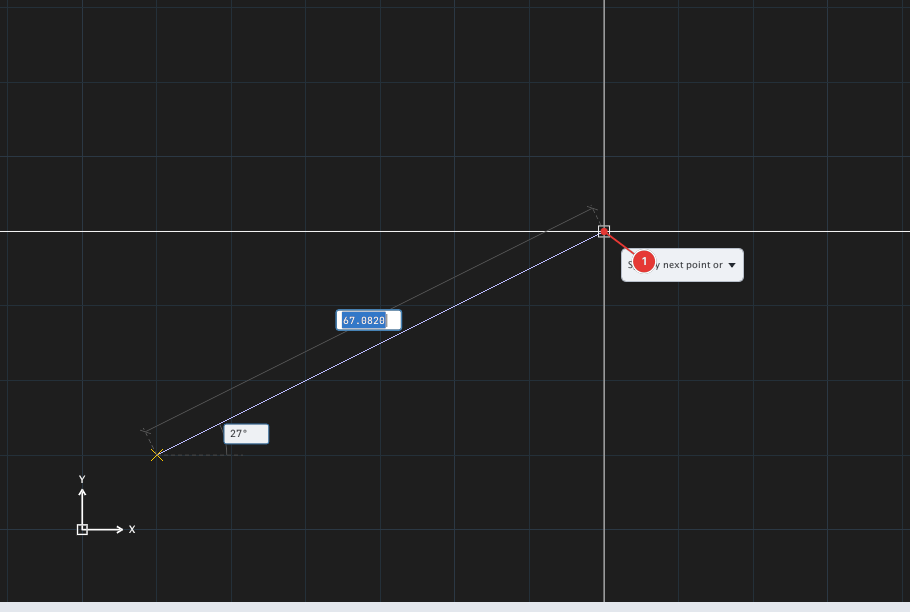
LINE: the prompt box 1 follows the cursor, with length and angle fields.Right-click menu
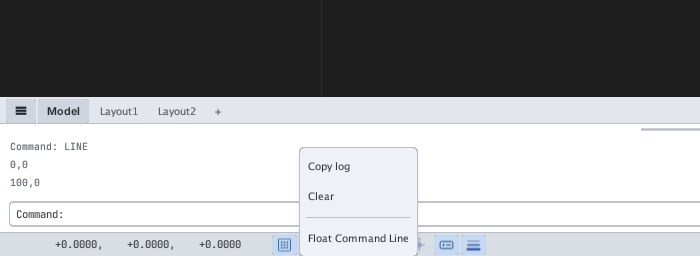
Right-click the history area: Copy log, Clear, Float Command Line (detach it as a floating window).
Typing commands, aliases and numbers is covered in chapter 2.