K menu and Quick Access toolbar
Location: top-left corner of the window
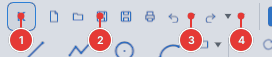
The K button opens the application menu; to its right is the Quick Access toolbar (QAT) with frequently used buttons.
The K menu
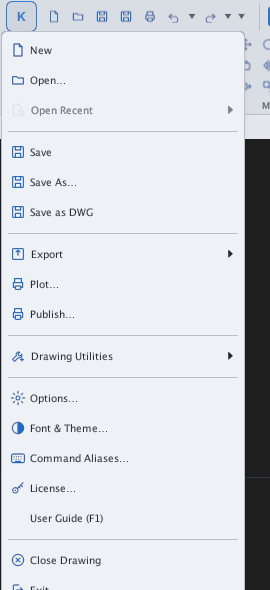
| Item | What it does |
|---|---|
| New, Open…, Open Recent | Create / open a drawing; the last 10 files (with Clear List) |
| Save, Save As…, Save as DWG | Save the drawing |
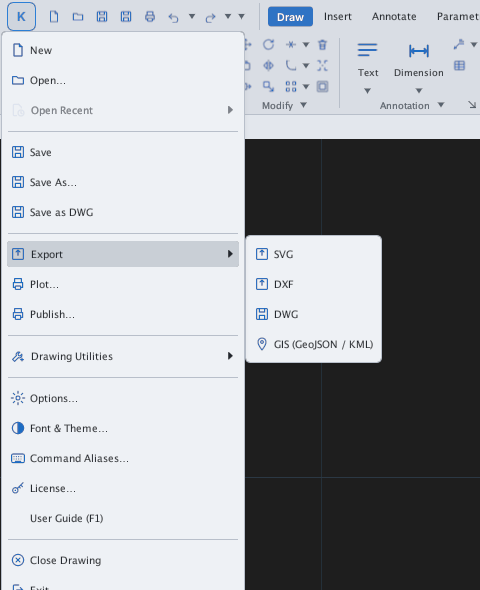
| Export | SVG, DXF, DWG, GIS (GeoJSON / KML / SHP) |
| Plot…, Publish… | Printing (chapter 11) |
| Drawing Utilities | Units…, Drawing Properties…, Audit, Recover, Purge… |
| Options…, Font & Theme…, Command Aliases…, License… | Program settings |
| Close Drawing, Exit | Close the drawing / quit |
Quick Access
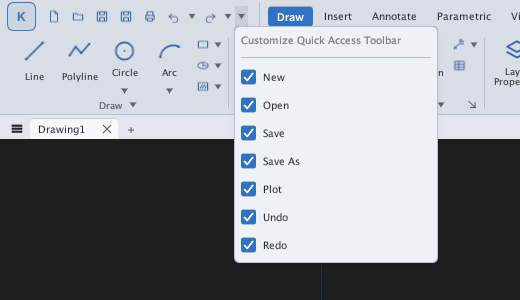
- Default buttons: New, Open, Save, Save As, Plot, Undo, Redo.
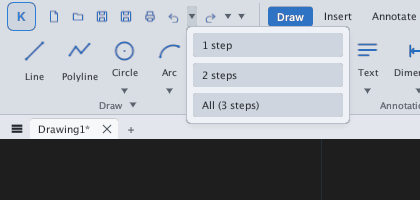
- The arrow next to Undo / Redo opens a list of step counts: pick
1 step,2 steps… orAllto undo several steps at once.
- The ▾ arrow at the end opens Customize Quick Access Toolbar: tick / untick to show / hide each button.
Command search and workspace
At the right end of the ribbon tab row is the Find a command… box: type part of a command name or label and a list of commands appears (greyed out if a command is not available yet); press Enter to run the first one. The 2D Drafting & Annotation box switches the workspace to GIS (opens the GIS tab and the map panel).