Grid and Snap
The Grid is a reference pattern of dots / lines shown on the background; Snap makes the cursor jump only to grid nodes (the snap step). They are independent: you can show the grid without snapping, or vice versa.
Grid
Toggle: F7 or the Grid status-bar button. The default spacing is 10, with a heavier (major) line every 5 lines.
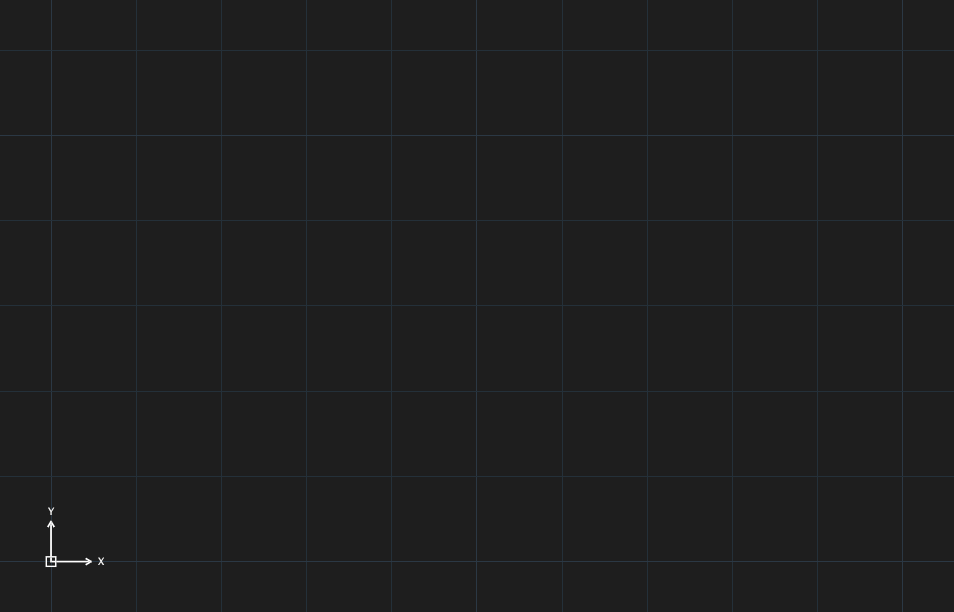
The GRID command has these options:

[ON/OFF/Snap/Major/aDaptive/Limits/Aspect].| Type | Option | What it does |
|---|---|---|
| (number) | Spacing | Set the grid spacing (for example 20) |
ON / OFF | Turn the grid on / off | |
S | Snap | Grid follows the snap spacing |
M | Major | Number of minor lines between major lines |
D | aDaptive | The grid thins / densifies with the zoom level |
L | Limits | Show the grid only inside LIMITS |
A | Aspect | Different X and Y spacing |
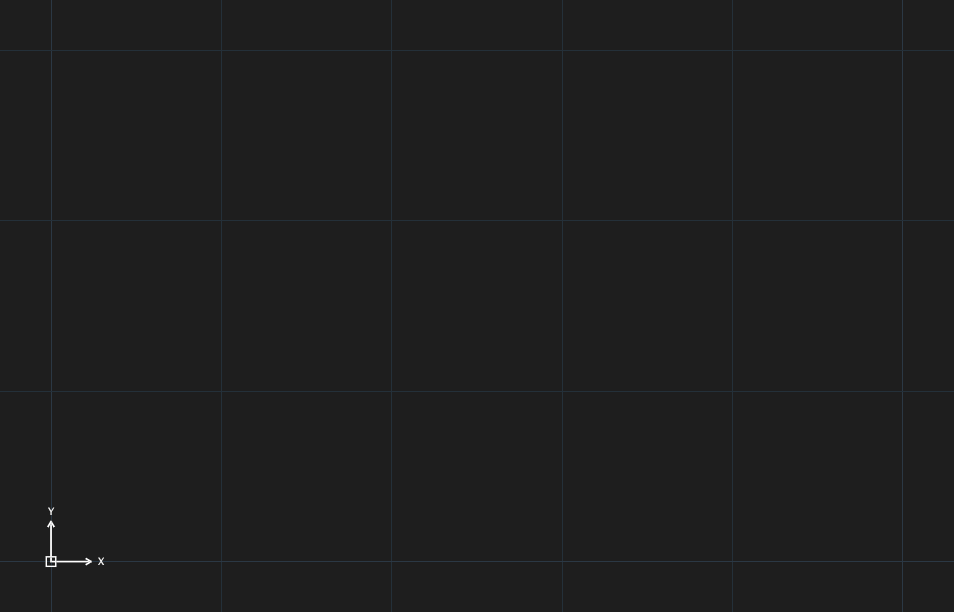
GRID 20: grid spacing 20.Snap
Toggle: F9 or the Snap button 1. When on, the cursor (and the point you click) jumps to the nearest snap-grid node.
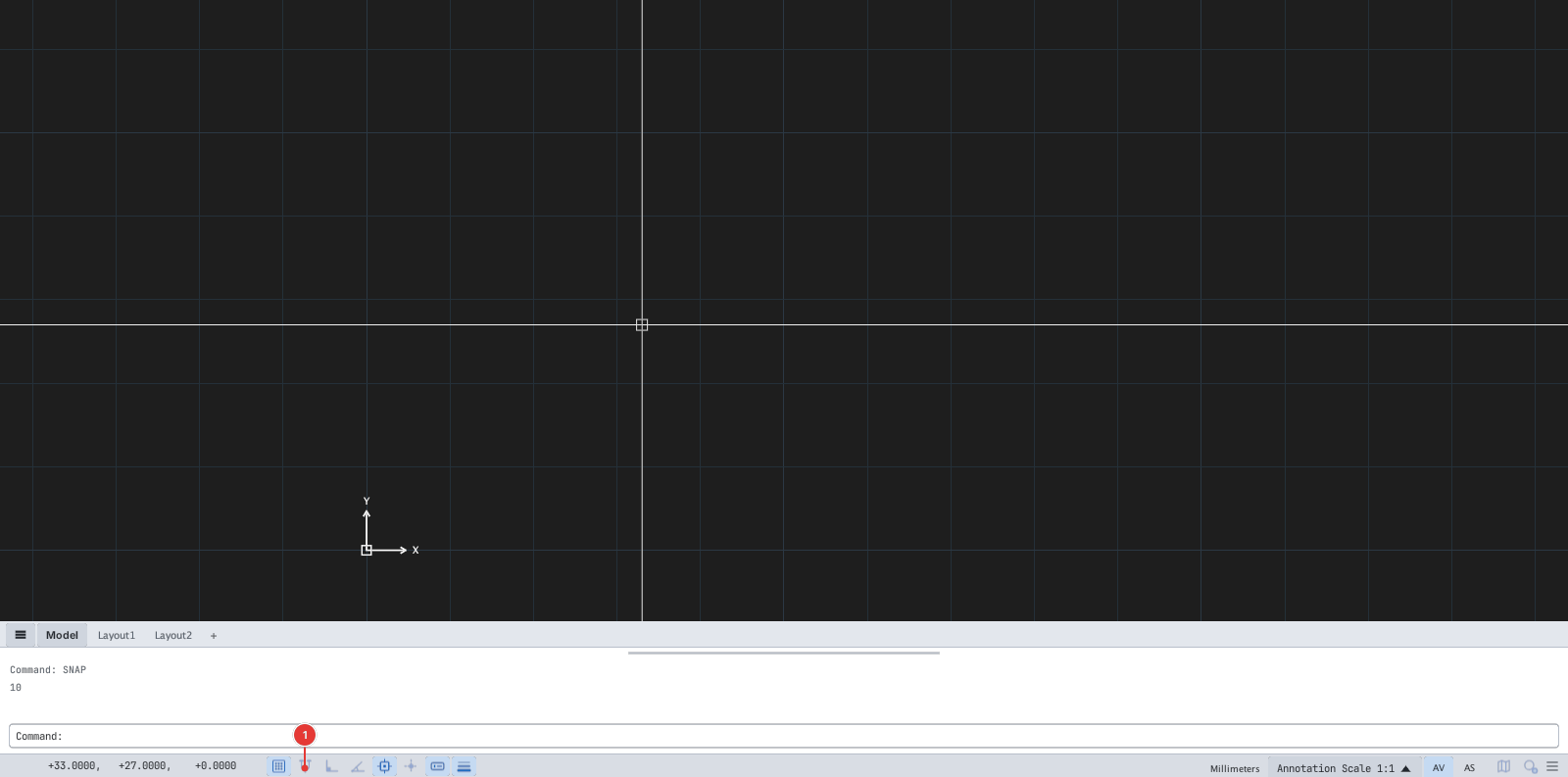
The SNAP command (alias SN): Specify snap spacing or [ON/OFF/Aspect/Rotate/Style/Type] <10.0000>: — type a number to set the step; R rotates the snap grid (asks for a base point and an angle); S / T choose the style (standard / isometric, grid snap / polar).
The Drafting Settings dialog (Snap and Grid tab)
Type DS or DSETTINGS:
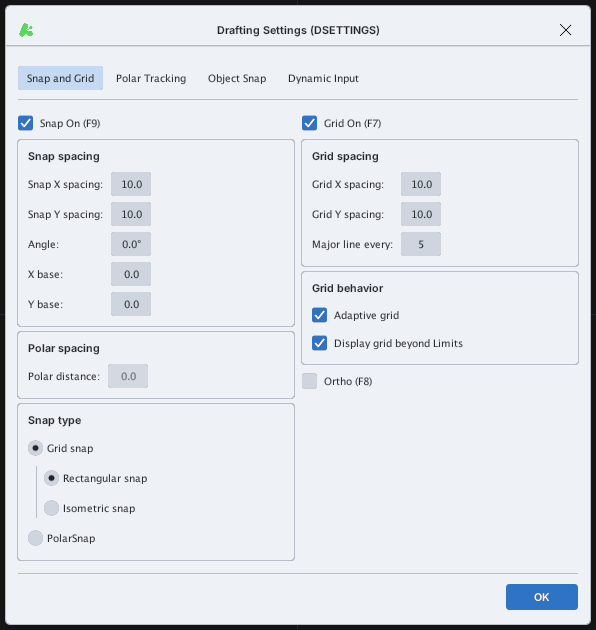
The dialog has three more tabs: Polar Tracking, Object Snap, Dynamic Input (see the matching pages).
Do not confuse Snap (pull to the grid) with Object Snap (pull to geometry points of objects) — you can use both together.