Object Snap Tracking
Object Snap Tracking (OTRACK) lets you take a snap point as a reference, then drag the cursor along a tracking line through it (horizontal, vertical, or at Polar angles if Polar is on). It is especially handy to align with an existing point without drawing helper lines.
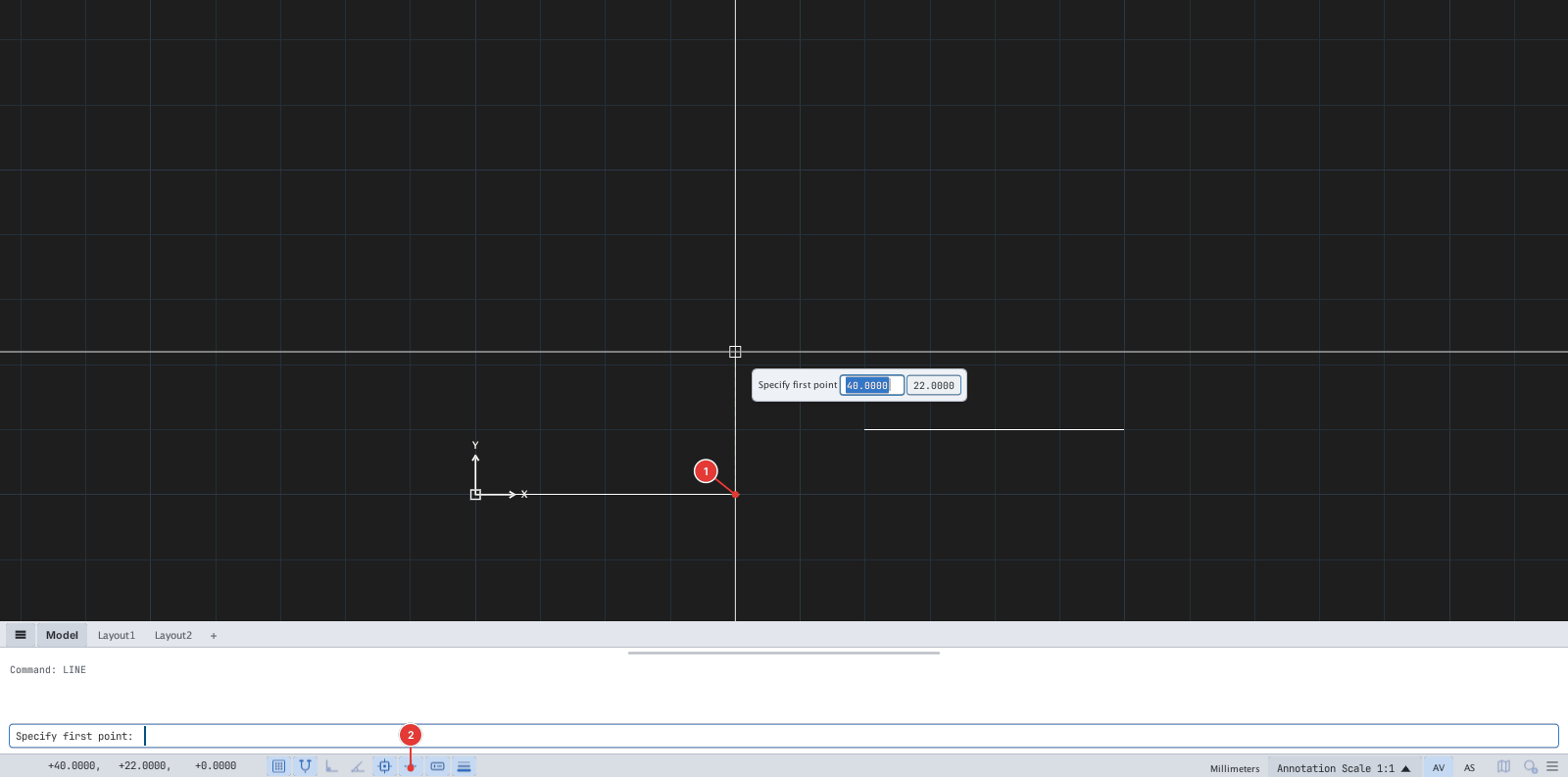
Toggle: F11, the Object Snap Tracking status-bar button 2, the OTRACK command (it flips the state and reports OTRACK = ON. / OFF.), or tick Object Snap Tracking On (F11) on the Object Snap tab. OTRACK only works while Object Snap is on.
How to use it
- Turn OTRACK on and start a command that needs a point (for example
L). - Hover over a snap point — for example an end point 1 — and pause briefly to acquire it (a green + appears). You can acquire several points.
- Move the cursor away horizontally or vertically: a faint dashed tracking line appears through the reference.
- When the cursor lies on a tracking line (or at the crossing of two tracking lines from two different references), click to get a point exactly on that line.
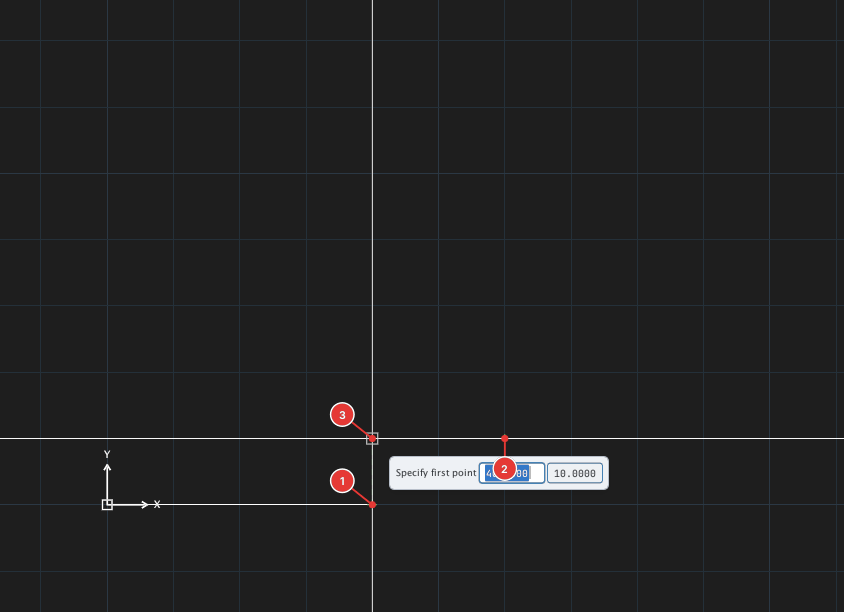
Press Esc or toggle F11 to clear the acquired points.
The tracking lines are faint (dashed green): look closely while working.