Measuring and inquiry
 Ribbon: Home ▸ Utilities ▸ MeasureCommand:
DIST, AREA, ID, LIST, MASSPROP, MEASUREGEOMAlias: DI, AA, LI
These commands only read the drawing and report on the command line. Points can be clicked (turn on object snap to catch endpoints, centres…) or typed, for example DIST → 0,0 → 30,40.
DIST — distance
Type DIST, click the first point 1 then the second 2. The result gives the distance, the angle in the XY plane and Delta X / Delta Y.
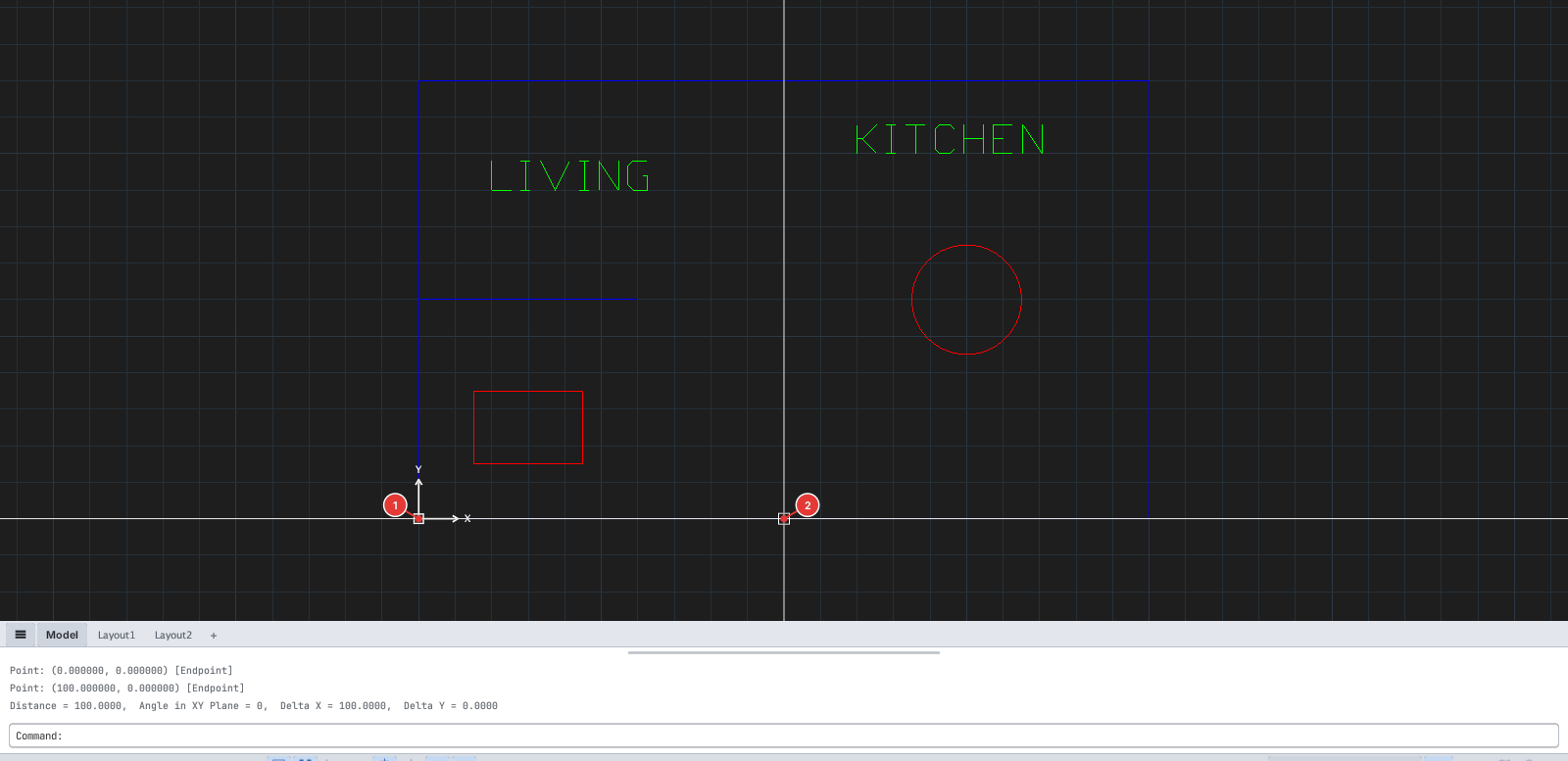
Distance = 100.0000, Angle in XY Plane = 0, Delta X = 100.0000, Delta Y = 0.0000.AREA — area
Type AREA, click the corners 1–3 then press Enter: the command line reports area and perimeter. Type O at the prompt to pick a closed object (circle, closed polyline…) instead of clicking corners.
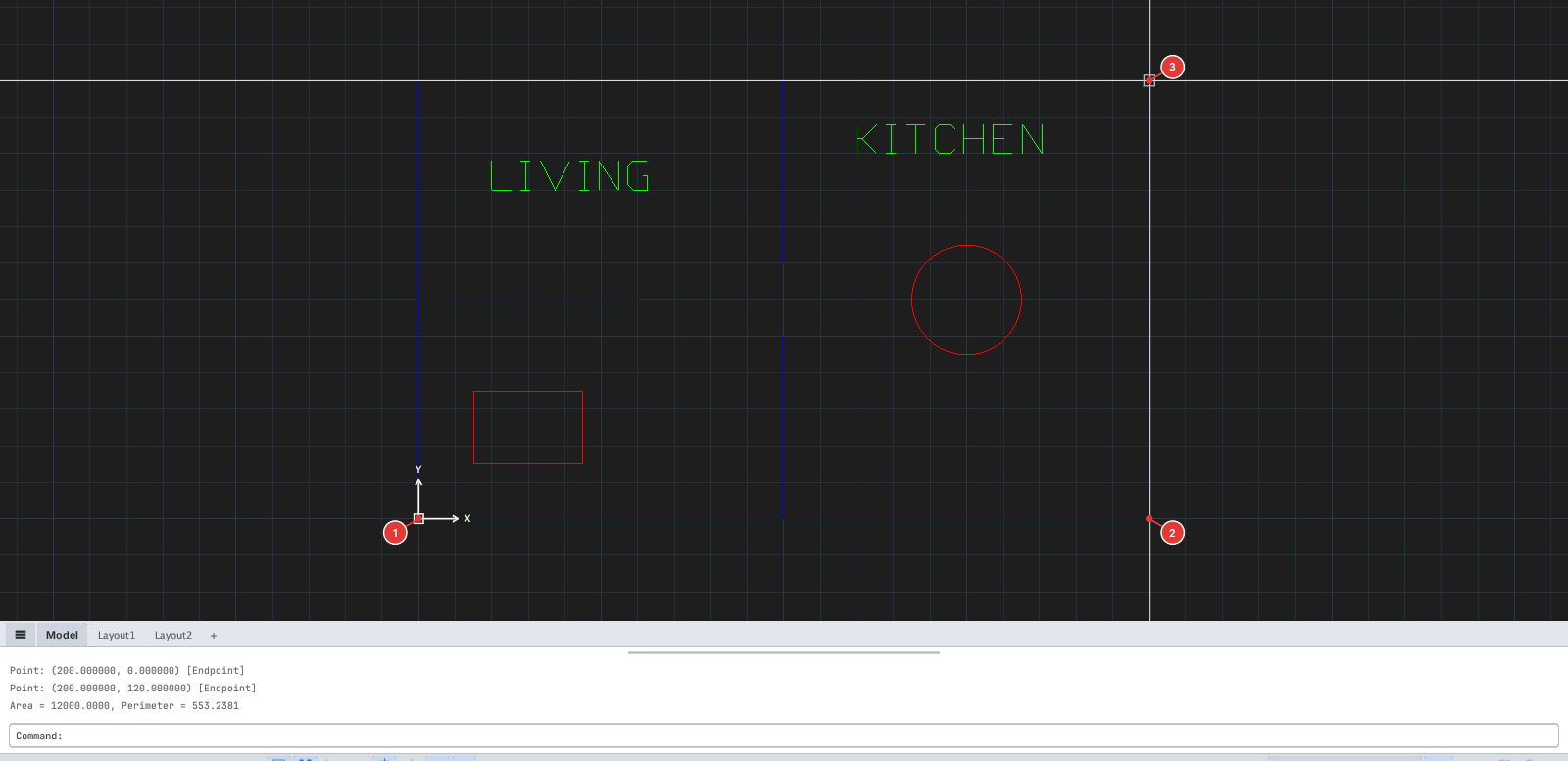
Area = 12000.0000, Perimeter = 553.2381 for a 200 × 120 triangle.ID — coordinates of a point
Type ID and click a point: the command line reports X, Y, Z.
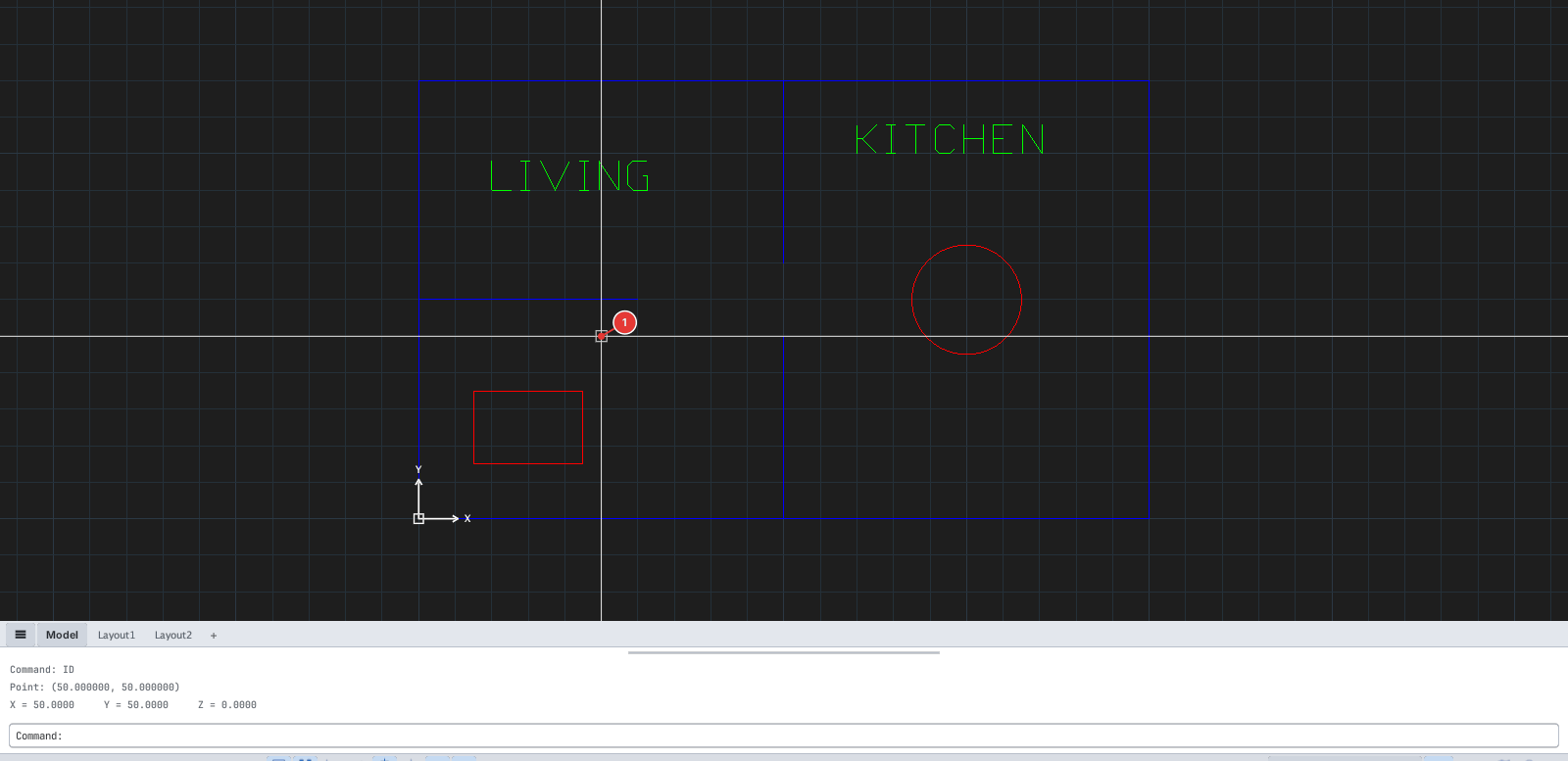
X = 50.0000 Y = 50.0000 Z = 0.0000.LIST — object information
Type LIST, click an object then press Enter. The command line lists its type, size, handle and layer.
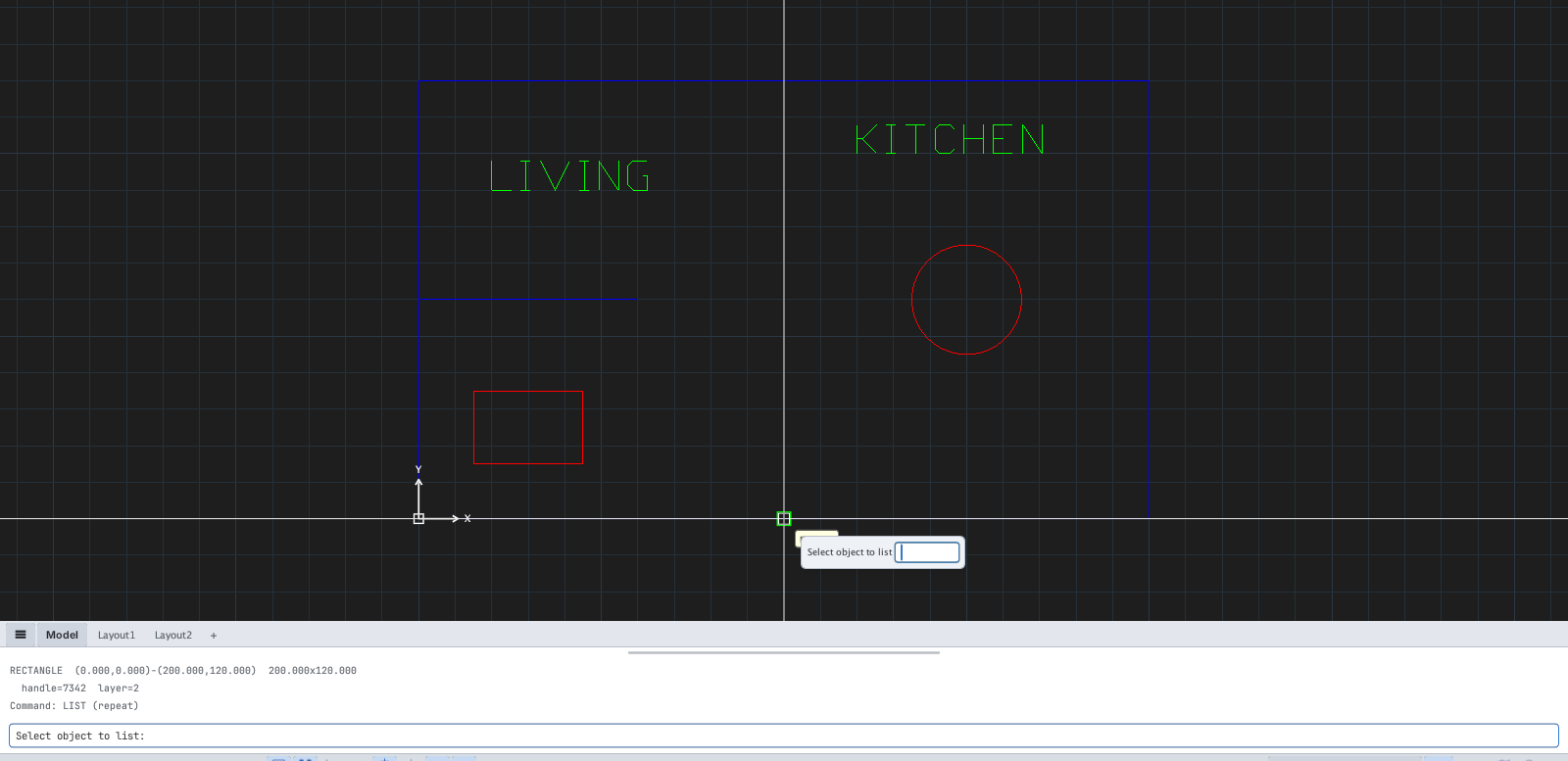
RECTANGLE (0,0)-(200,120) 200 x 120, handle=1.MASSPROP — area, perimeter, centroid
Select closed shapes (rectangle, circle, closed polyline…) then type MASSPROP. With nothing selected the command line says MASSPROP: select closed shape(s) first.
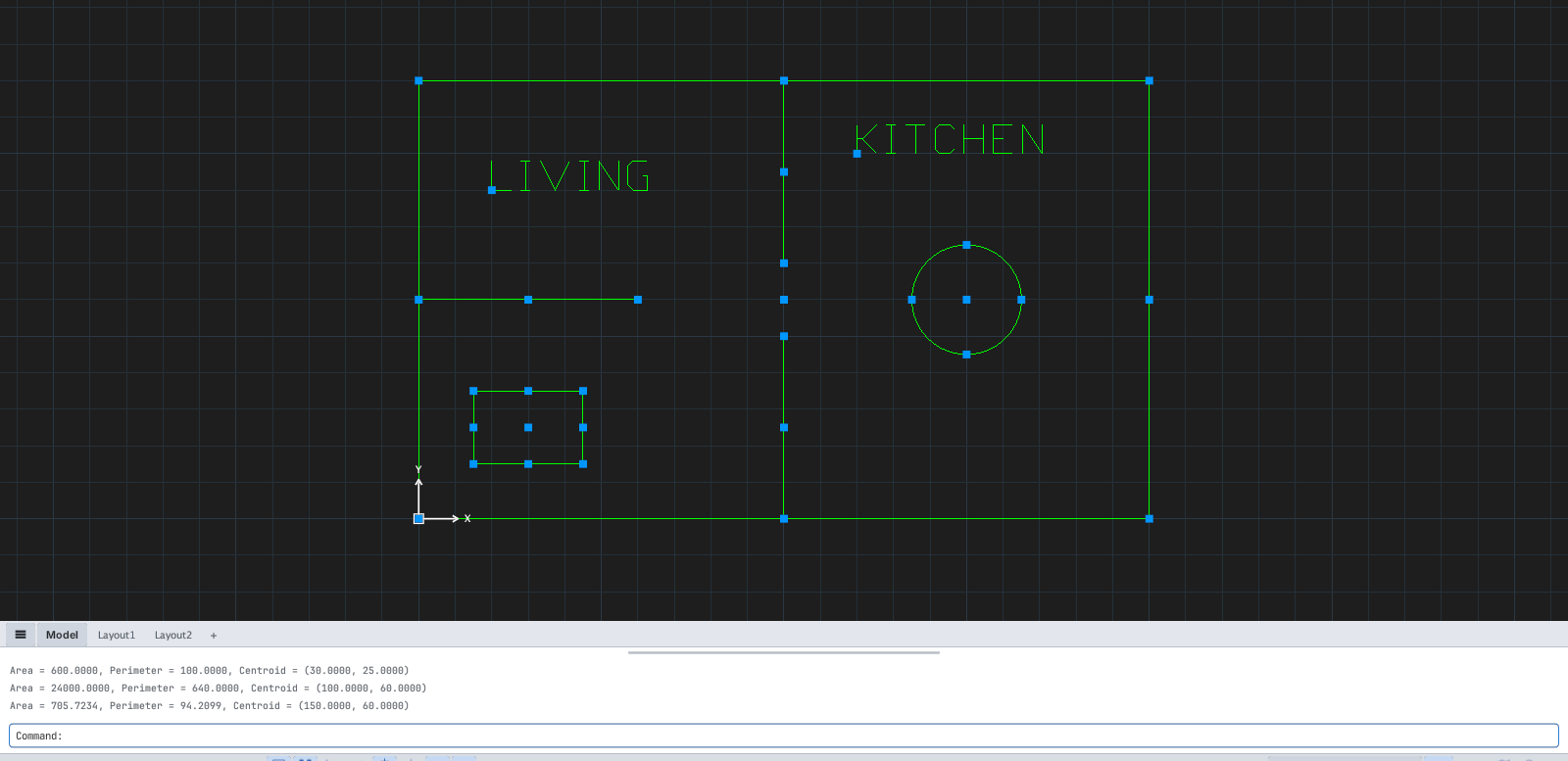
Area = 24000.0000, Perimeter = 640.0000, Centroid = (100.0000, 60.0000) for a 200 × 120 rectangle.MEASUREGEOM
MEASUREGEOM gathers the measuring tools: type D (Distance), R (Radius), A (Angle) or AR (Area) at the prompt MEASUREGEOM — enter option [Distance/Radius/Angle/Area]:.

MEASUREGEOM prompt.