The CAL and QUICKCALC calculators
 Ribbon: View ▸ Palettes ▸ QuickCalcCommand:
CAL, QUICKCALCAlias: QC
KufCad has two calculators sharing one engine: CAL on the command line and the QuickCalc box. Both work with numbers and points / vectors, with geometric functions and variables.
CAL — command-line calculator
Type CAL; the command line asks >> Expression:. Type an expression and press Enter: the result appears right below. Assign a variable with name = expression to reuse it later (variables last for the session and are shared with QuickCalc).

CAL then sqrt(2)*25.4: the result 35.92102448 appears right below the expression. The earlier calls in this scene (a = dist([0,0],[30,40]) → a = 50, [0,0] + [a<30] → the point 50 from the origin at 30°) have scrolled up.Inside another command ('CAL). At a prompt (e.g. the first point of LINE), type 'CAL and enter an expression: the result goes straight into that prompt — a number as a value, a point as x,y,z. For example LINE → 'CAL → [a,0]+[2,1] puts the first point at (52,1).
| Write | Meaning |
|---|---|
+ - * / ^, parentheses | Arithmetic (^ is power) |
[x,y,z] · [,5] · [r<angle] | A point (missing components = 0), polar coordinates |
p1 + p2, p1 - p2, 2*p, p/2 | Add / subtract points, multiply / divide by a number |
p*q · p&q | Dot product · cross product |
sin cos tang asin acos atan | Trigonometry — angles in degrees |
sqrt sqr abs round trunc ln log exp exp10 r2d d2r min max | Arithmetic functions; abs(p) = vector length |
dist(p1,p2) · ang(p1,p2) / ang(v) | Distance · angle (degrees, 0–360) |
pld(p1,p2,d) · plt(p1,p2,t) | Point on p1→p2 at distance d from p1 · at parameter t (0 = p1, 1 = p2) |
nor(v) · rot(p,center,angle) | Unit vector · rotate a point about a centre |
xof yof zof xyof xzof yzof | Keep one / two components of a point |
pi, e, name = … | Constants, assignment |
Unlike AutoCAD, CAL does not have the pick-a-point functions (end, cen, mid…, cur) or feet-inch input such as 5'3" yet; to use a point's coordinates run ID and type them into the expression.
QUICKCALC — calculator box
Click QuickCalc on the View tab (Palettes panel) or type QUICKCALC / QC.
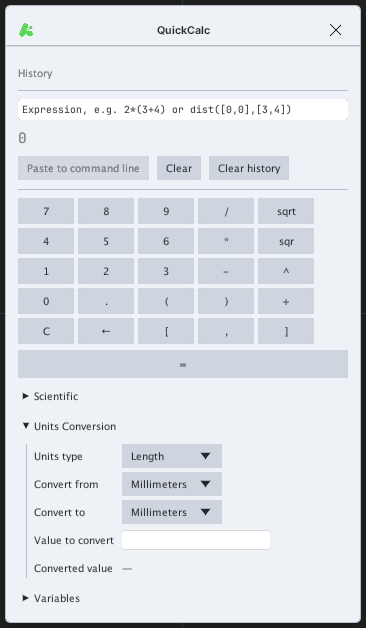
- Expression field: type as in CAL and press Enter or click =. Click a history line to load that expression again.
- Paste to command line: pastes the result into the command line (for a waiting prompt).
- Scientific: inserts function names.
- Units Conversion: choose the kind (length, area, volume, angle), source / target units and the value (an expression works too). Click the result to insert it into the expression.
- Variables: the assigned variables (shared with CAL); click one to insert its name.