Selecting objects
You can select objects before calling a modify command (the command then uses that selection) or let the command ask Select objects. Selected objects show blue grips and change color.
Click selection
Click an object's outline. Click an empty spot to deselect; Esc deselects too.
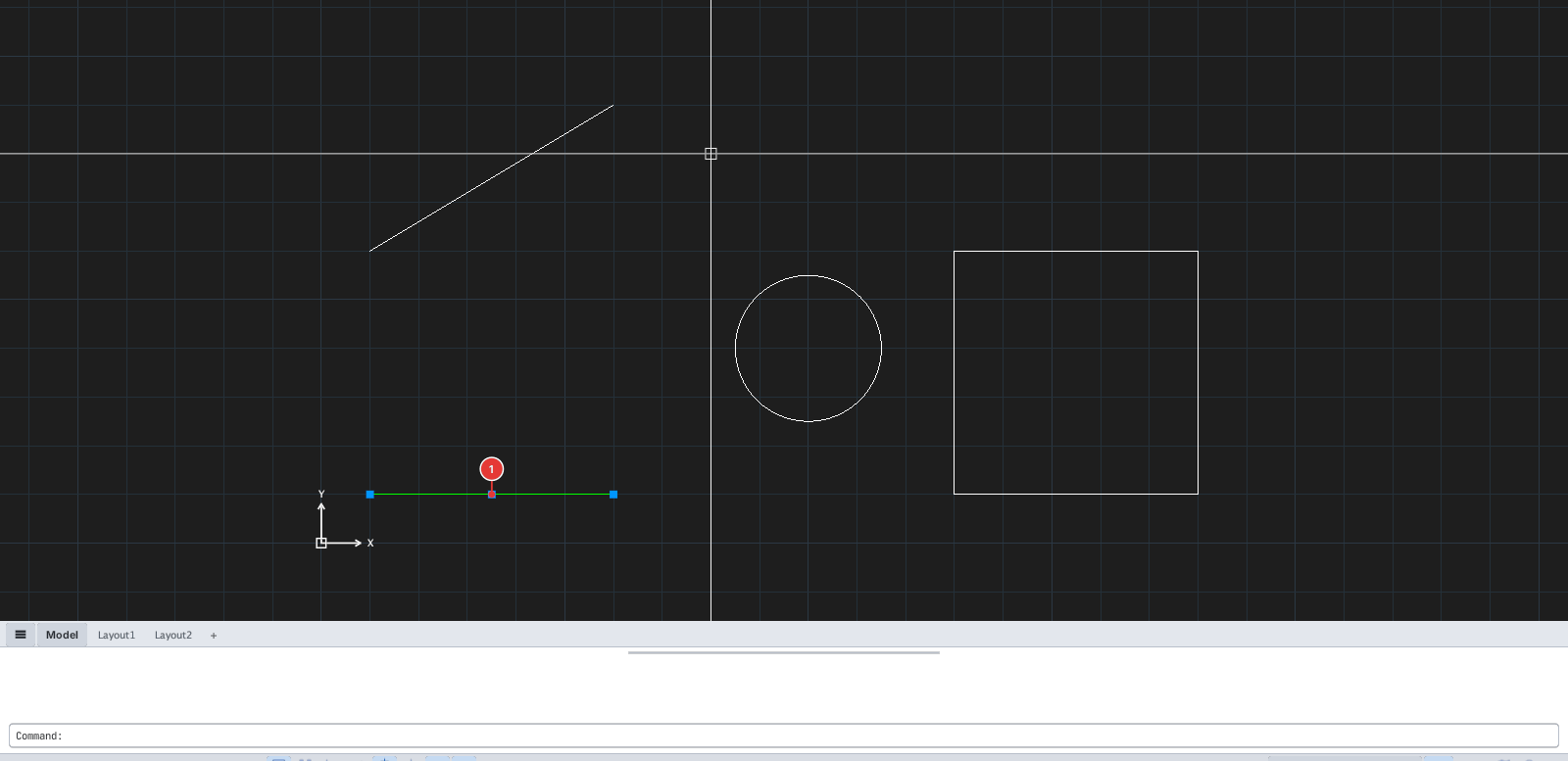
- Ctrl + click: add an object to the selection.
- Shift + click: remove an object from the selection.
- Ctrl+A or Select All (right-click): select every object.
Window and Crossing
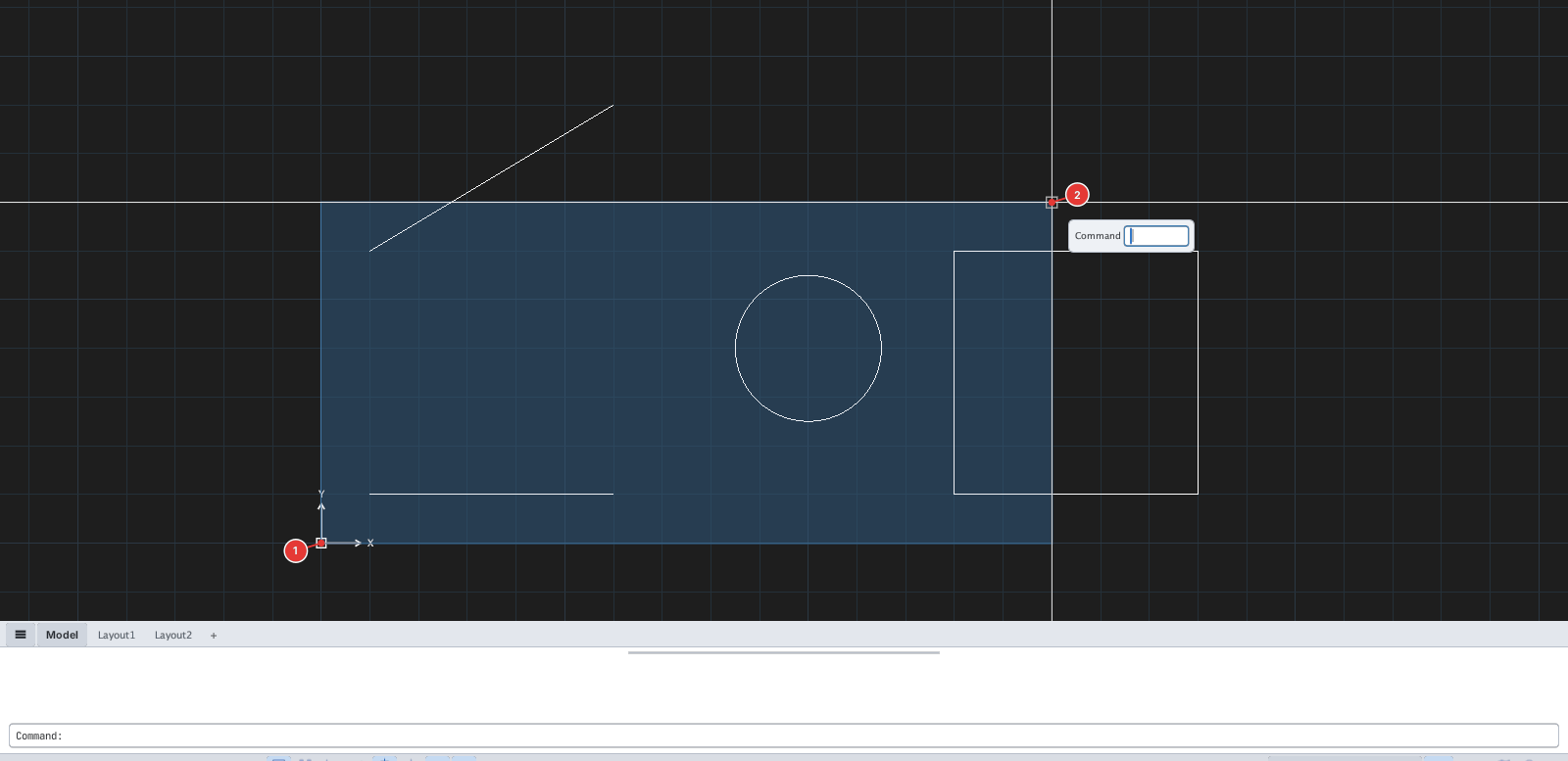
Click an empty spot to set the first corner, move the mouse, then click the second corner. The direction decides the type:
| Direction | Type | Selects |
|---|---|---|
| Left → right | Window | Only objects entirely inside the box |
| Right → left | Crossing | Objects inside or crossing the box |
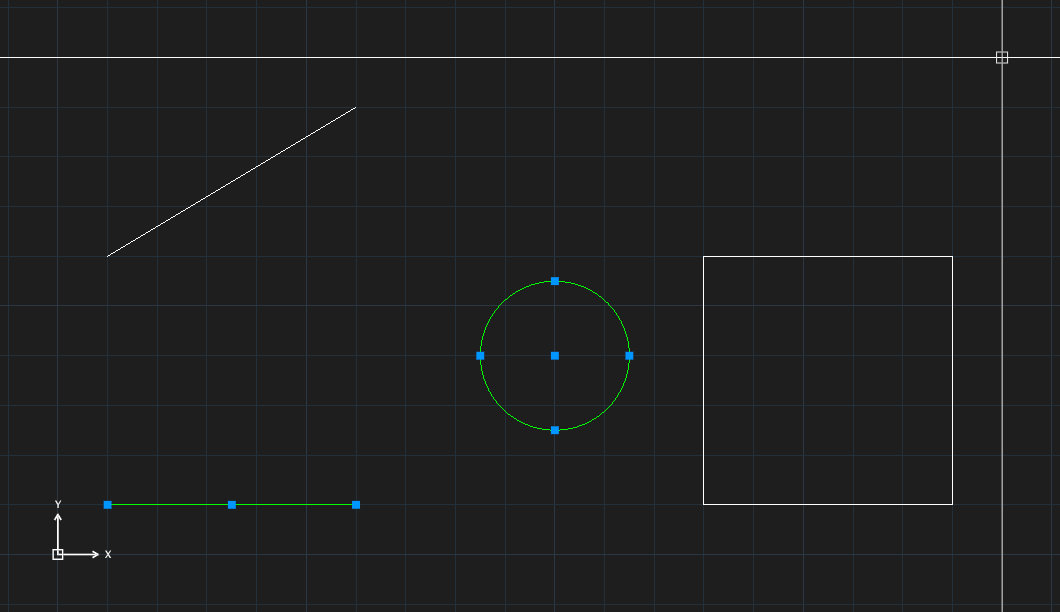
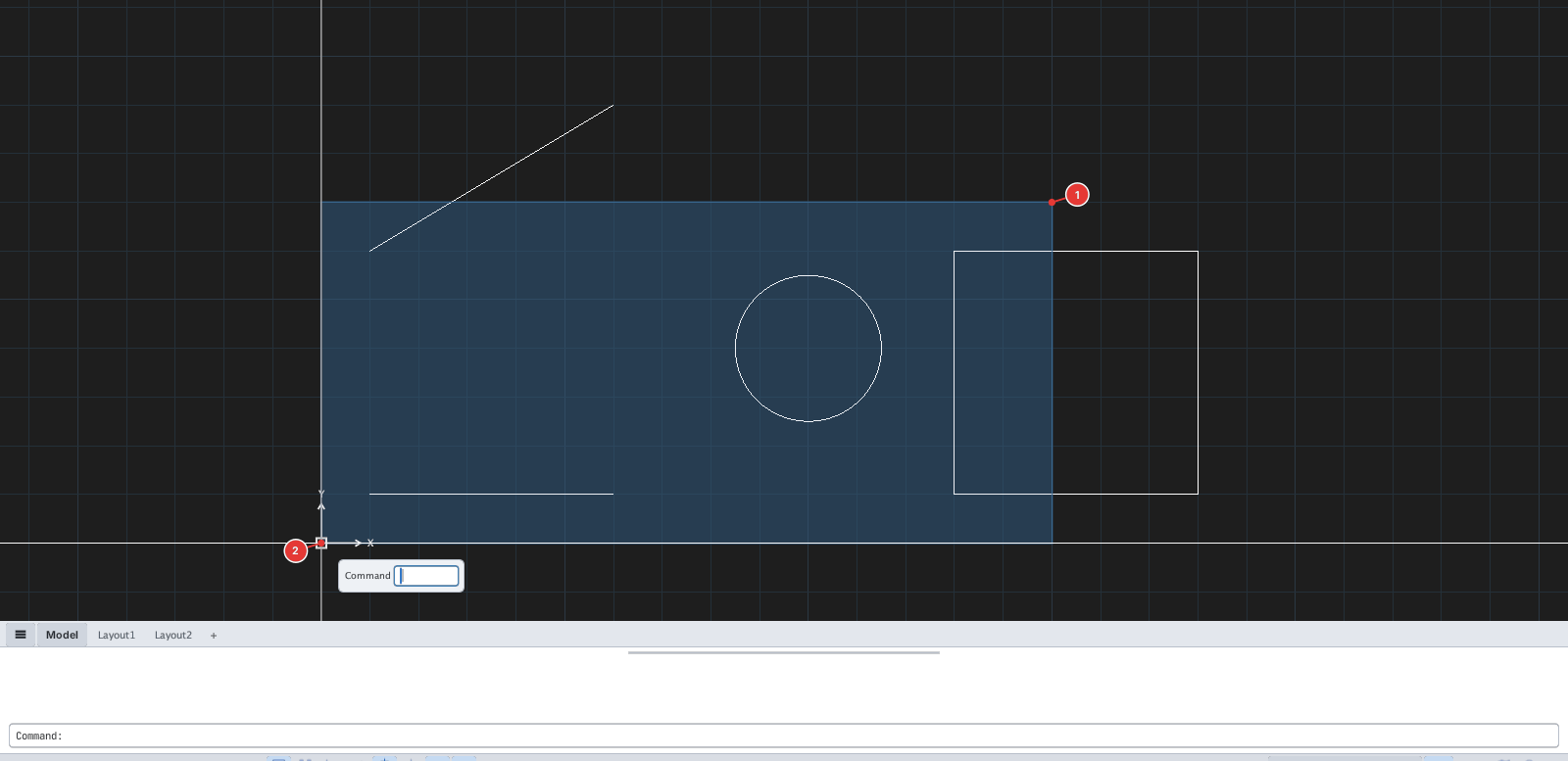
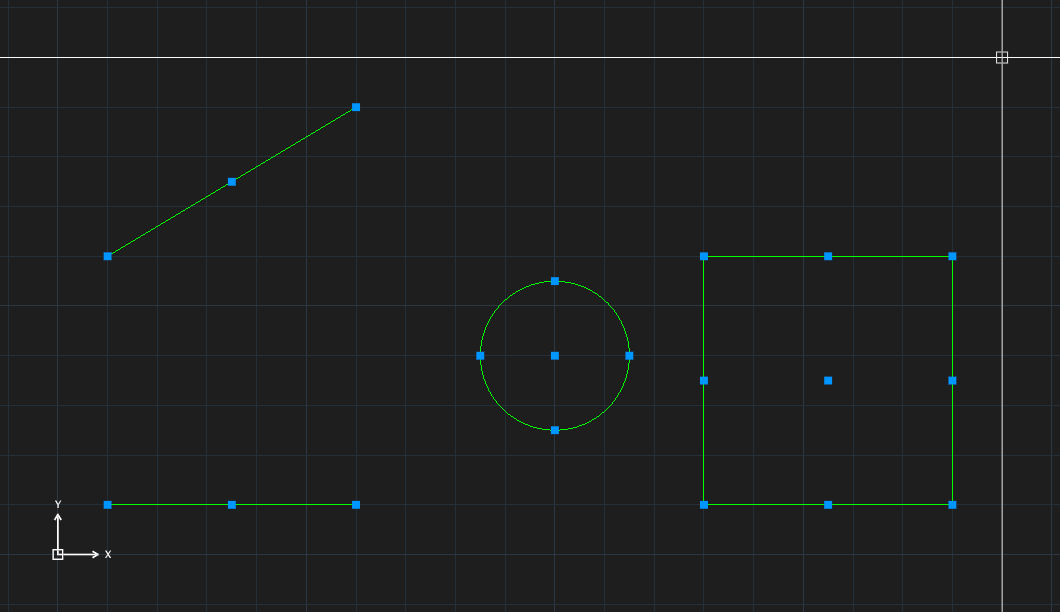
Lasso
Press and hold the left button on an empty spot and drag around, then release: objects inside the loop (or crossed by it) are selected.
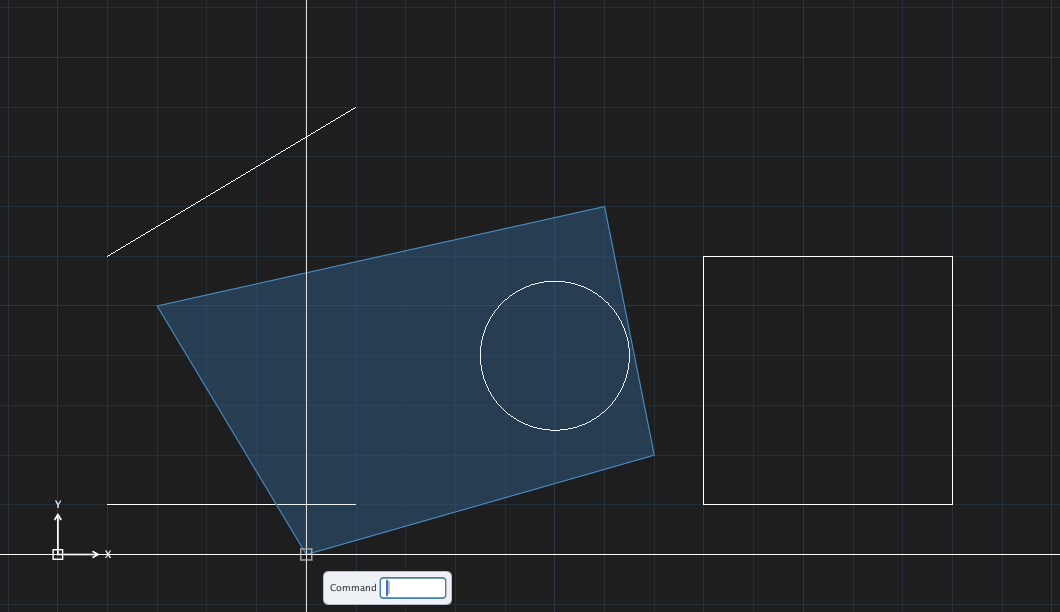
When a command asks "Select objects"

ERASE asks for objects. The prompt lists the options.| Type | Option |
|---|---|
W / C | Window / Crossing |
WP / CP | Polygon window / crossing |
F | Fence (selects whatever the polyline touches) |
ALL | All objects |
L | The last object created |
P | The previous selection |
R / A | Switch to removing / adding |
U | Undo the last pick |
Press Enter or right-click when done. The history says 3 found, 3 total.
The SELECT command: type SELECT to pick objects without running any command (same options as the table above), then press Enter. The objects stay selected for the next command you type.
Selecting by criteria
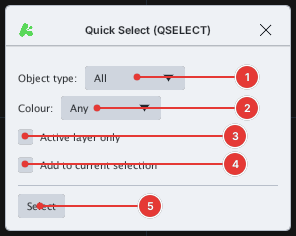
QSELECT — select by object type, color, layer.
SELECTSIMILAR (SELSIM) — select one object and run the command: every object of the same type is added.
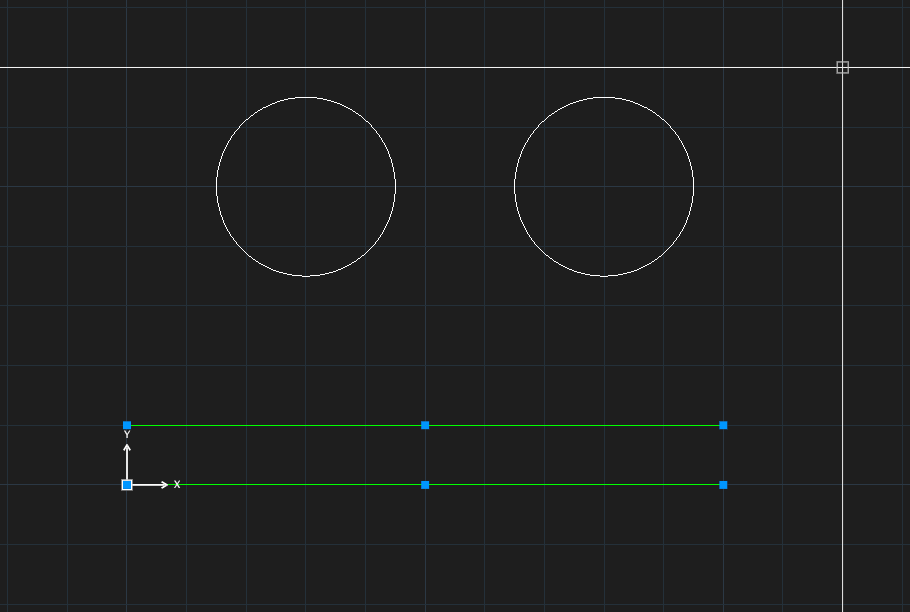
SELECTSIMILAR: both lines are selected, the two circles are not.