Grips
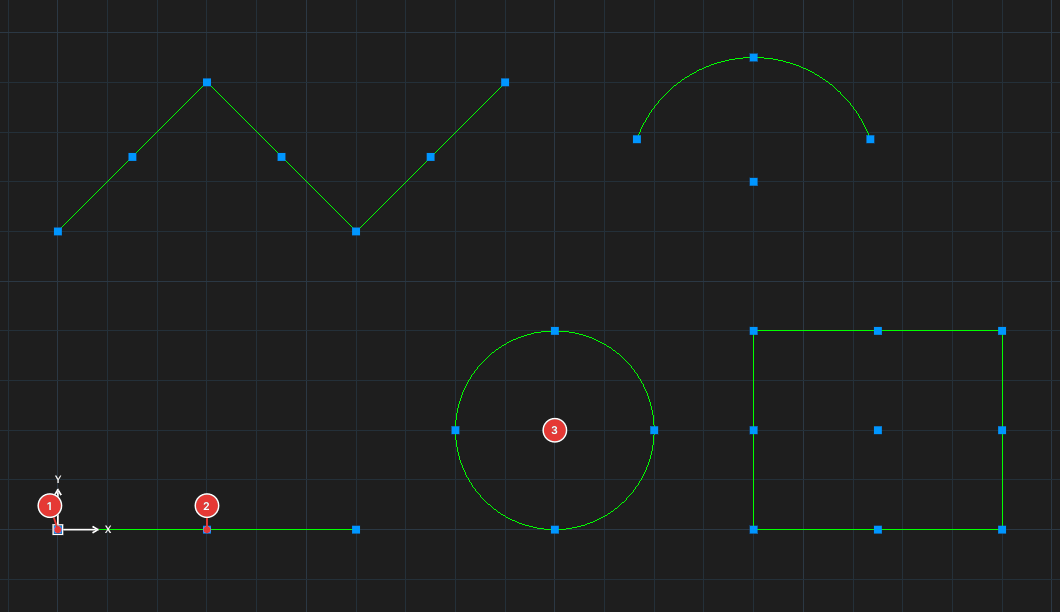
Grips are the small squares shown on selected objects. Drag or click a grip to edit quickly without calling a command.
Dragging a grip
- Select an object — blue grips appear.
- Press and hold the mouse on a grip, drag to the new position and release. Object snap still works while dragging.
- Only the part tied to the grip changes: dragging a line end changes its length and direction; dragging a circle's center moves the whole circle; dragging a quadrant point changes the radius.
Hot grips
Click (don't drag) a grip: it turns red and starts an edit mode, with a prompt such as ** STRETCH ** Specify stretch point or [Base point/Copy/eXit]:. Click a target point to finish.
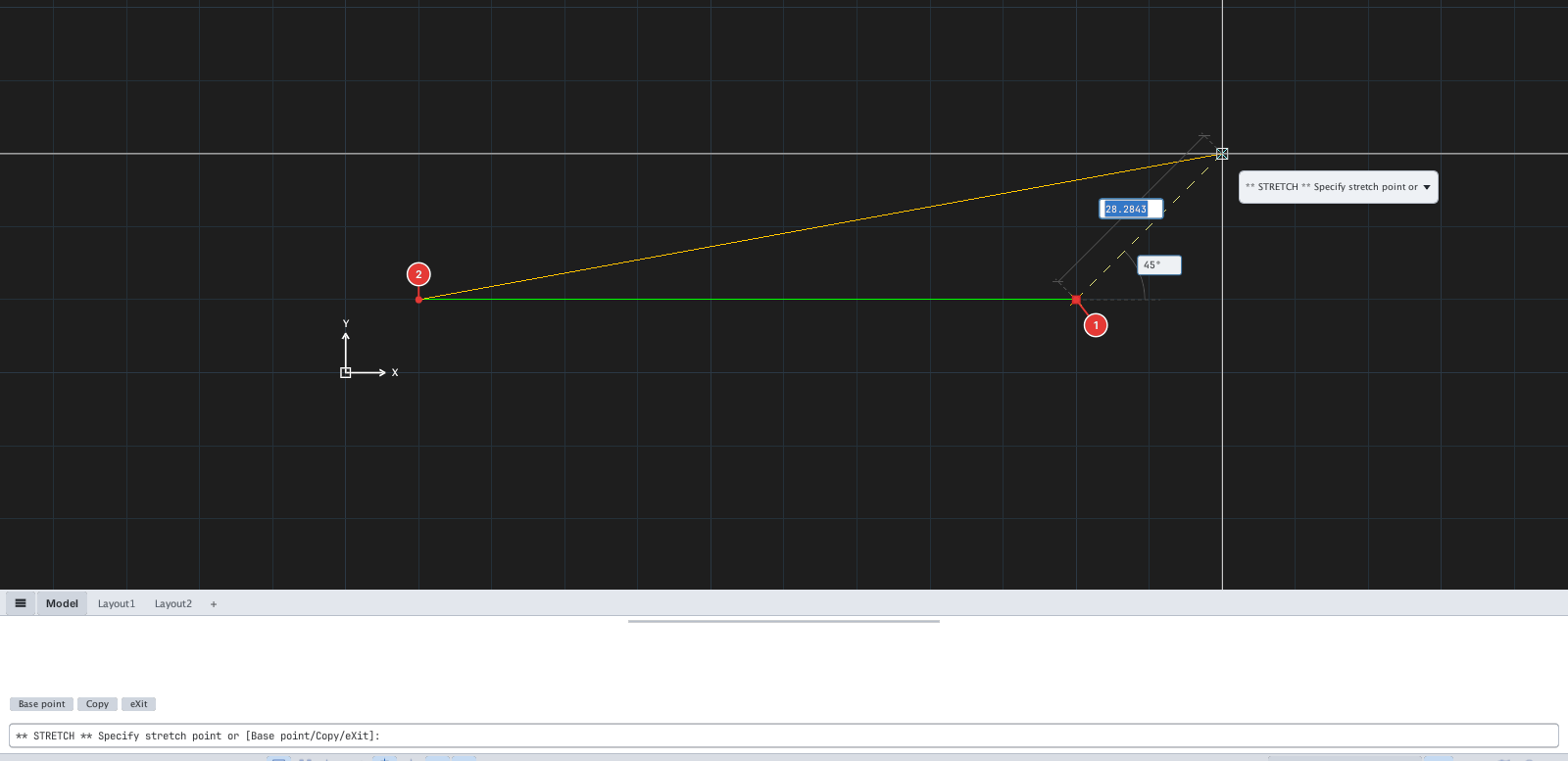
Press Enter, Space or right-click to cycle the mode:
STRETCH → MOVE → ROTATE → SCALE → MIRROR → STRETCH…
| Option | Type | Effect |
|---|---|---|
| Base point | B | Change the base point of the transformation |
| Copy | C | Keep the original and make a copy |
| eXit | X | Leave the hot grip |
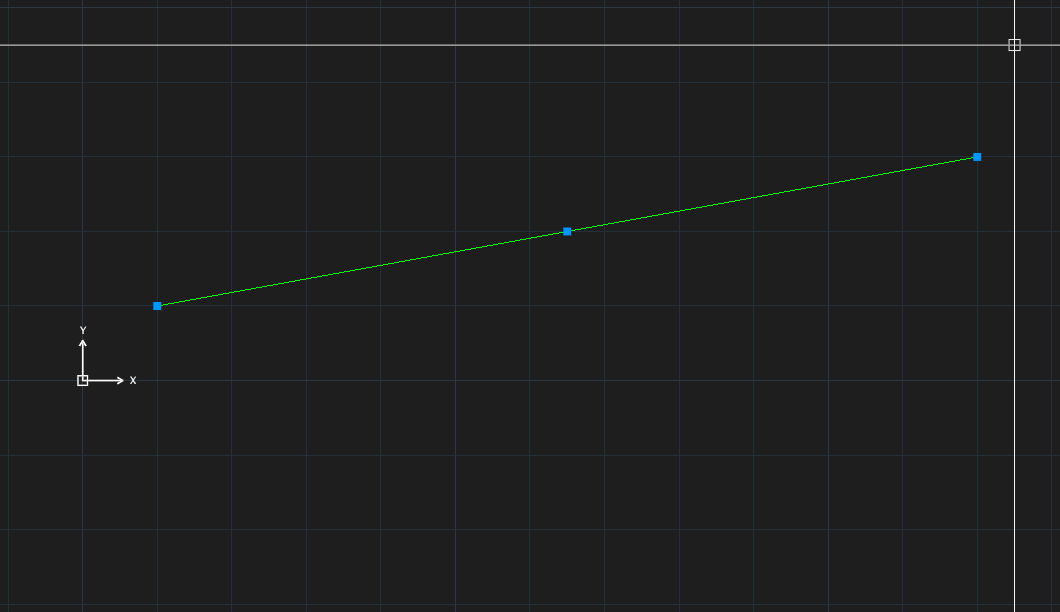
Grip size and the normal / hot grip colors are set in Options ▸ Selection.