Pan and Zoom
Ribbon: View ▸ Navigate ▸ Zoom / PanCommand: ZOOM (Z), PAN, ZOOMEXTENTS
With the mouse
- Scroll the wheel: zoom about the cursor (about 10% per notch).
- Hold the middle button and drag: pan.
- Double-click the middle button: fit the whole drawing (Zoom Extents). The 🔍 button on the status bar does the same.
Two system variables tune the wheel: ZOOMFACTOR (zoom step, 3–100, default 60) and ZOOMWHEEL (reverse the direction).
On the ribbon
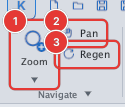
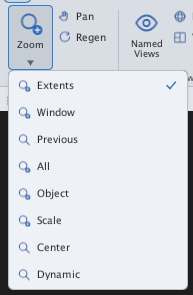
The ZOOM command

ZOOM prompt.| Option | Type | Effect |
|---|---|---|
| Window | W | Zoom to a rectangle: click two opposite corners |
| Extents | E | Fit all objects |
| Previous | P | Go back to the previous view |
| All | A | Show the whole drawing |
| Scale | S, then 2X, 0.5X… | Change by a factor; nX is relative to the current view |
| Center | C | Click the new center, then type the view height |
| Dynamic | D | Move a view box, click to set it |
| Object | O | Fit the objects you select |
| Real time | Enter right after ZOOM | Drag up / down to zoom; Esc or Enter to exit |
Typing a number (for example 0.5X) at the first prompt also changes the scale.
Zoom Window step by step
- Type
Z, Enter, thenW, Enter. - Click the first corner [[1]], move the mouse, click the second corner [[2]].
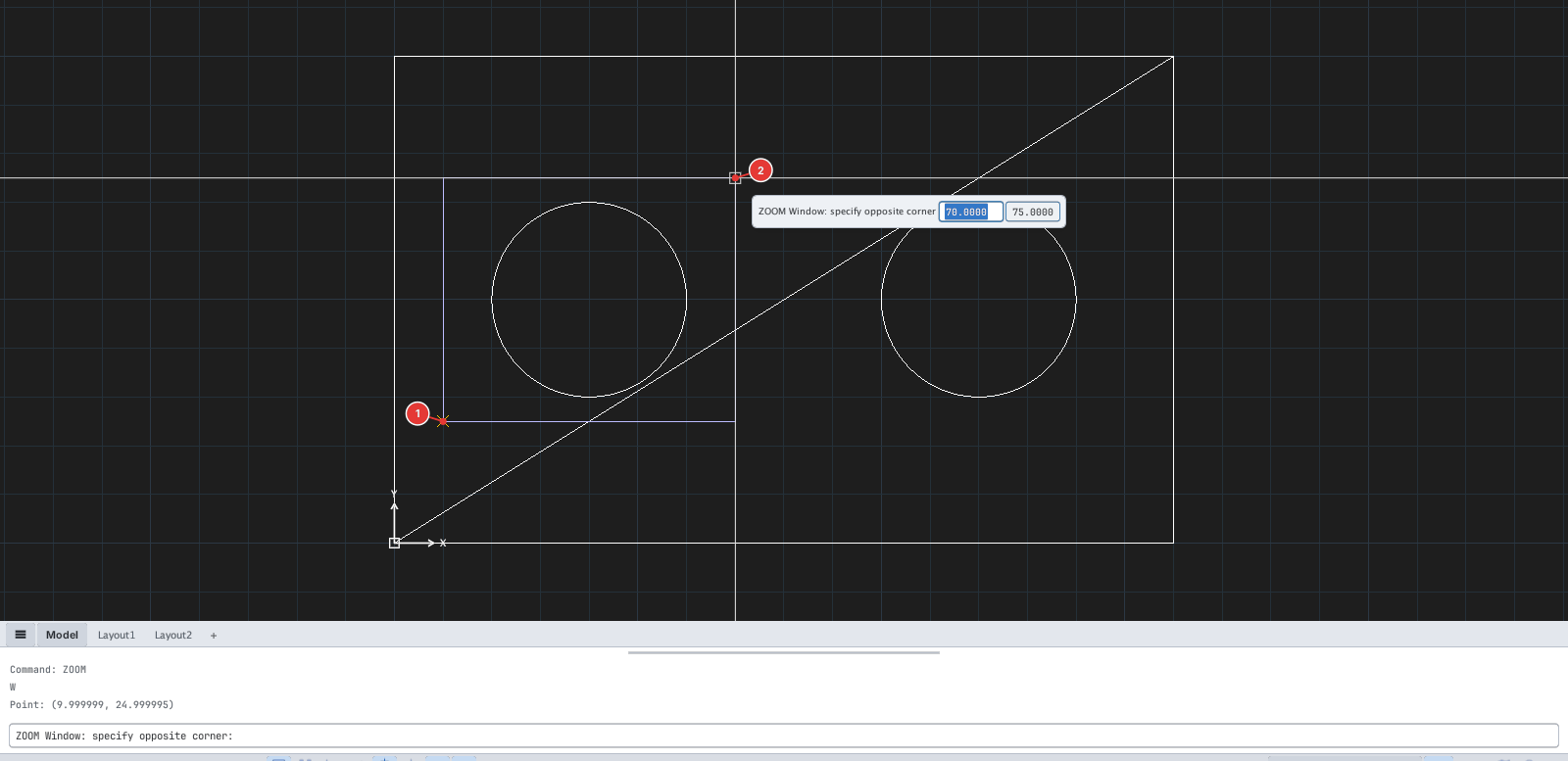
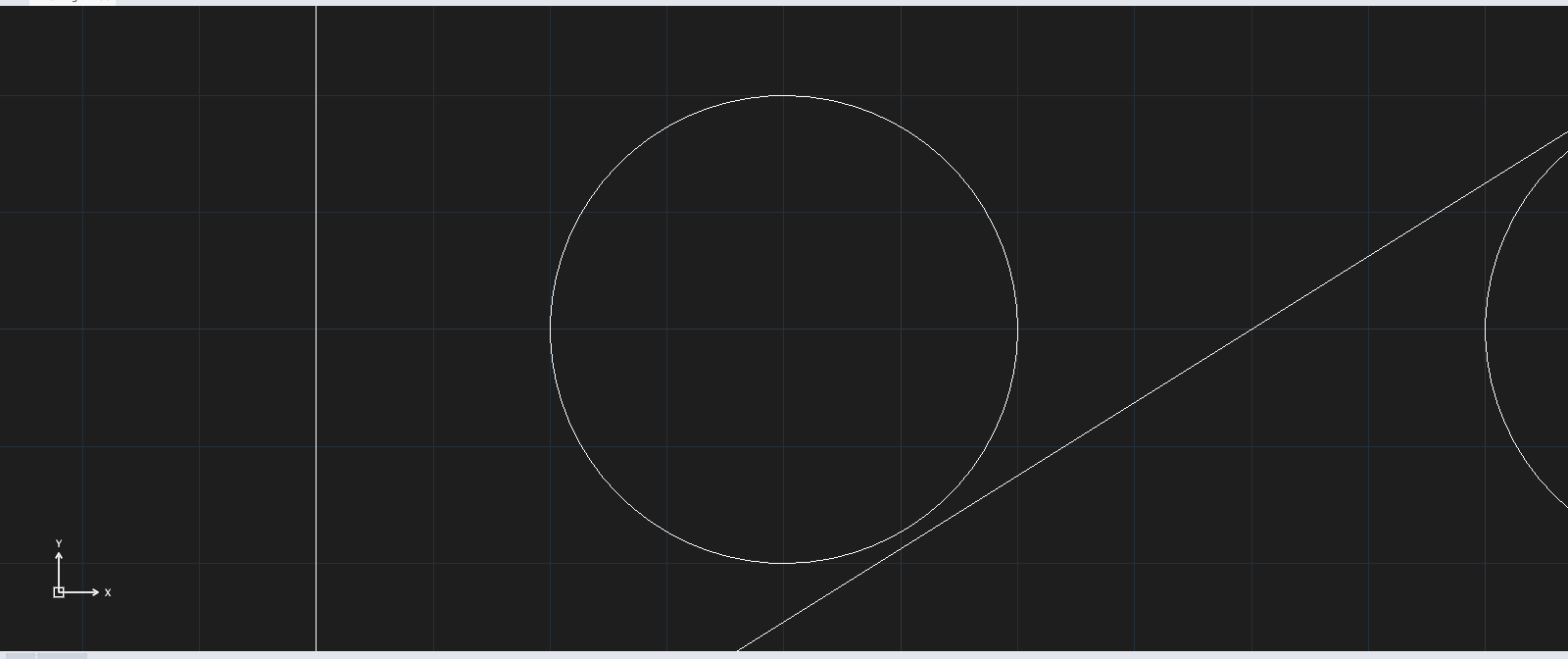
The Window and Center options also accept typed coordinates instead of clicks, for example ZOOM → W → 10,10 → 60,40 zooms to the box from (10,10) to (60,40); ZOOM → C → 50,50 → 30 centres the view on (50,50) with a height of 30 units.
The PAN command
PAN starts real-time pan: drag the mouse to move the view; Esc or Enter to exit.
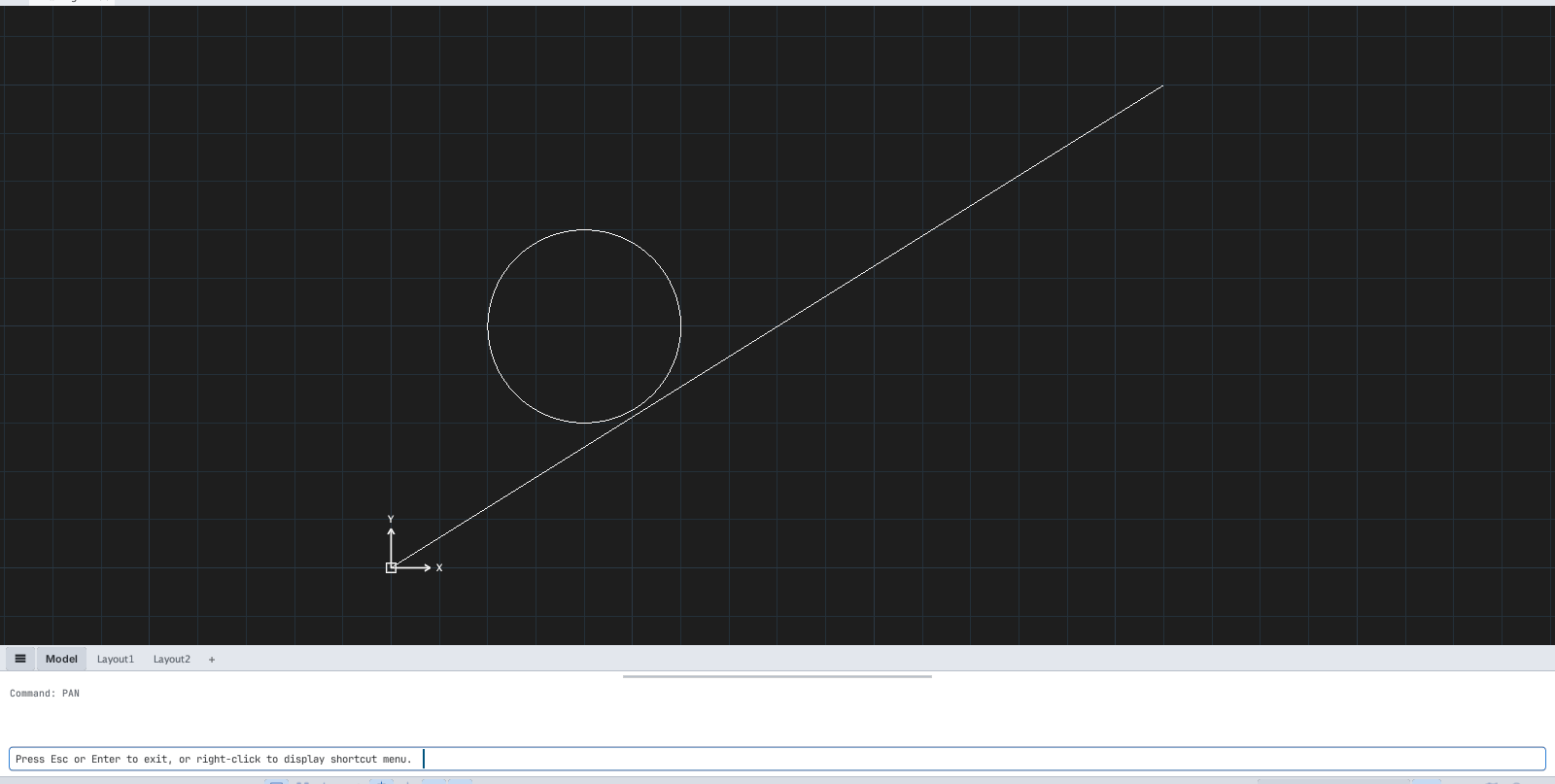
PAN running: the prompt Press Esc or Enter to exit, or right-click to display shortcut menu.