Position constraints: Coincident, Concentric, Collinear, Fix
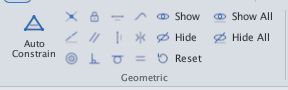
 Ribbon: Parametric ▸ Geometric ▸ Coincident / Concentric / Collinear / FixCommand:
GCCOINCIDENT, GCCONCENTRIC, GCCOLLINEAR, GCFIXAlias: GCON
All commands here pick the same way: type the command (or click the button), then move to the object and click. The command line shows the next step; when done it reports for example Concentric constraint applied.
GCCOINCIDENT — point on point
Before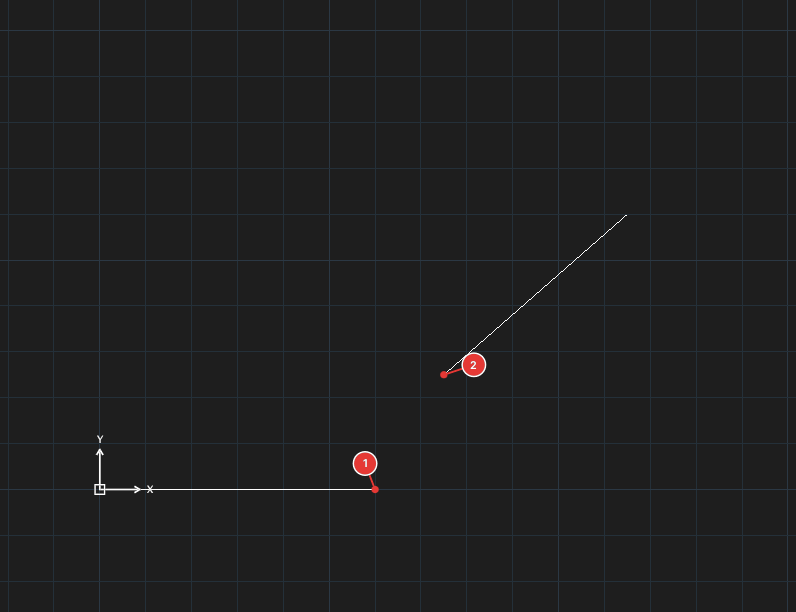
→
After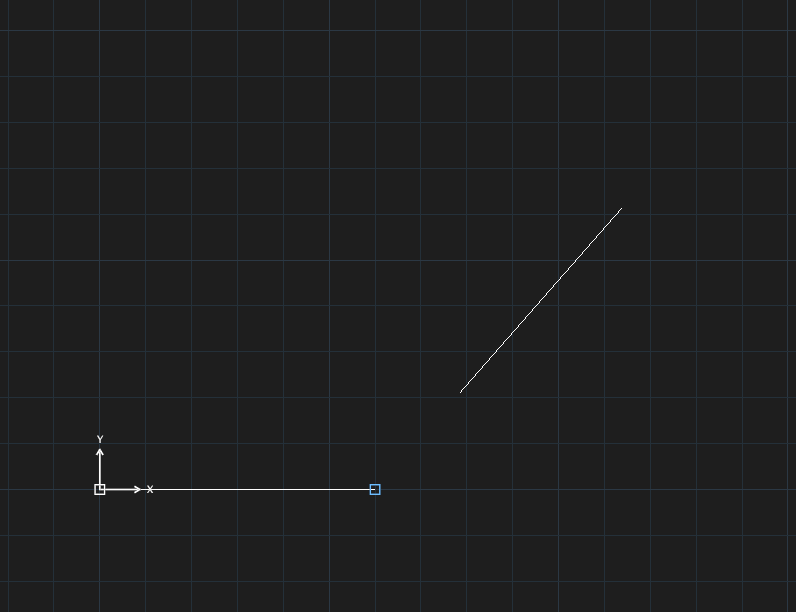
- Click Coincident or type
GCCOINCIDENT, Enter. Select first point— click an end, midpoint, centre, vertex or insertion point.Select second point or object— click the second point (or an object to put the point on it).
GCCONCENTRIC — same centre
Before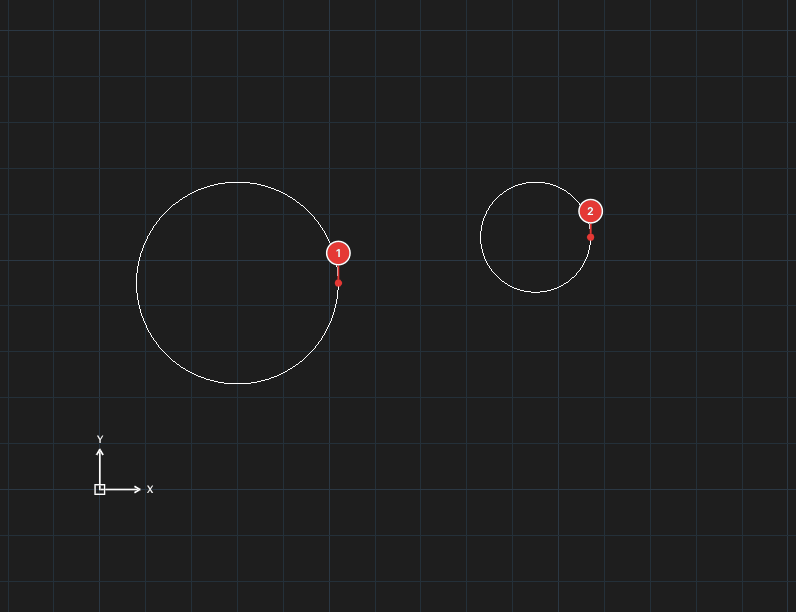
→
After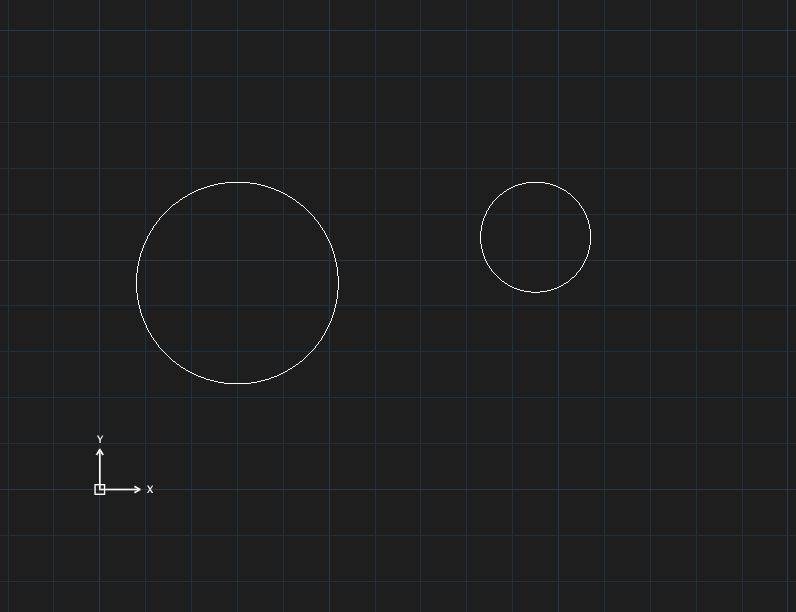
GCCONCENTRIC—Select first circle, arc or ellipse.Select second circle, arc or ellipse.
GCCOLLINEAR — same line
Before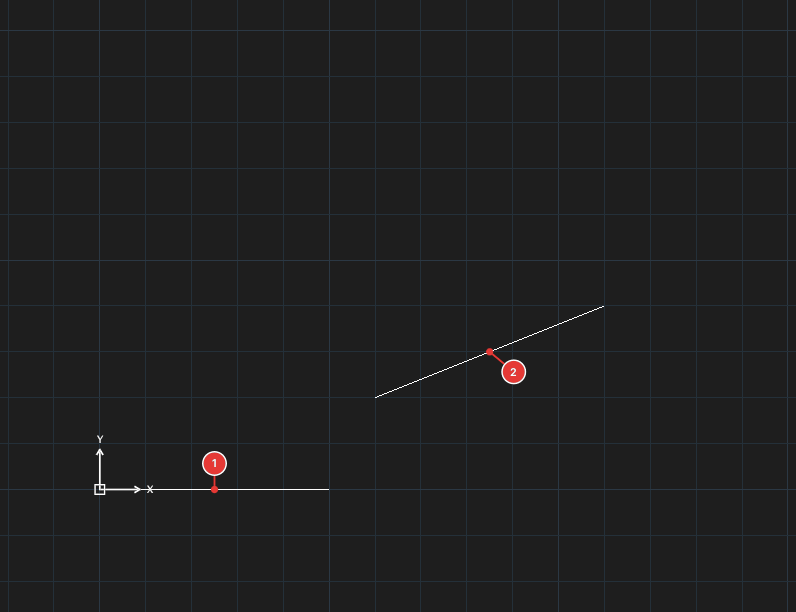
→
After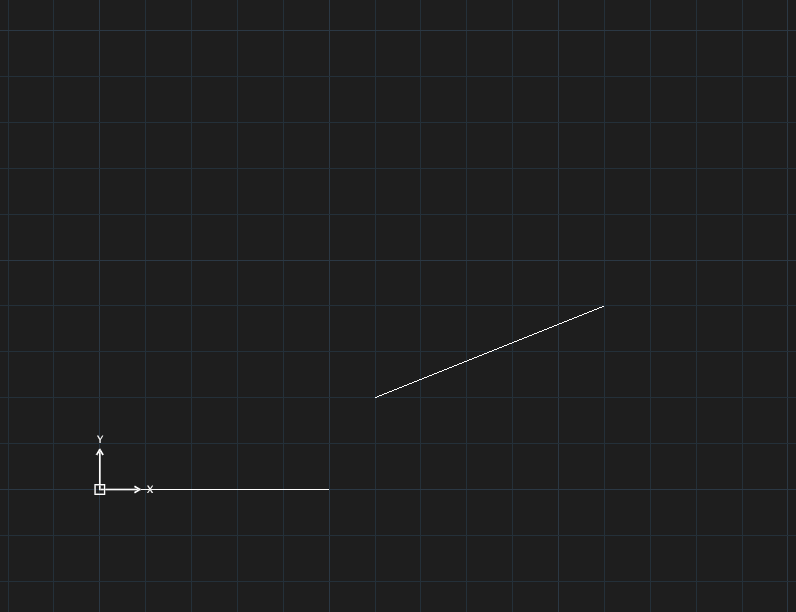
GCCOLLINEAR, click the first line, then the second (Select first object/Select second object).
GCFIX — lock position
Before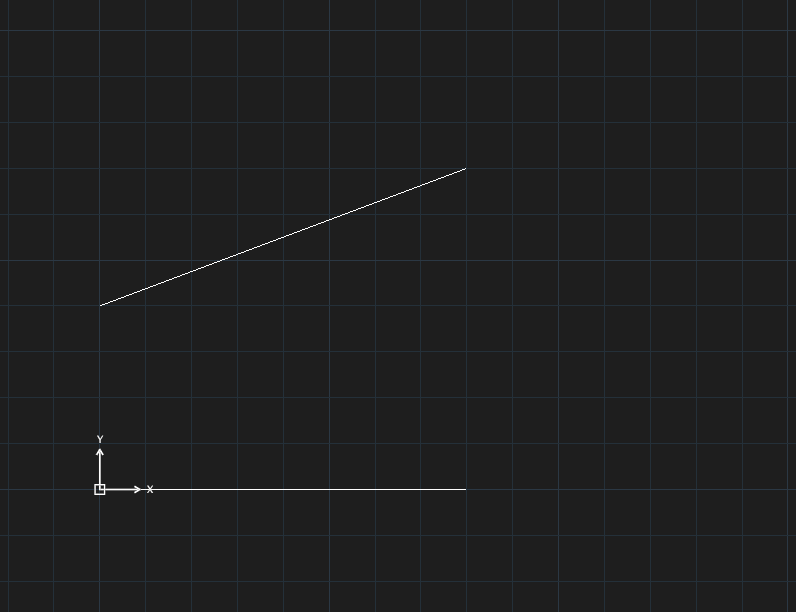
→
After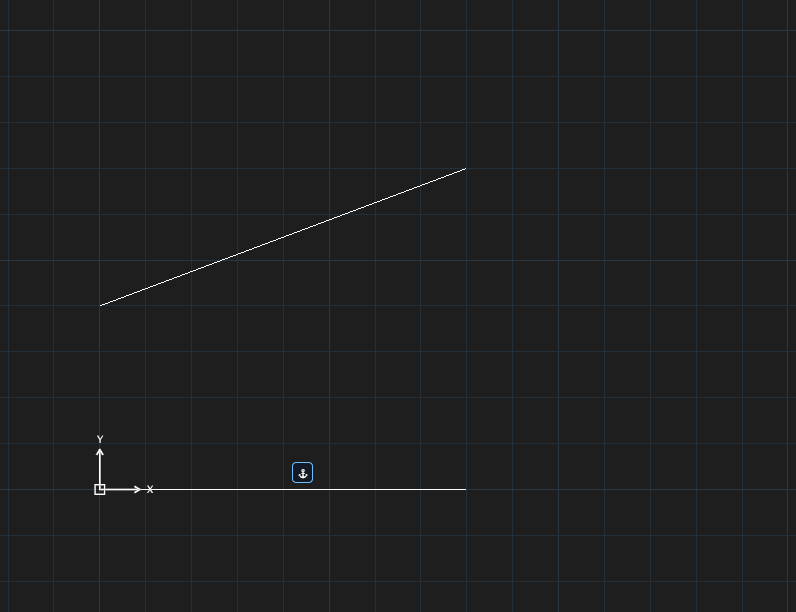
GCFIX, click a point or an object (Select a point or object).
A constraint that would over-constrain or contradict the drawing is refused with a message on the command line. The icons on the figures are simple glyphs; some kinds share a small square symbol.