Dimensional constraints: Linear, Aligned, Angular, Radius, Diameter
 Ribbon: Parametric ▸ Dimensional ▸ Linear / Aligned / Horizontal / Vertical / Angular / Radius / Diameter / ConvertCommand:
DCLINEAR, DCALIGNED, DCHORIZONTAL, DCVERTICAL, DCANGULAR, DCRADIUS, DCDIAMETER, DCCONVERTAlias: DCON
A dimensional constraint is a dimension that drives the geometry: you type a value, the geometry follows, and the value has a name (d1, ang1, rad1…) or one you choose.
DCLINEAR / DCHORIZONTAL / DCVERTICAL
Before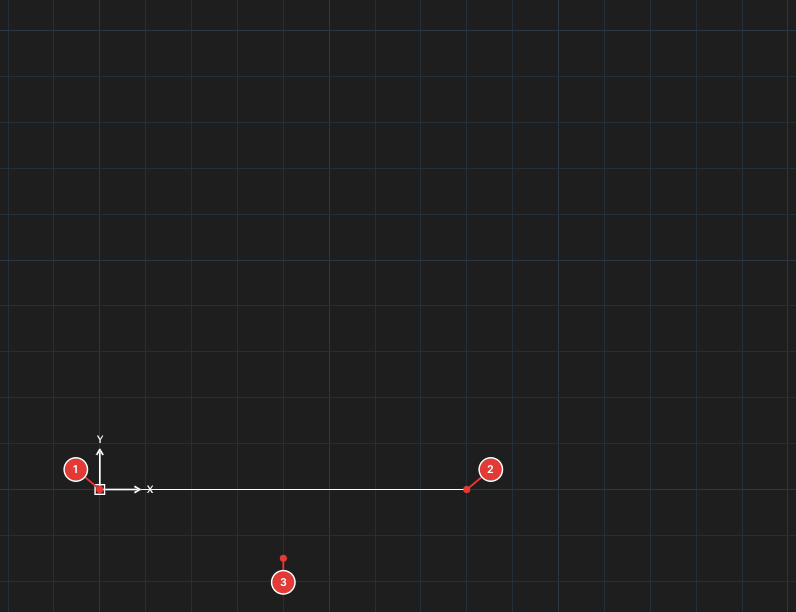
→
After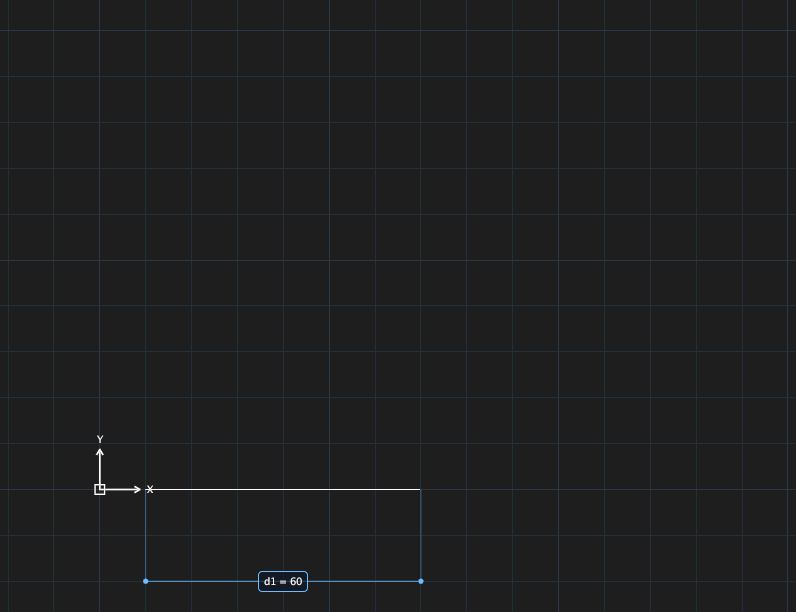
60: the line shrinks from 80 to 60 (symmetrically about its centre) and the label d1 = 60 appears.- Click Linear or type
DCLINEAR, Enter. Specify first constraint point or select a line:— click a point (or the whole line).Specify second constraint point or select a line:.Specify dimension line location:— click where to put it.Enter dimension text, expression or name=value [Reference] <80>:— type a value60, an expression, orname=valuesuch asw=100. TypeR(Reference) to measure only, without driving.
DCALIGNED
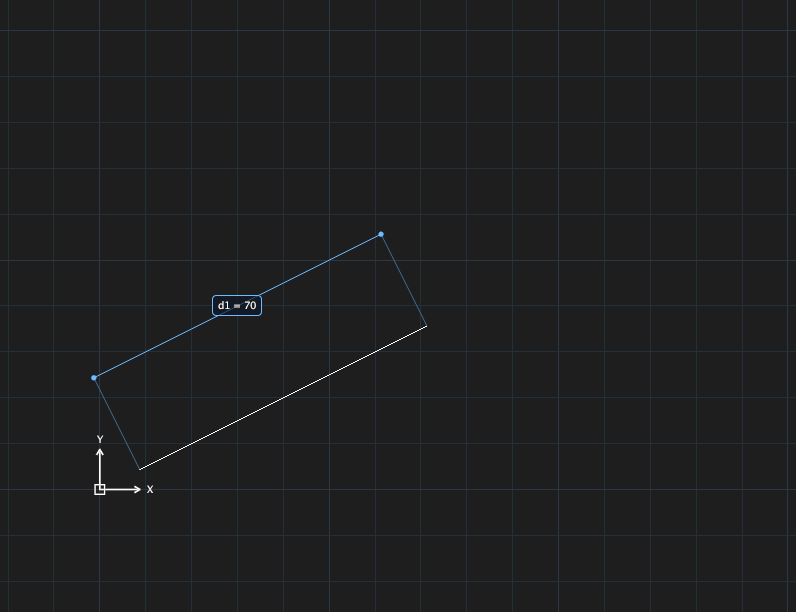
DCALIGNED with value 70: the sloped line is 70 long along its own direction.DCANGULAR
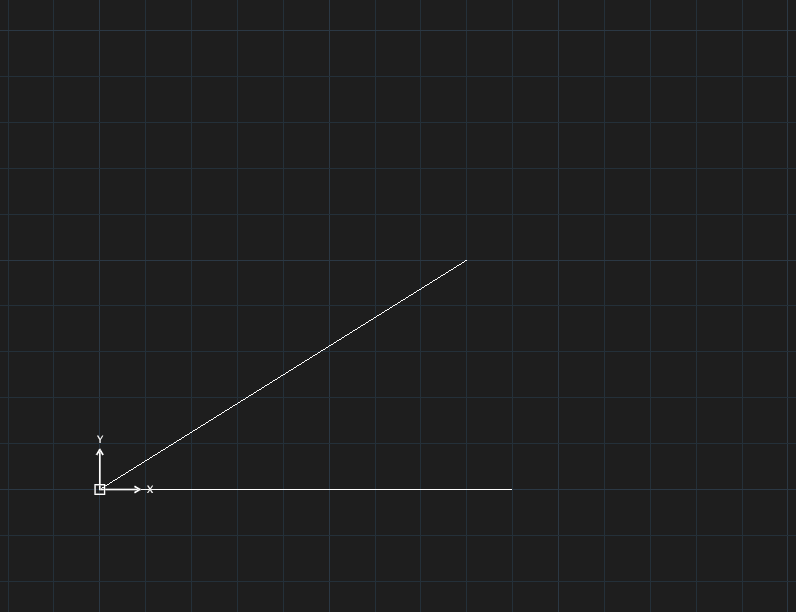
DCANGULAR value 45: the angle between the two lines is ang1 = 45°.DCANGULAR:Select first line or arc [3Points]:, thenSelect second line:, click the arc position, type the value.
DCRADIUS, DCDIAMETER and DCCONVERT
Before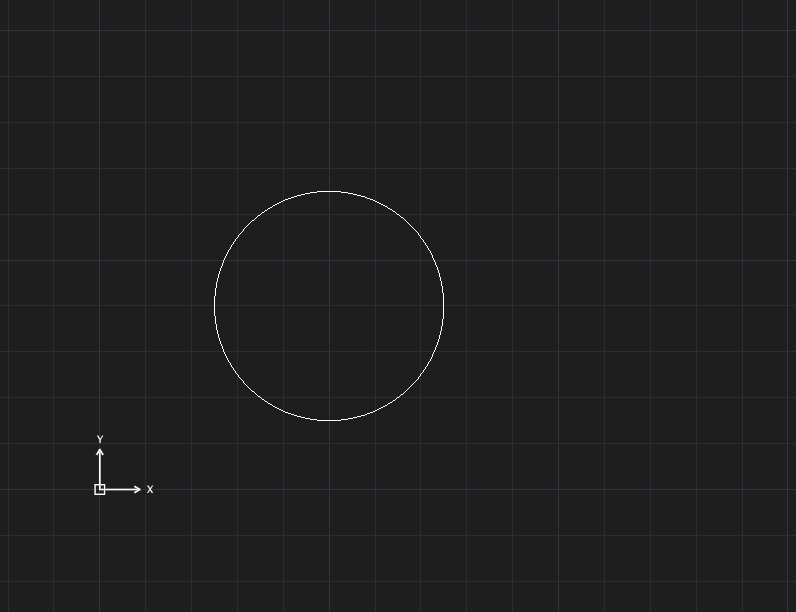
→
After
DIMRADIUS, select it and run DCCONVERT (DCCONVERT: 1 dimension(s) converted to dimensional constraints.). The default name is rad1.
DIMDIAMETER then DCCONVERT (name dia1).Create the constraint directly with DCRADIUS (or DCDIAMETER):
DCRADIUS:Select a circle or arc:— click the circle / arc.Specify dimension line location:— click where the dimension line goes.Enter dimension text, expression or name=value [Reference] <20>:— type a value (for example25) or press Enter to keep the current measurement. The command line reportsRadius constraint rad1 = 25 applied.and the circle follows.
Use DCCONVERT when you already have ordinary dimensions (Figures 10.17, 10.18).