MCP for AI assistants
 Ribbon: Manage ▸ Applications ▸ MCP ServerCommand:
MCPSERVERAlias: -MCPSERVER
MCP (Model Context Protocol) is the standard that lets AI assistants such as Claude Code, Claude Desktop or Cursor work with an application. KufCad has a built-in MCP server: the AI reads the drawing, measures, checks standards and — if you allow it — draws and edits directly while you see the result on screen.
Turning the server on
Click Manage ▸ Applications ▸ MCP Server or type MCPSERVER:
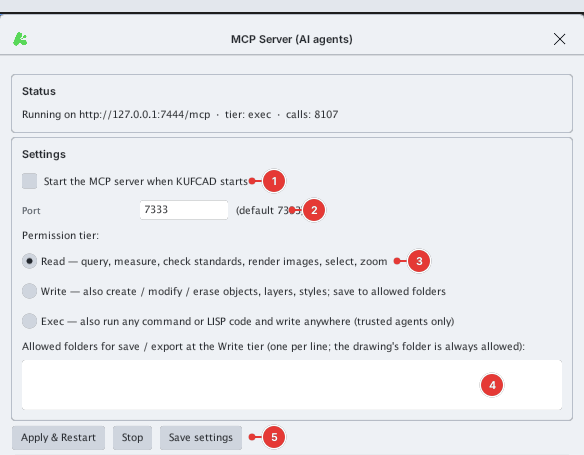
- Choose the Port (default 7333) and the permission tier (below).
- Click Apply & Restart to start it (or Stop to stop it, Save settings to keep the choices). Status says
Running on http://127.0.0.1:<port>/mcp. The server listens on your own machine only (127.0.0.1). - Tick Start the MCP server when KUFCAD starts to start it every time KufCad opens (off by default).
Connecting an AI assistant

Each time it starts, KufCad makes a fresh random access token. Click the Copy for … button for your software: the configuration (token included) is copied to the clipboard. Paste it into the MCP settings of Claude Code, Claude Desktop or Cursor as their guides describe, then restart the assistant. The Log box lists the AI's calls.
Permission tiers
| Tier | What the AI may do |
|---|---|
| Read (default) | Ask for drawing information, list layers / blocks / styles, query objects, measure, check standards, render images, select, zoom |
| Write | Adds: create / modify / erase objects, layers, styles, blocks; save and export PDF / SVG / PNG to the allowed folders (the drawing's folder is always allowed) |
| Exec | Adds: run any command and LISP code, write anywhere — only for an assistant you fully trust |
Text in a drawing (TEXT, attributes, layer names…) can hold planted "instructions" meant to fool the AI. KufCad tells the AI it is data, not instructions, but the permission tier is still the main protection: switch Exec on only when you really need it.
While the AI works
- Objects the AI just changed flash an orange outline for about a second; the command line shows
[MCP] <tool name> …. - Each AI write to the drawing is one undo step: Ctrl+Z or
Ureverts it. - While you are in the middle of a command the AI cannot write over it.
What the AI can do (tools)
| Task | Description |
|---|---|
| Overview | Drawing information: units, extents, object counts by type / layer, layouts |
| Tables | List layers, blocks, text styles, dim styles, linetypes, layouts, views… |
| Query | Filter objects by type, layer, colour, window, text; read all properties |
| Measure | Distance, length, area, bounding box, 2D mass properties |
| Standards check | Compare with a .dws / .dwg / .dxf / .dwt standards file; report only, no changes |
| Pictures | PNG pictures of the view or around objects |
| Draw / edit | Create lines, circles, polylines, text, hatches, dimensions…; move, copy, rotate, scale, mirror, offset, explode, join, arrays… |
| Layers and styles | Create / edit layers, text styles, dim styles, blocks; purge |
| Files | Undo / redo, save, save as, export PDF / SVG / PNG, open drawings |
| Commands and LISP | (Exec tier) type any command as you would; run KufLISP code |
Four ready-made prompts are included: check against a standard, summarise the drawing, draw from a description, clean up the drawing.
Headless mode
KufCad can also run MCP with no window to process drawings in bulk or on a server: run the kufcad program with the argument mcp and a drawing file name. Only Read by default; this mode cannot run the built-in interactive commands (LINE, TRIM…) — the AI uses the create / modify tools and LISP instead.
Full details (ports, access token, per-application setup) are in the docs/mcp.md file shipped with KufCad.