Opening a drawing (OPEN)
Menu: K ▸ Open…QAT: OpenCommand: OPENTabs: the ☰ button
KufCad opens DWG and DXF files. The file chooser belongs to the operating system; pick a file and click Open.
Typing the path on the command line (FILEDIA)
Set the FILEDIA variable to 0 so that every file command asks for the path on the command line instead of opening a dialog — handy for keyboard work or scripts.
- Type
FILEDIA, Enter, type0, Enter. - Type
OPEN, Enter. The prompt isEnter file name:. - Type the path, for example
/tmp/kuf_docs/plan.dwg(Windows:C:\Drawings\plan.dwg), Enter.
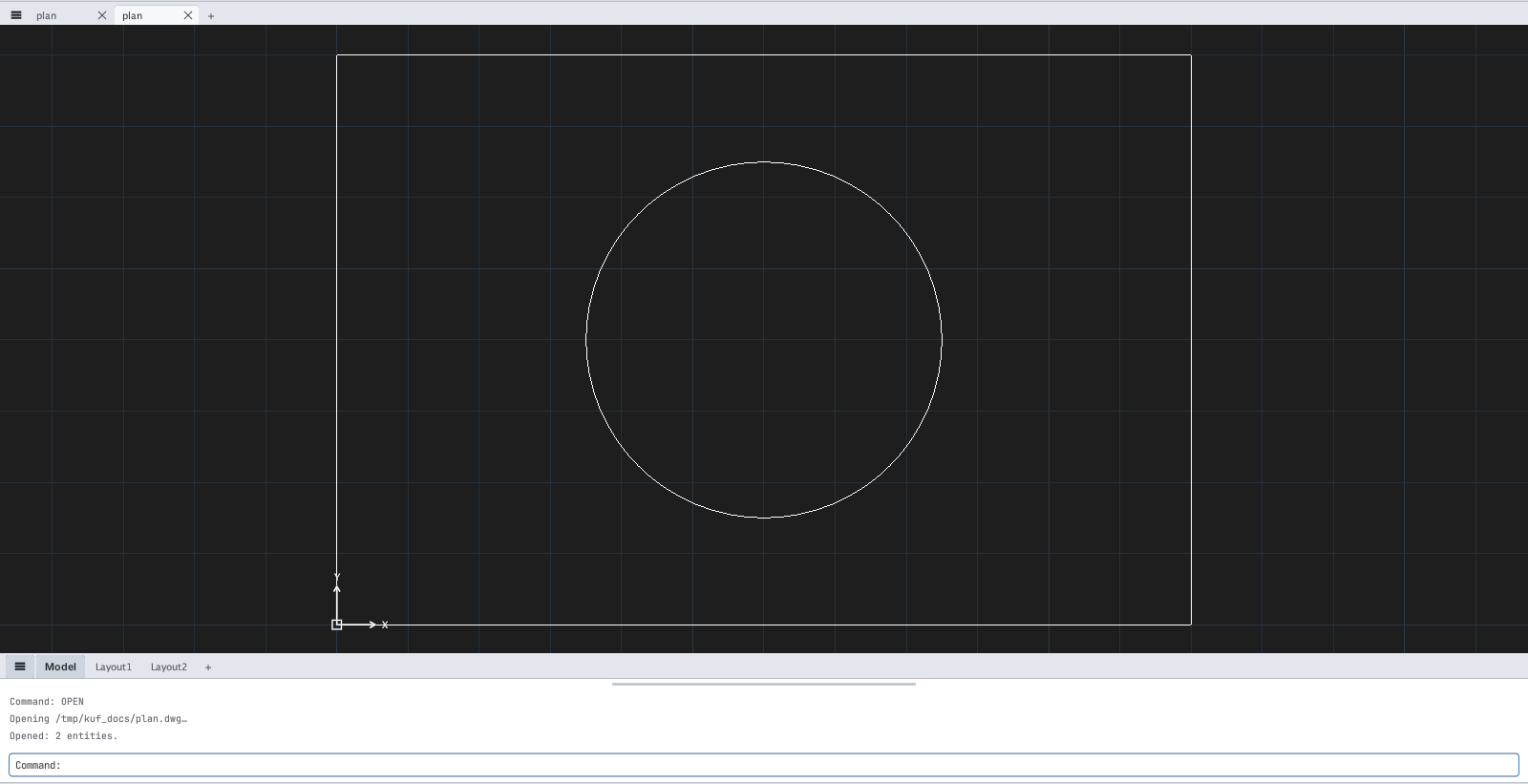
Opening … then Opened: 2 entities., and the drawing appears in a new tab named plan.If the file cannot be opened the command line reports it, for example ⚠ Open failed: IO error: No such file or directory. Set FILEDIA back to 1 to use the dialog again.
Other ways to open
- Recent files: K ▸ Open Recent lists the last 10 files opened / saved (hover a name to see its path); Clear List empties it.
- From the operating-system command line:
/Applications/KufCad.app/Contents/MacOS/kufcad drawing.dwg(Windows:KUFCAD.exe drawing.dwg). - Large drawings show a progress bar while loading; the interface stays visible.
Each open puts the drawing in a new tab; only a blank, untouched drawing is replaced by the file just opened. Opening a file that is already open creates a second tab of it.
More on several drawings: Several drawings.