Exporting
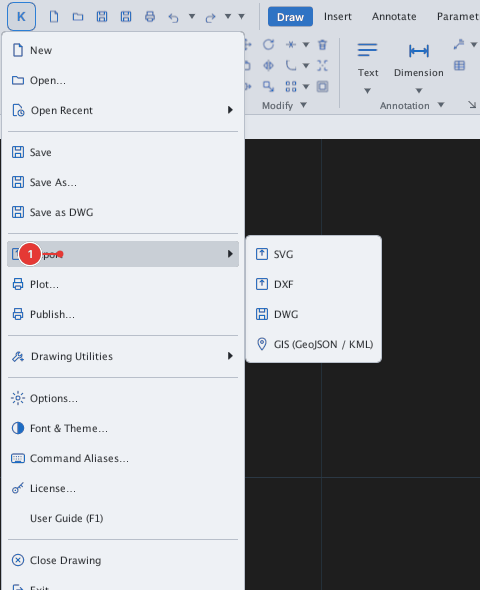
Menu: K ▸ Export / Plot…Command: EXPORTSVG, PNGOUT, JPGOUT, BMPOUT, TIFOUT, PLOT, SAVEAS
| To get | Use |
|---|---|
| SVG (vector) | EXPORTSVG (or K ▸ Export ▸ SVG) |
| PNG / JPG / BMP / TIFF | PNGOUT, JPGOUT, BMPOUT, TIFOUT |
PLOT with the PDF (vector file) device | |
| DXF / DWG | K ▸ Export ▸ DXF / DWG, or SAVEAS |
| GIS | K ▸ Export ▸ GIS — see the GIS chapter |
SVG and images
- Zoom to the area you want (an image takes exactly the current view; if objects are selected only those are exported).
- Type the command, for example
PNGOUT; a save dialog appears, or withFILEDIA= 0 type a path. - The command line reports the size and where it was saved.

EXPORTSVG then PNGOUT with typed paths; PNGOUT writes PNGOUT: 1600×956 px → /tmp/kuf_docs/plan.png (the size of the canvas frame).When done, the command line reports the file path, for example EXPORTSVG: /tmp/kuf_docs/plan.svg.
EXPORT picks the format from the file extension you give: .pdf → PDF, .dxf → DXF, .dwg → DWG, .svg (or no extension) → SVG. For PNG / JPG / BMP / TIFF images use PNGOUT, JPGOUT, BMPOUT, TIFOUT. For example EXPORT then plan.pdf; the command line reports EXPORT: …/plan.pdf.
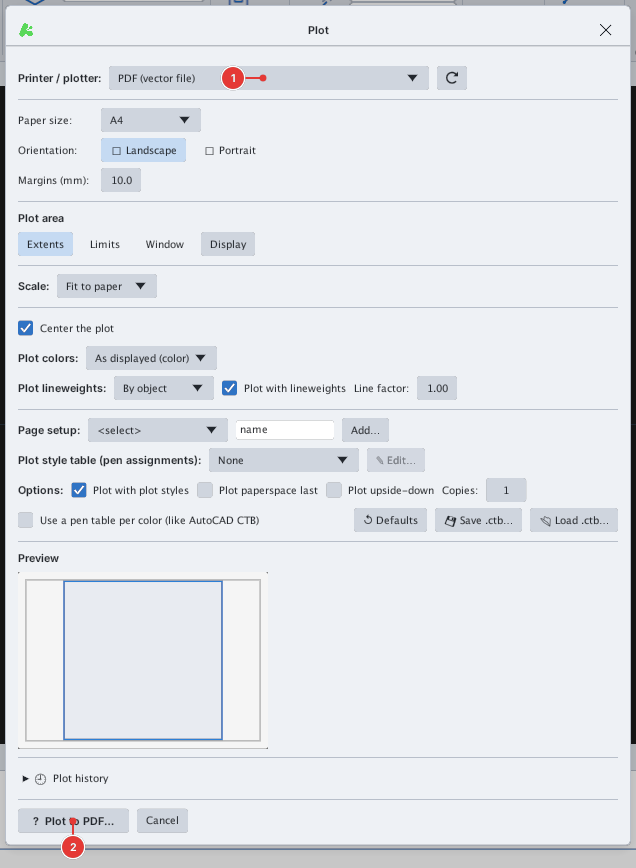
PDF is produced through the Plot dialog (chapter 11 describes paper size, plot area, scale and plot styles in full).
- K ▸ Plot… (or the Plot button on the QAT).
- In Printer / plotter [[1]] choose PDF (vector file).
- Choose the paper size, plot area and scale; click Plot to PDF… [[2]] and pick where to save.